💳 Stripe Online Payment Setup
Give your customers a faster and more convenient way to pay online.
With Stripe Online Payment, you can accept payments directly from your Printalogue checkout page using credit cards, debit cards, Apple Pay, Google Pay, and more — all in a secure and trusted environment.
Integrating Stripe with PriceCal helps you:
-
Automatically collect payments for confirmed orders
-
Reduce manual billing and reconciliation work
-
Receive instant payment notifications in your dashboard
You only need to connect your Stripe account and paste your API keys into the PriceCal settings — setup is simple and only takes a few minutes.
Setup Process
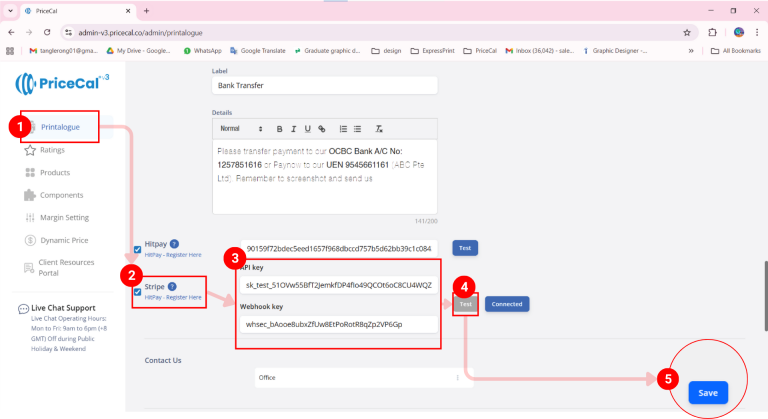
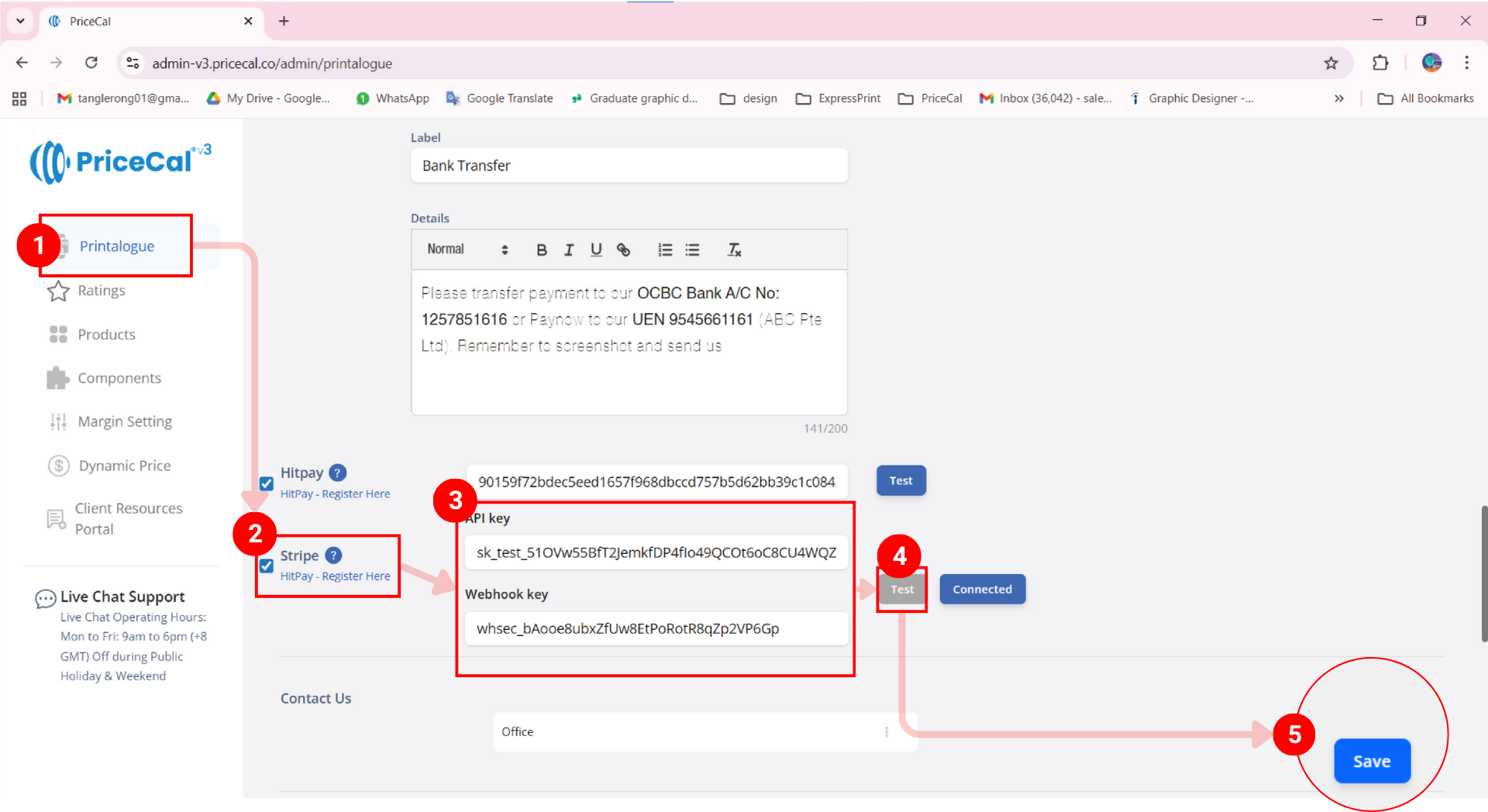
- Go to PriceCal Dashboard → Payment Settings
-
Tick “Stripe” payment method
-
See two required fields: enter the Secret key and Webhook key obtained from the Stripe dashboard
- After paste the keys, Click “Test” to verify the connection
(Note [a]: if your business is not yet verified, the API test may succeed, but it will not work in your Printalogue) -
Scroll down and click Save
To register Stripe account and get the API key and Wehbook key:
-
Complete business verification process (may need a few days)
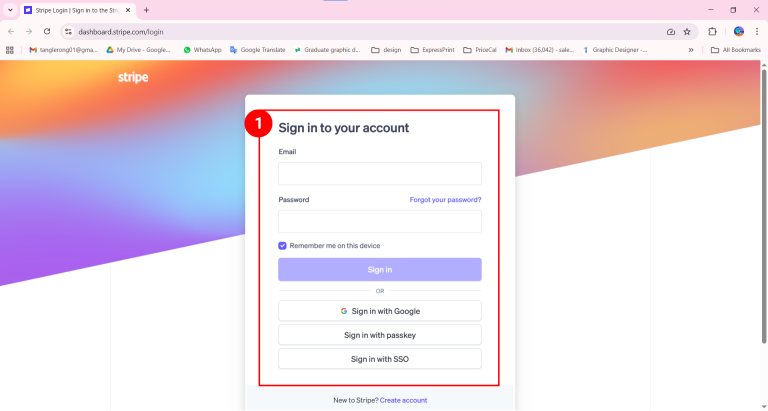
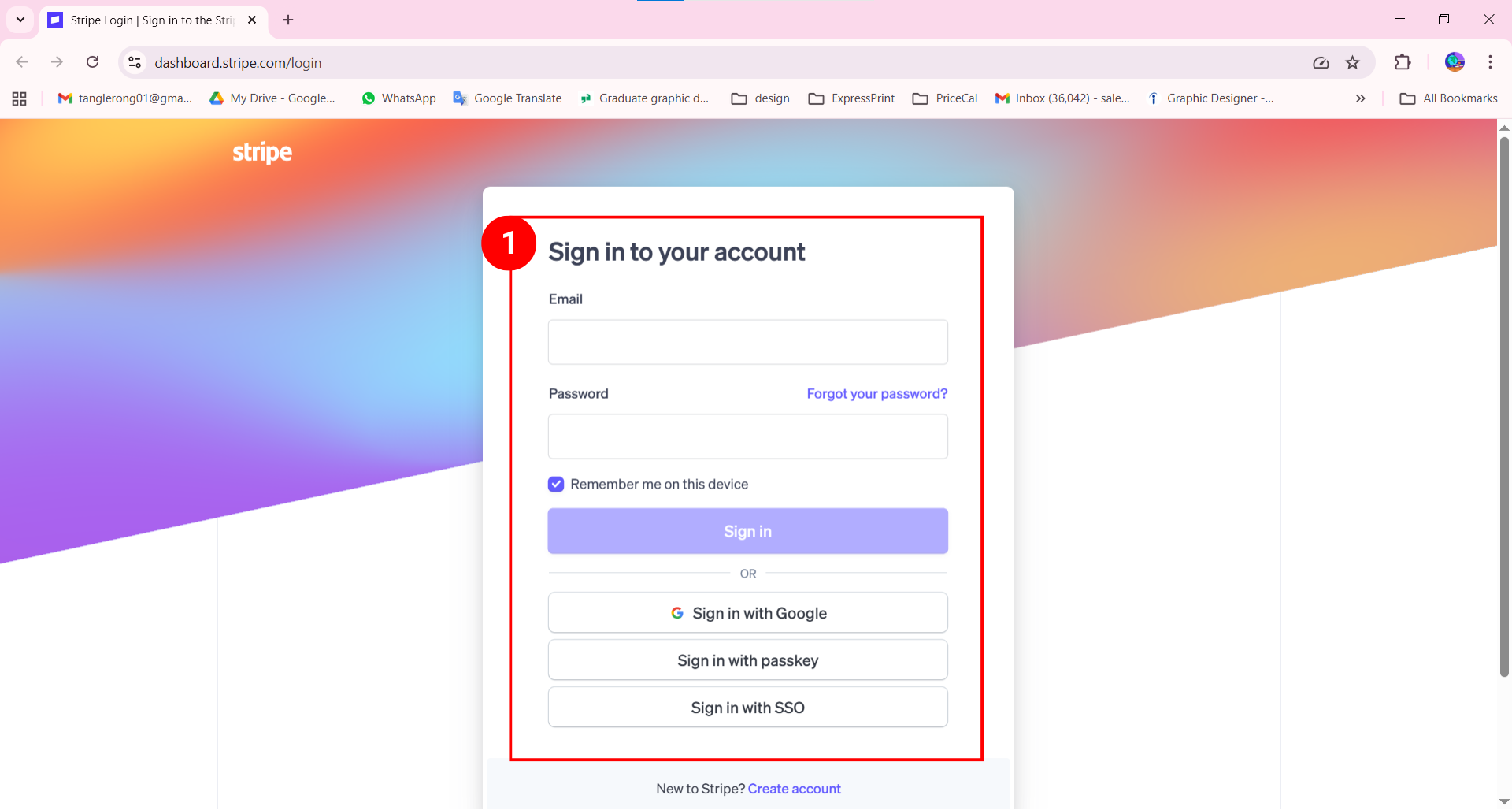
Step 1: Get Secret Key from Stripe
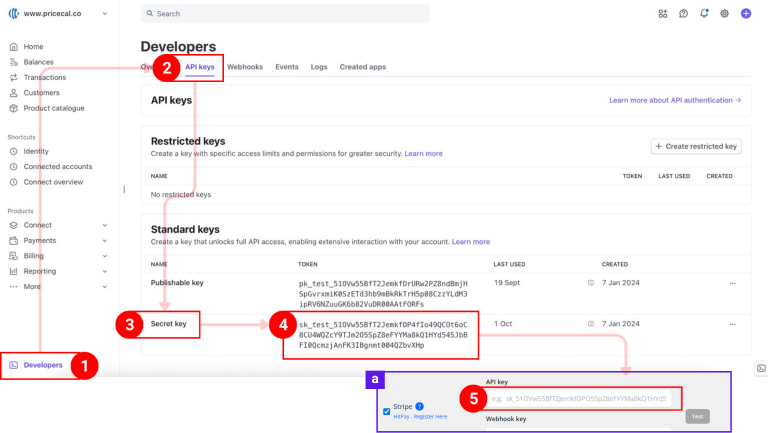
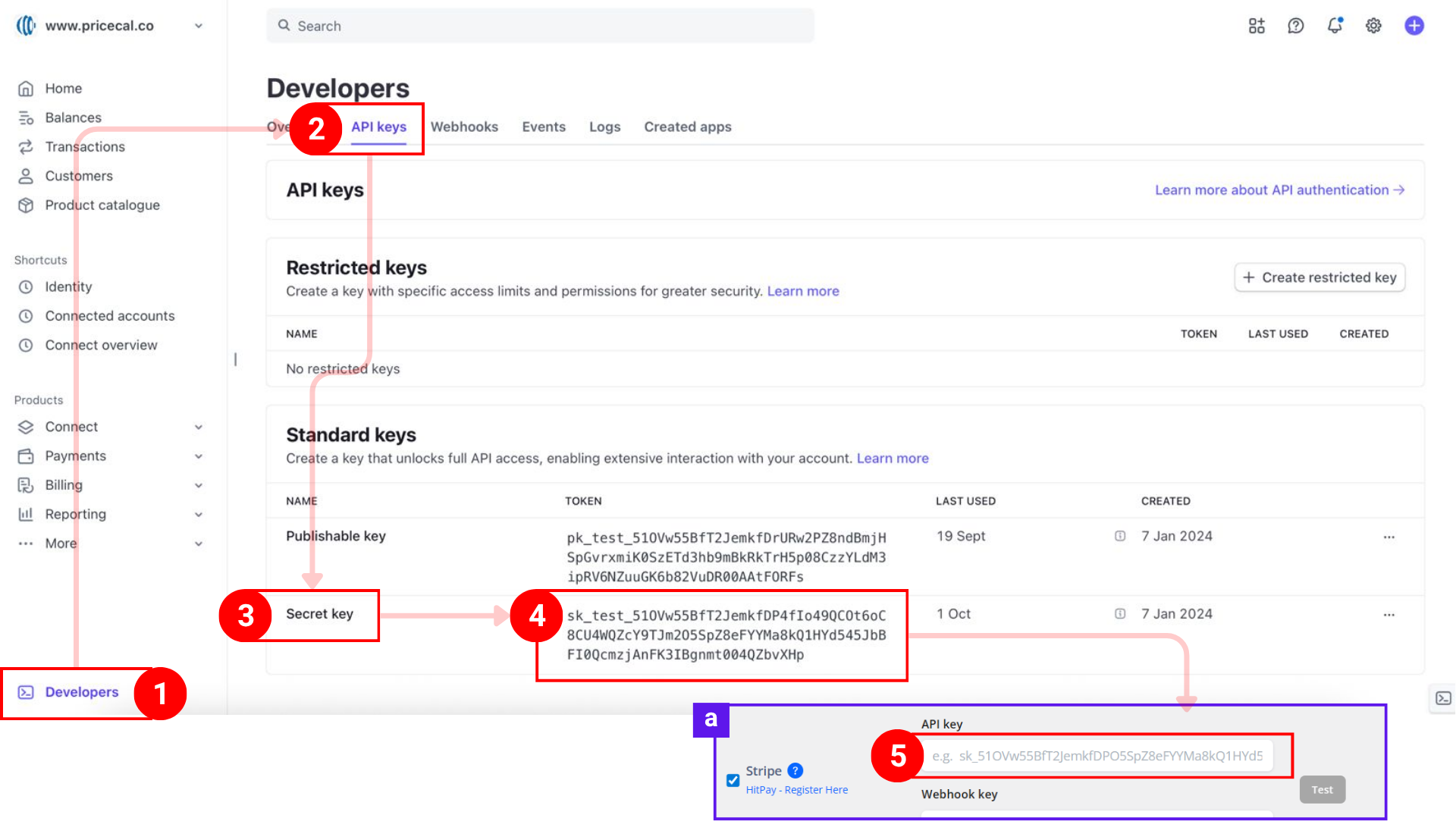
- After login, go to “Developers” page
-
Go to “API keys” tab
- Find/Create a secret key
-
Copy the key
- Paste to the Stripe section in PriceCal dashboard. (Note [a]: Printalogue tab in the PriceCal dashboard)
Step 2: Get Webhook Key from Stripe
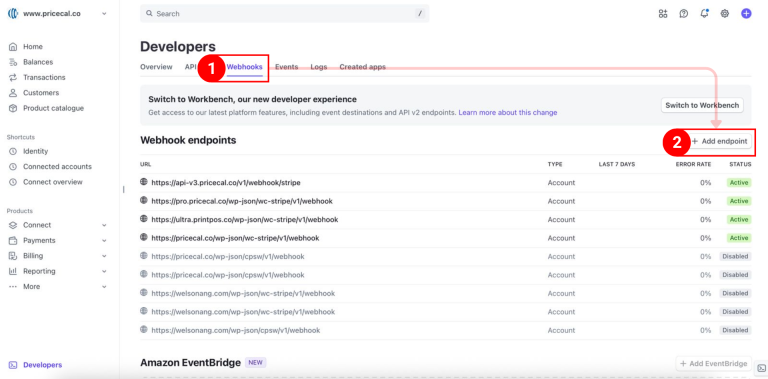
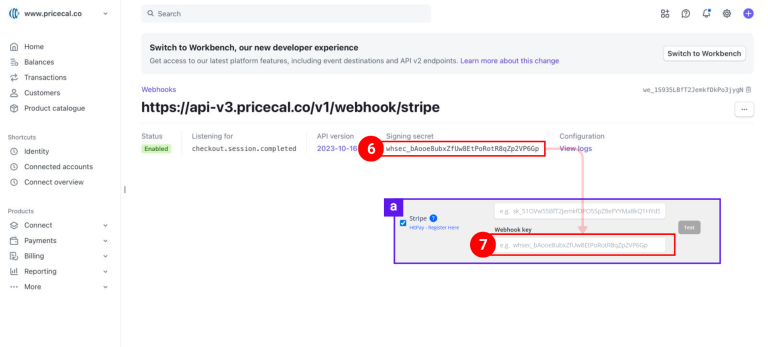
- go to “Webhook” tab
-
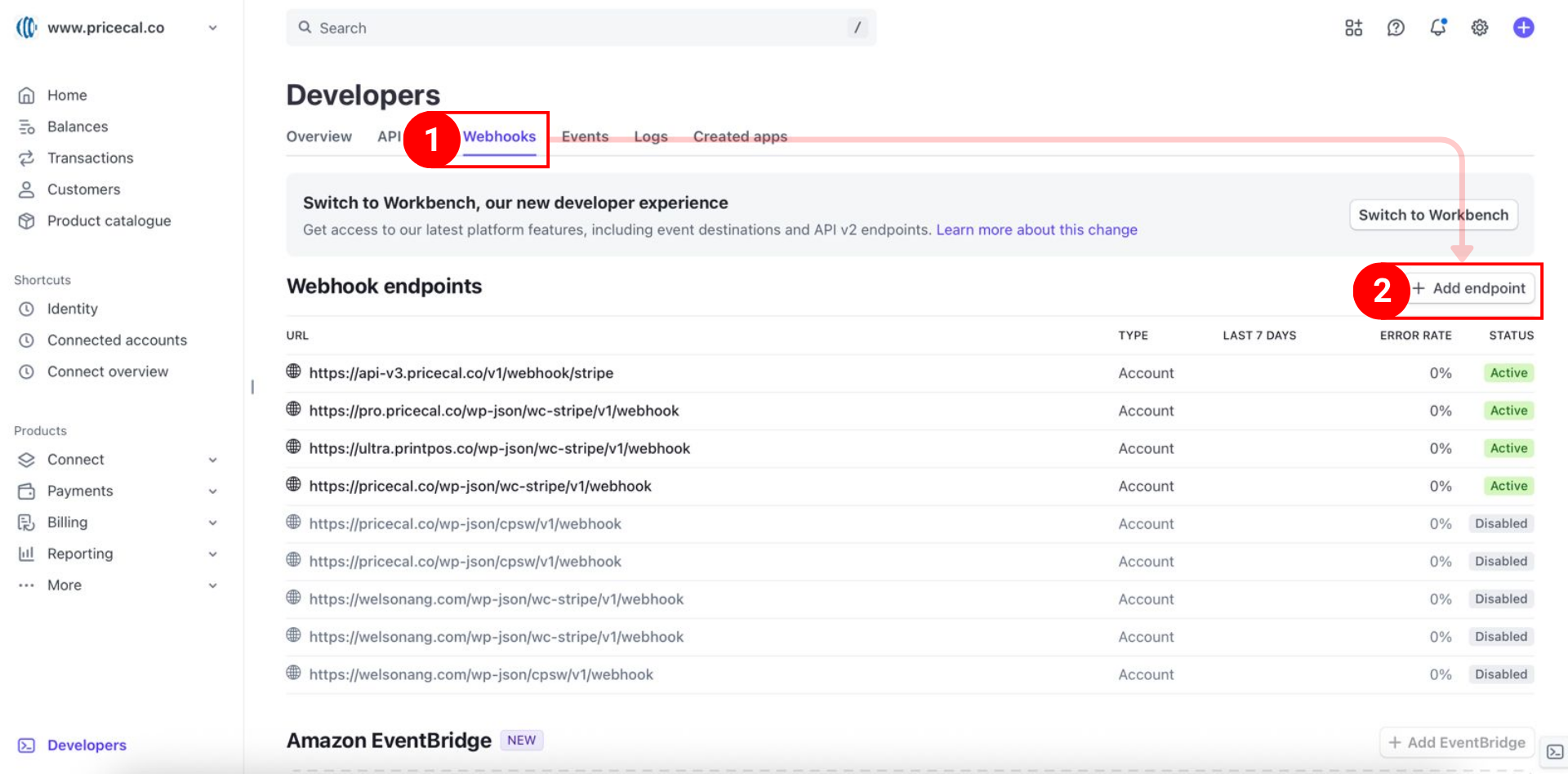
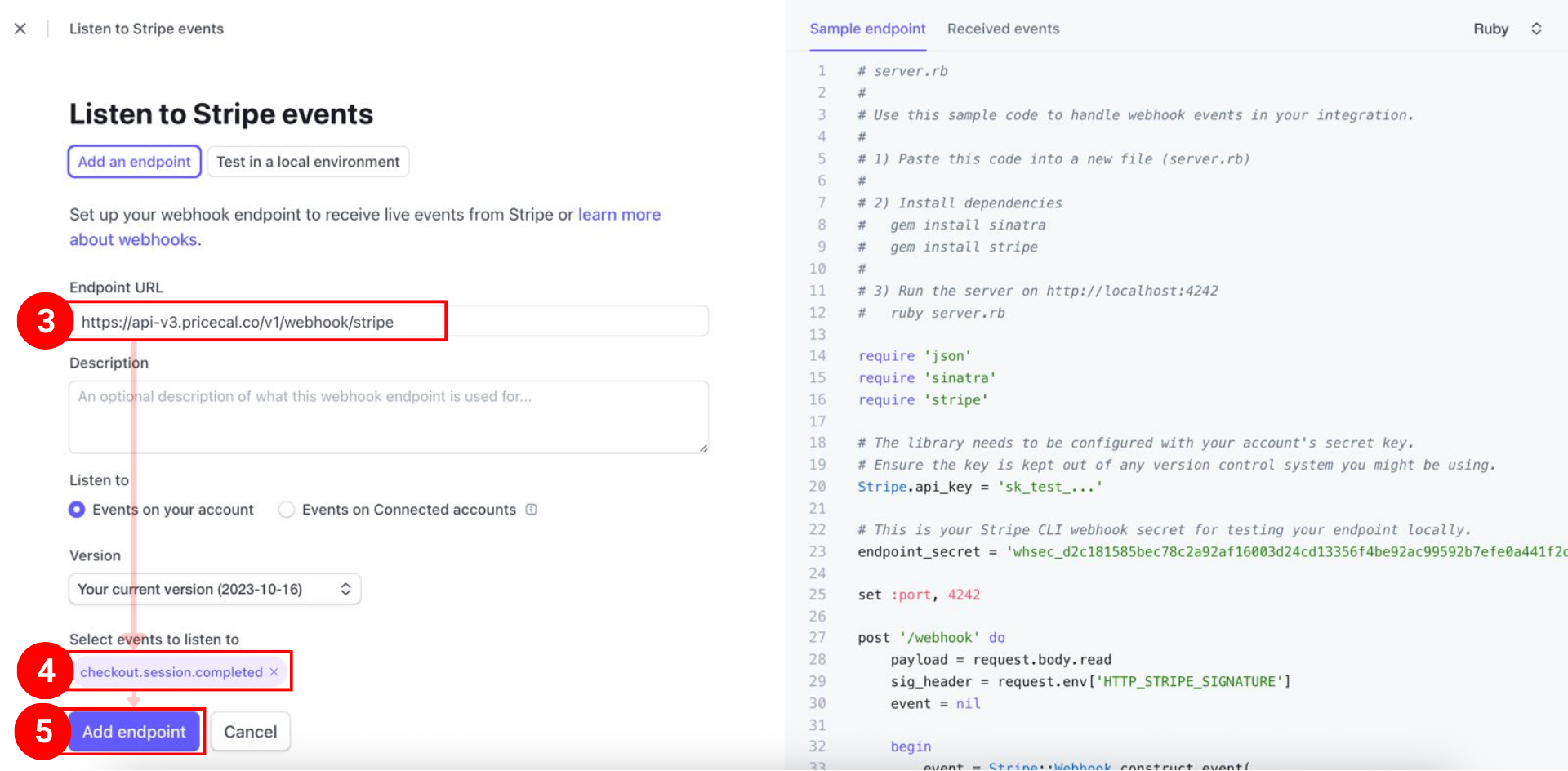
Add endpoint, this will redirect you to “Listen for Stripe Events.”
- Enter “https://api-v3.pricecal.co/v1/webhook/stripe” into Endpoint URL
-
Add “checkout.session.completed” in “Select events to listen to” field.
-
click “Add endpoint”
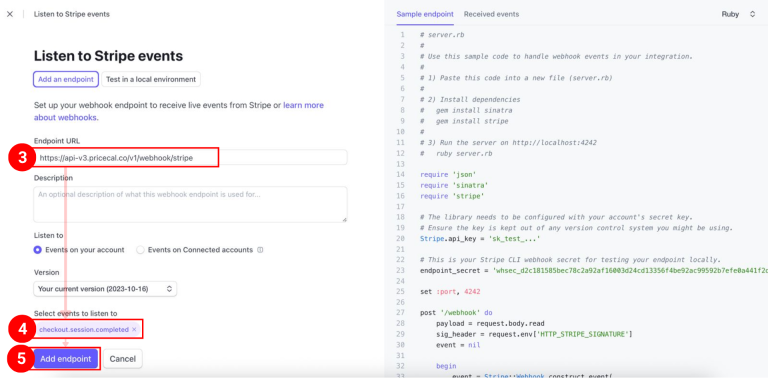
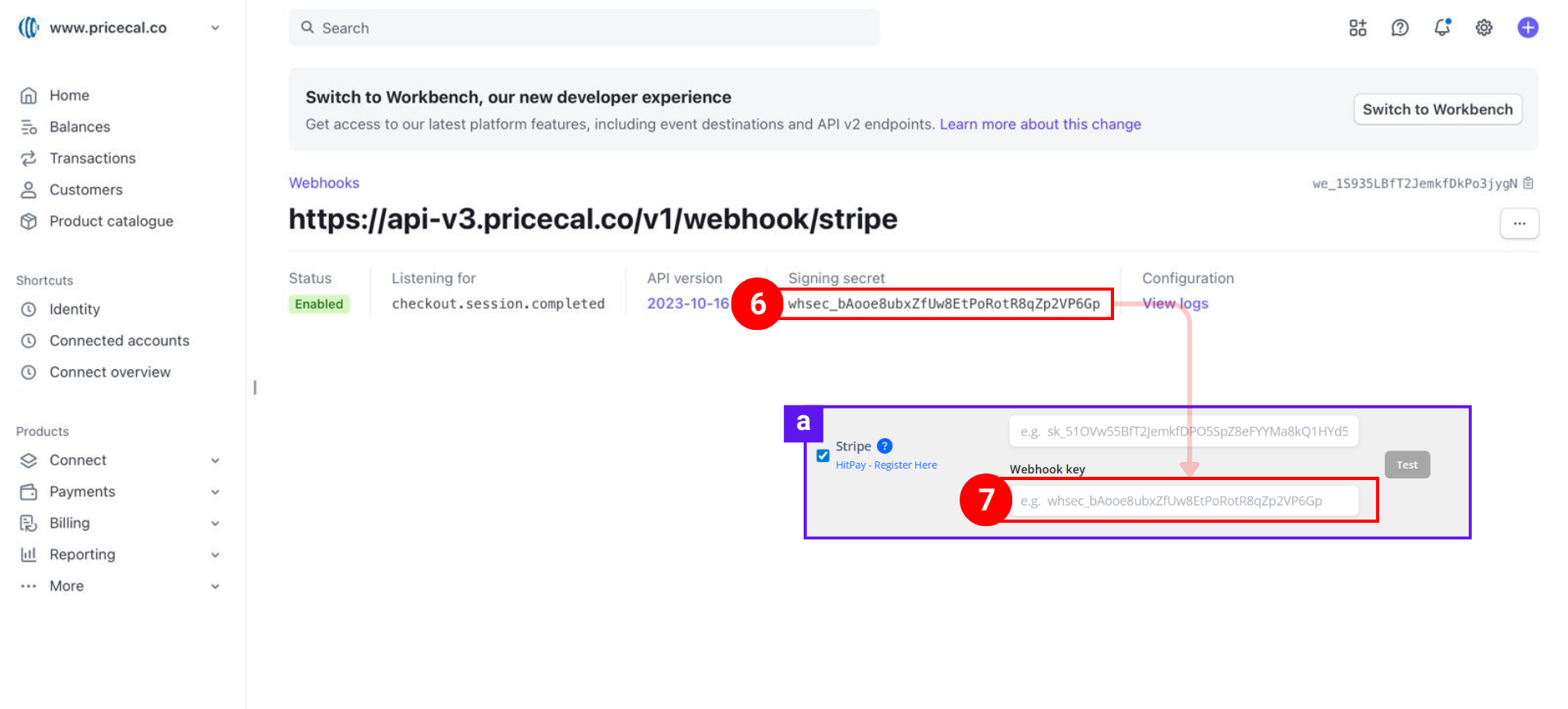
- Go to your newly creaetd webhook and copy Signing Secret
-
Paste to the Stripe section in PriceCal dashboard. (Note [a]: Printalogue tab in the PriceCal dashboard)
After Setup
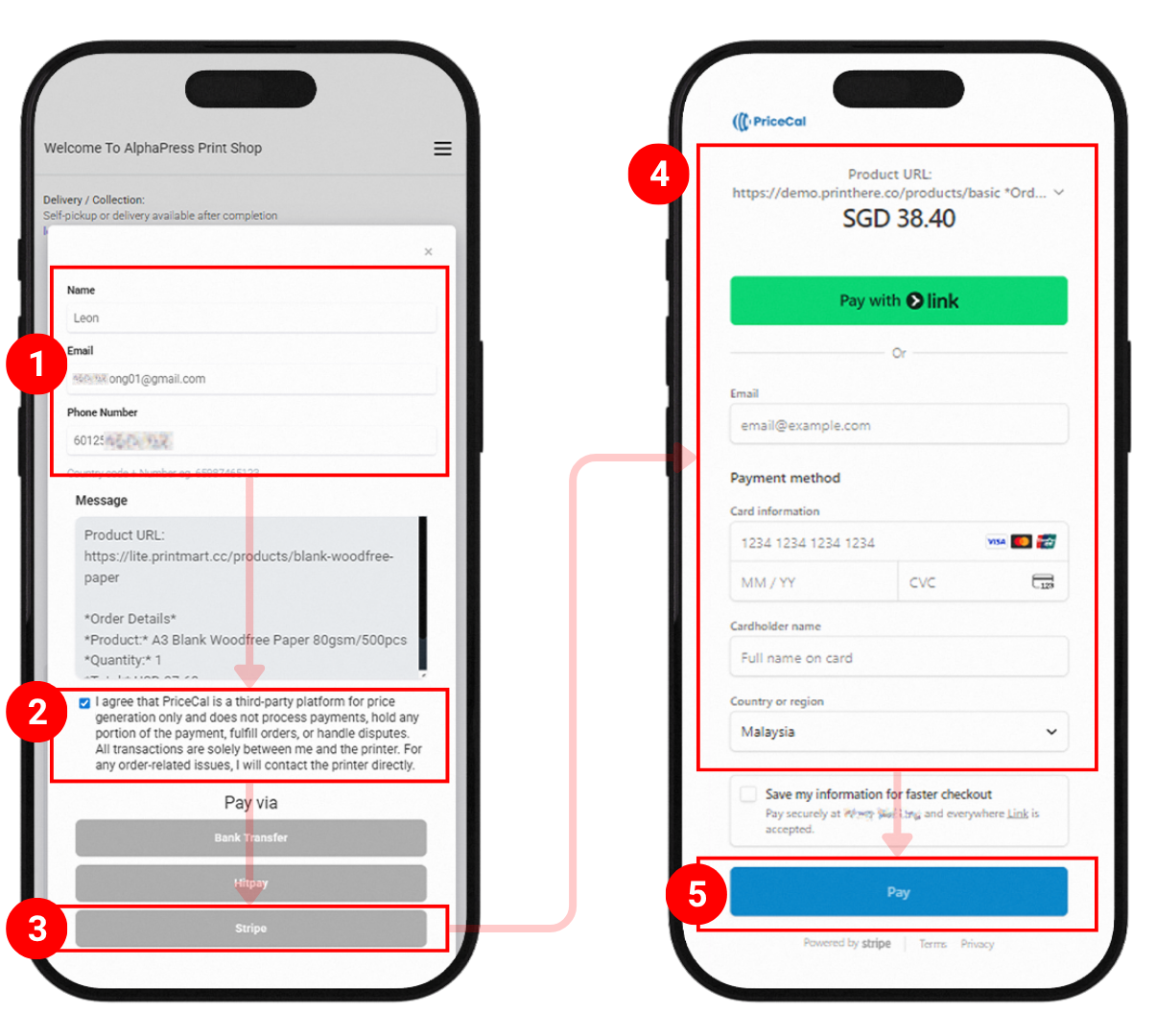
When a customer visit your Printalogue and ready to order, they can
- fill in required details
- reviews and accepts system policy
- click “Stripe” payment
- Fill in the payment information
- click “Pay” to complete payment
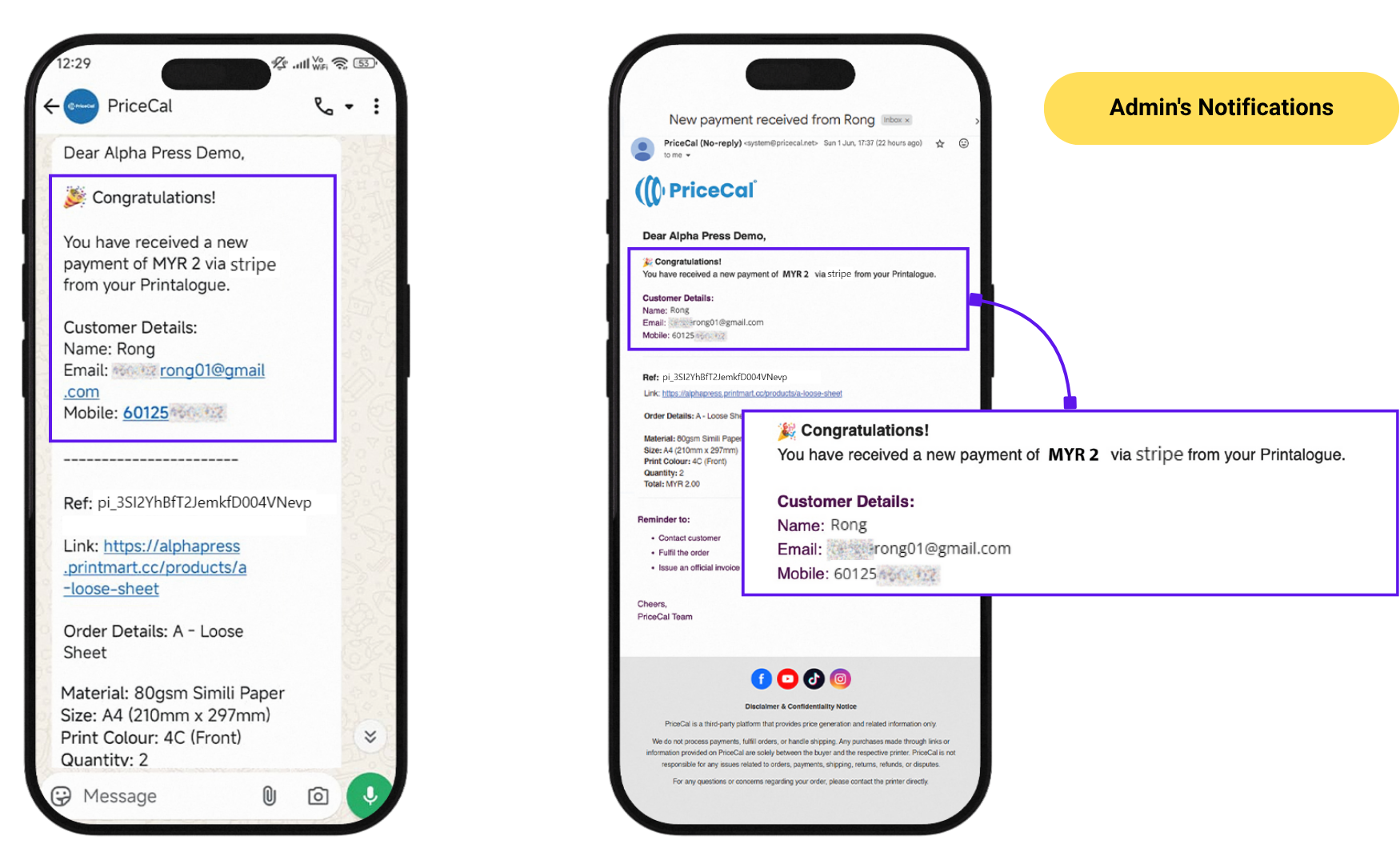
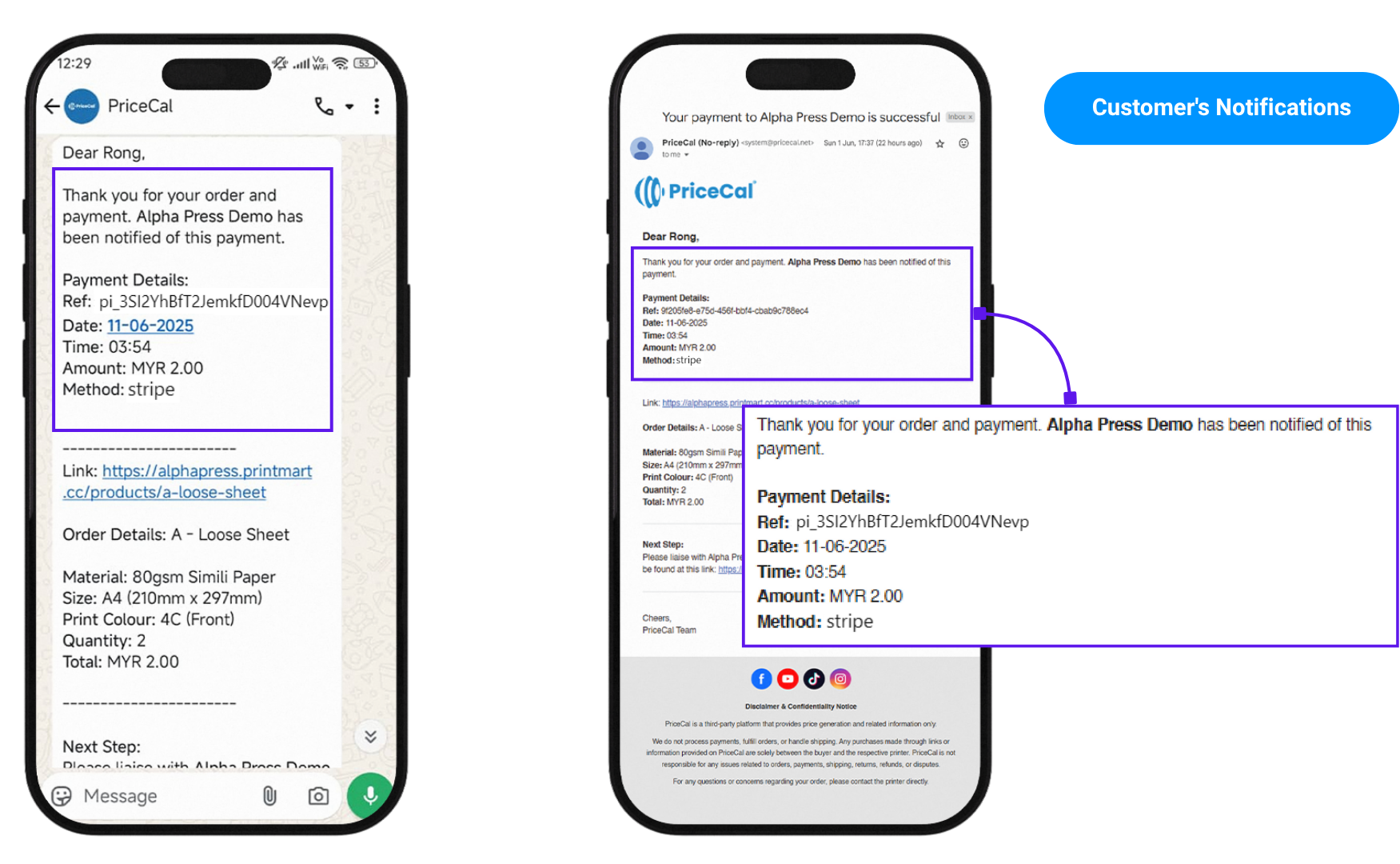
Upon successful payment, both Admin and the customer will received notification via email and WhatsApp (if valid), containing the order details.
Example of Customer’s notifications
Example of Admin’s notifications