
🔢 Setting Up Quantity (Excluding SC-Item)
For most print products — such as business cards, flyers, banners, and booklets — SC-Area, SC-Basic, SC-Booklet, SC-Packaging, SC-Sheet and CSV product quantity plays a major role in determining print cost and discounts.
In PriceCal, the Quantity Component helps you define flexible or preset quantity ranges that customers can select when ordering from your Printalogue.
🔹 What Is Quantity in PriceCal?
The Quantity Component defines how many pieces or sets a customer can order for a particular product.
It connects directly to the Printing Cost, Material, and Size components to generate accurate price calculations based on print volume.
💡 Tip: You can use this setup for all SC tools except SC-Item, which handles quantities differently due to its per-piece pricing logic.
🧭 Navigating to Quantity Setup
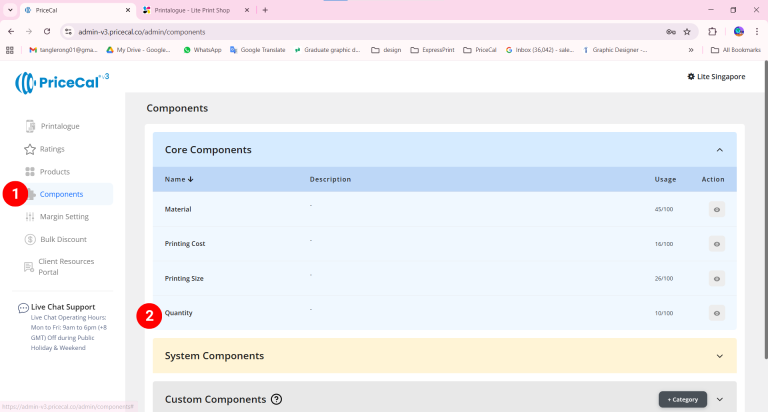
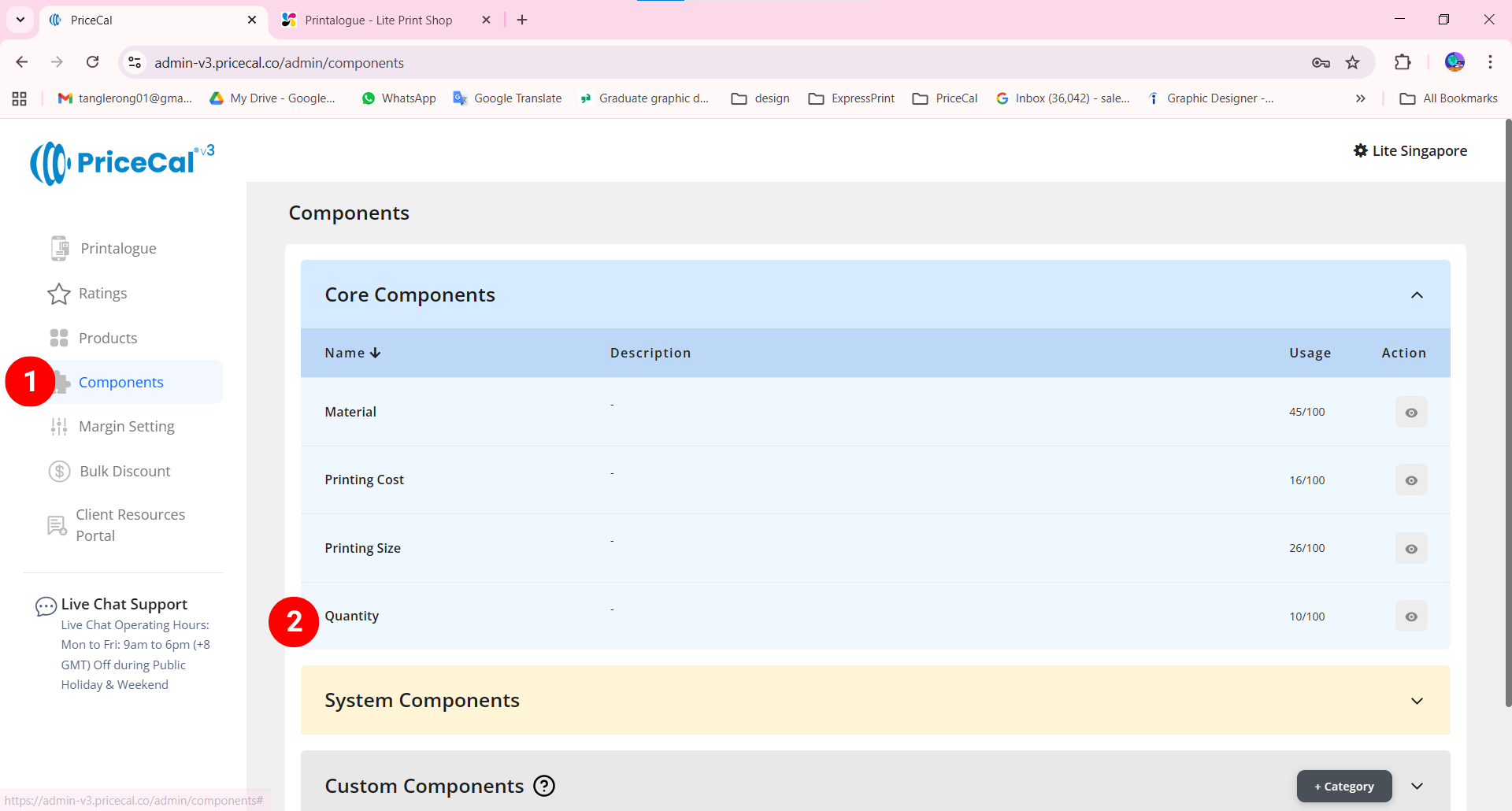
- Go to Component dashboard
- Click Quantity category
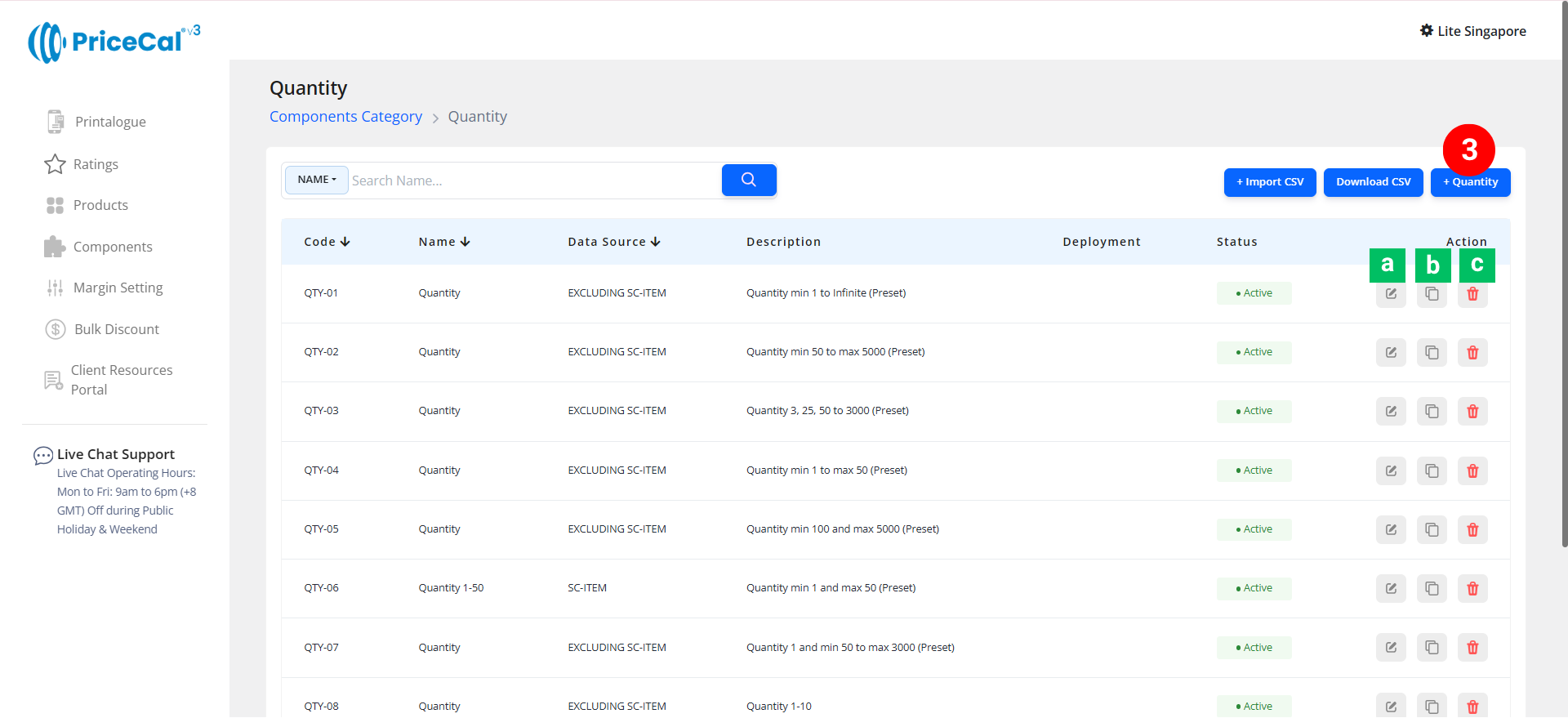
- Add Quantity
Edit [a]: modify existing components.
Duplicate [b]: clone a component setup to reuse and create new.
Delete [c]: remove unused component.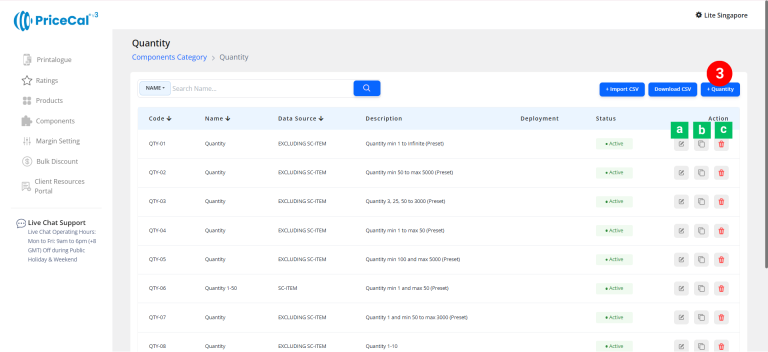
🧱 Create a Quantity Component (For SC-Booklet / SC-Sheet / SC-Area / SC-Packaging)
Step-by-Step
-
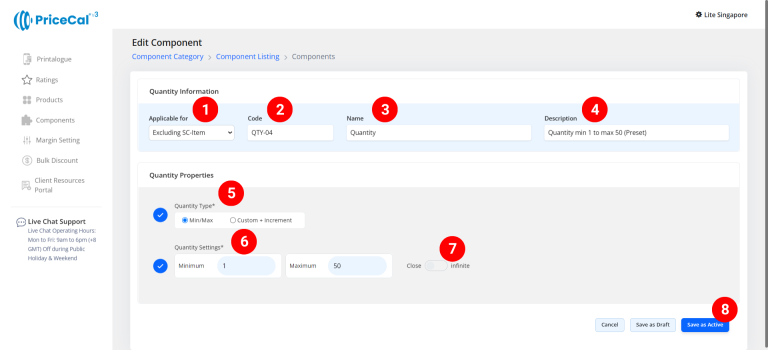
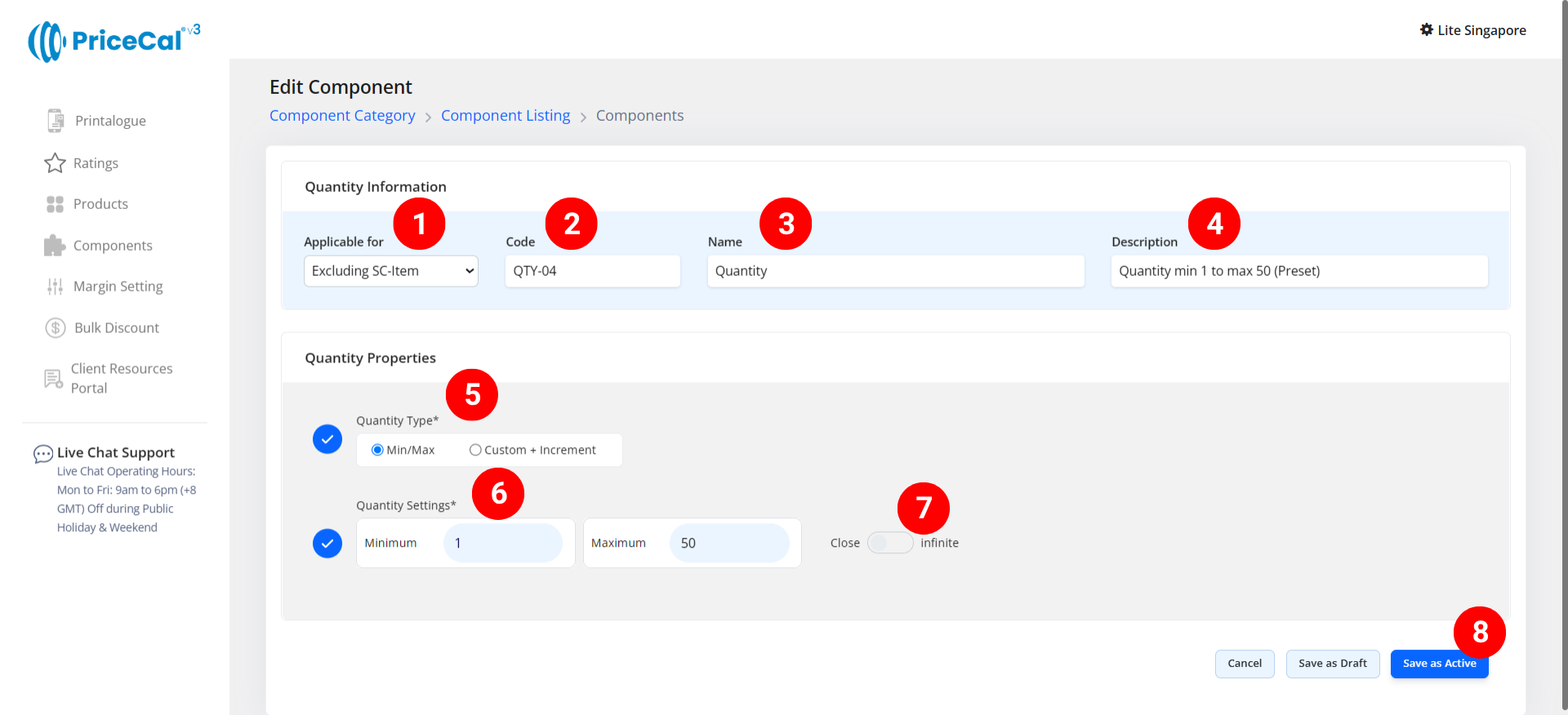
select “Excluding SC-Item”
-
Put a unique code (up to 8 units)
-
Enter the component name. e.g. Quantity
-
Enter the component description.
💡 Tips: Add a short note describing what quantity formula or limitation applies to this setup. Example:
“Quantity range (min 100 – max 5000)” and “Quantity with preset increments of 10” - Select the quantity type
– Min/Max: Customers can print any quantity within the minimum and maximum range you set.
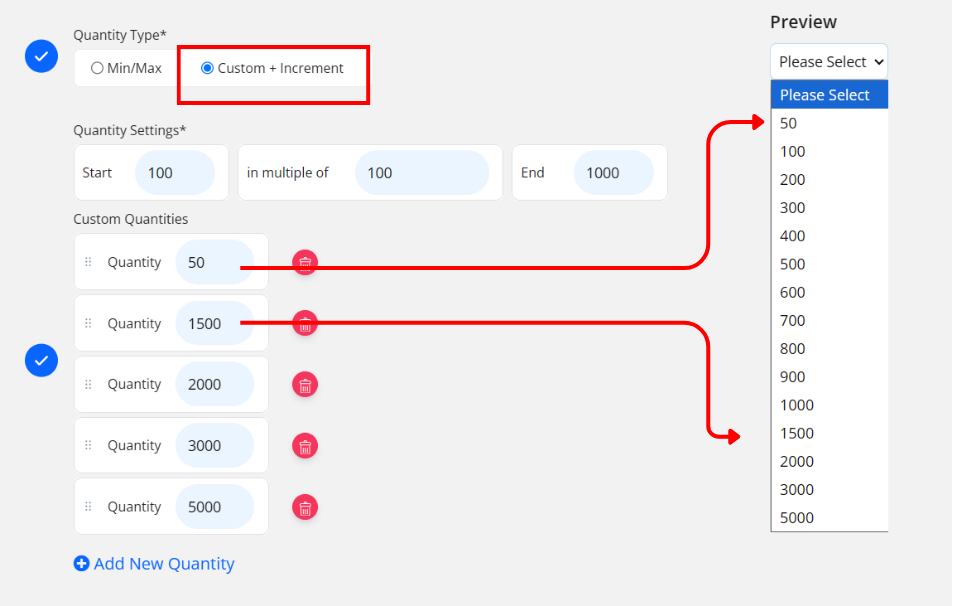
– Custom + Increment: System automatically generates preset quantities based on your settings.💡 Example Custom + Increment: Start from 100 pieces, increment by 100 , end until 1000→ customers see options: 100, 200, 300, until 1000. You can also add custom quantity number like 50, 1500, 2000, 3000 and 5000.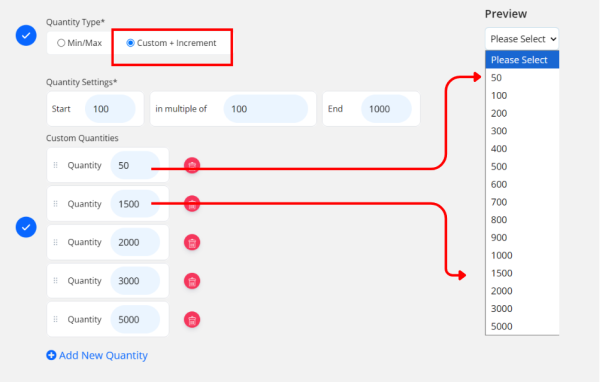
- Enter the min and max quantity range in the quantity setting
– Minimum: Smallest order allowed (e.g., 50)
– Maximum: Largest order allowed (e.g., 10,000) - (optional) Turn on “Infinite” if there’s no upper limit to how much a customer can order.
-
Click “Save as Active” to save your quantity setup.
⚙️ How PriceCal Uses Quantity in Calculation
When a customer selects a quantity on your Printalogue:
-
The system validates it within your defined min–max or preset steps.
-
Multiplies it by your Printing Cost per piece, sheet, or sqft.
-
Applies any Bulk Discount rule when creating product if enabled.
-
Instantly updates the price shown to the customer.
✅ This ensures fast, accurate, and transparent pricing for every print order.
🎯 Why This Setup Is Important
Configuring Quantity correctly ensures:
-
✅ Accurate per-quantity price calculation
-
✅ Smooth customer experience during product selection
-
✅ Compatibility with Dynamic Pricing & Bulk Discount functions
-
✅ Flexibility for both fixed and custom quantity models
Together with Material, Printing Cost, and Printing Size, the Quantity component completes the essential formula for accurate print pricing in PriceCal.
✅ Next: Configure Profit Margin or Bulk Discount Rules
After setting up your Quantity component, proceed to define Profit Margin or Bulk Discounts to make your pricing more responsive and competitive at higher volumes.