
💰 Setting Up Profit Margin Formula
The Profit Margin Formula in PriceCal allows you to automatically calculate selling prices based on your cost price and desired profit percentage.
By setting tiered cost levels, you can ensure consistent and flexible pricing across different product ranges — whether it’s business cards, large format prints, or digital print products.
🧭 Navigating to Profit Margin Setup
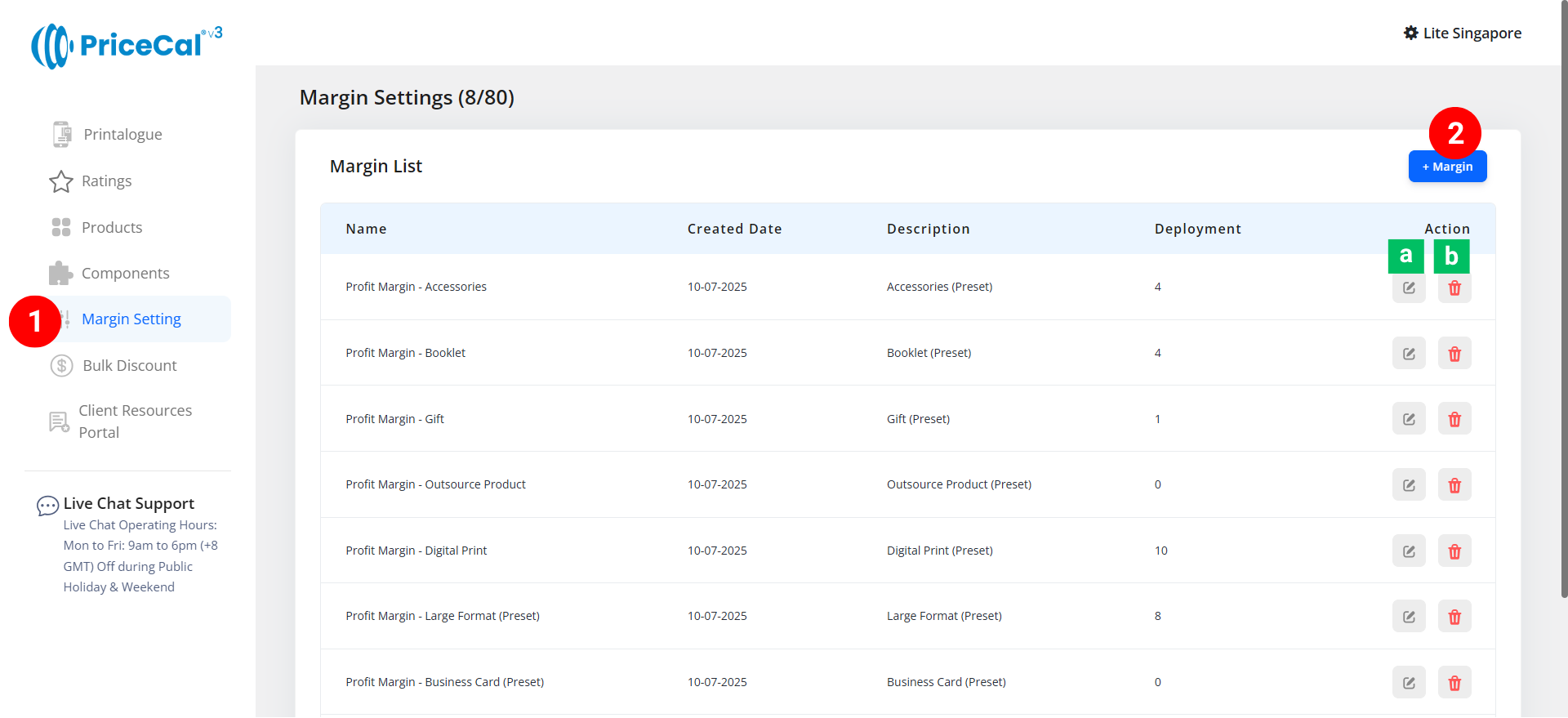
- Go to Margin Setting dashboard
- Add magin
Edit [a]: modify existing margin.
Delete [b]: remove unused margin.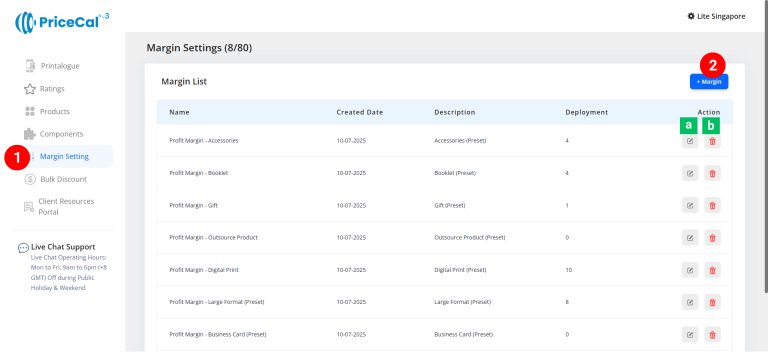
🧱 Create a Profit Margin setting
Step-by-Step
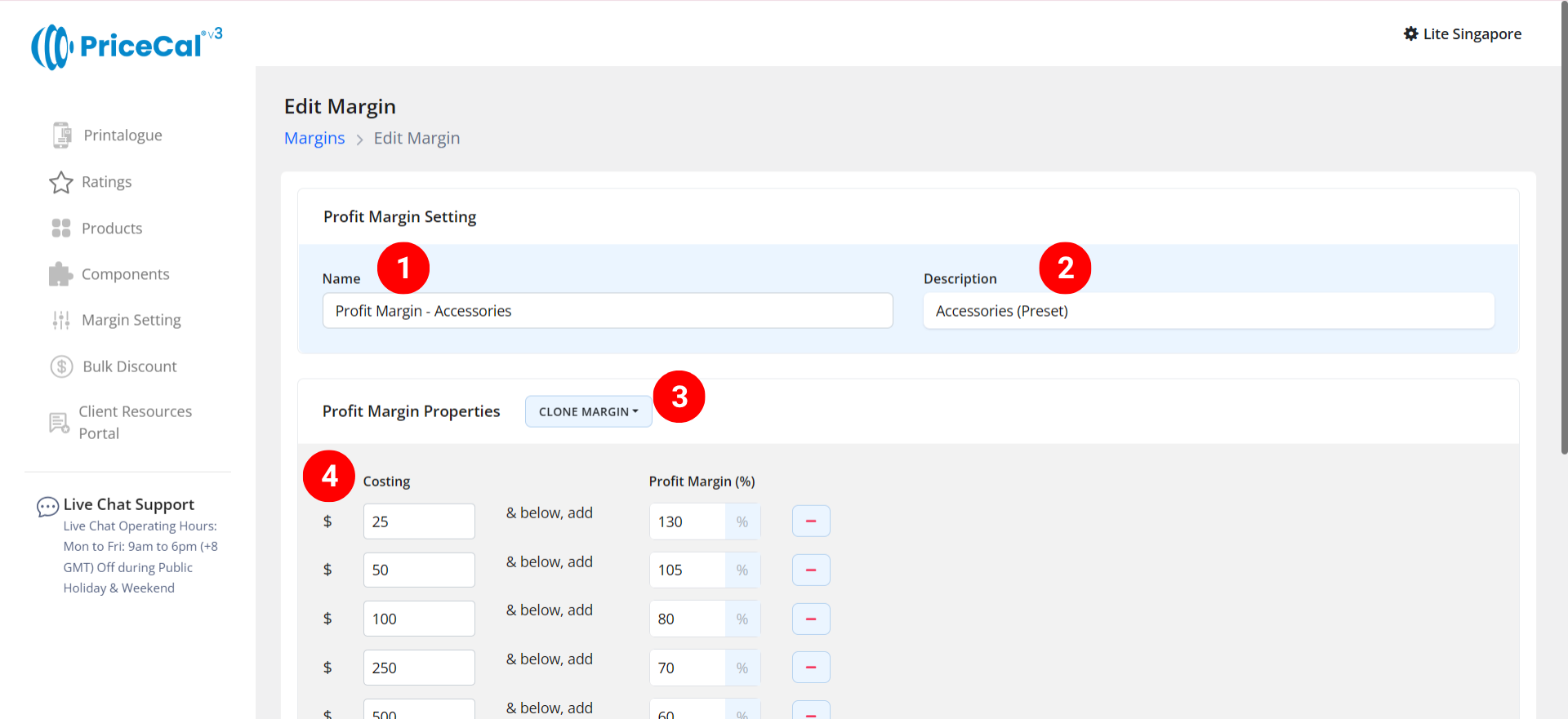
- Give your formula a clear and descriptive name. i.e. “Digital Print – Business Card”, “Large format product”
-
Add notes to help you identify what this formula is used for.💡Example,“For digital print products, 130% profit for low-cost items”, “Used for large format products (banners, foamboard, posters)”
-
(Optional) Click “Clone” to copy another profit margin table into this new setup.
This saves time — no need to re-enter all levels line by line. -
Set Costing and Profit Margin Levels
– Costing: The upper cost limit of this level
– Profit Margin (%): The percentage to add as profitCosting Profit Margin (%) Description $25 and below 130% (For low-cost jobs) $50 and below 105% (For mid-range jobs) Above $50 90% (For high-cost jobs) 🧮 Example Calculation
If your total print cost = $20, and according to your margin formula Level 1: Cost ≤ $25 → Profit Margin = 130%
Final selling price = $20 x 130% = $46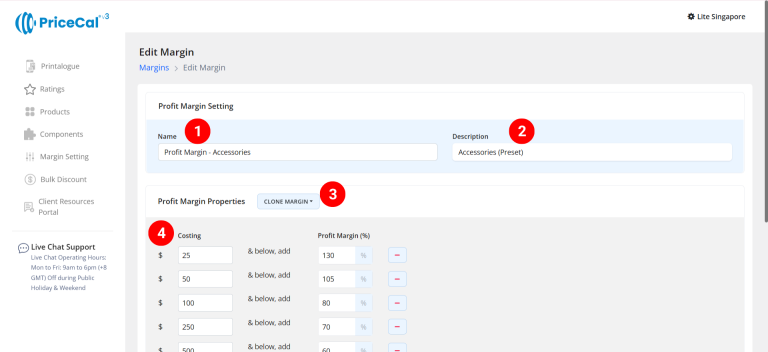
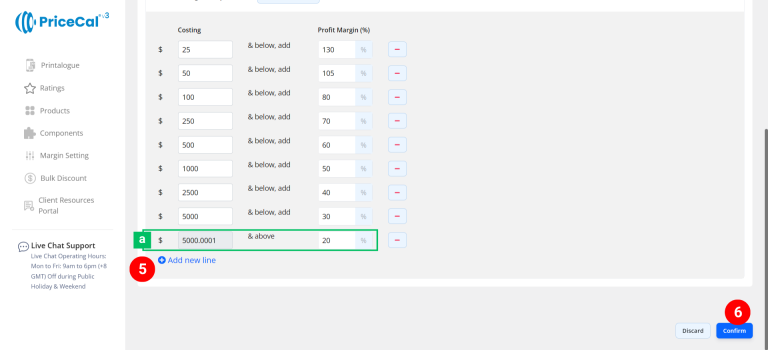
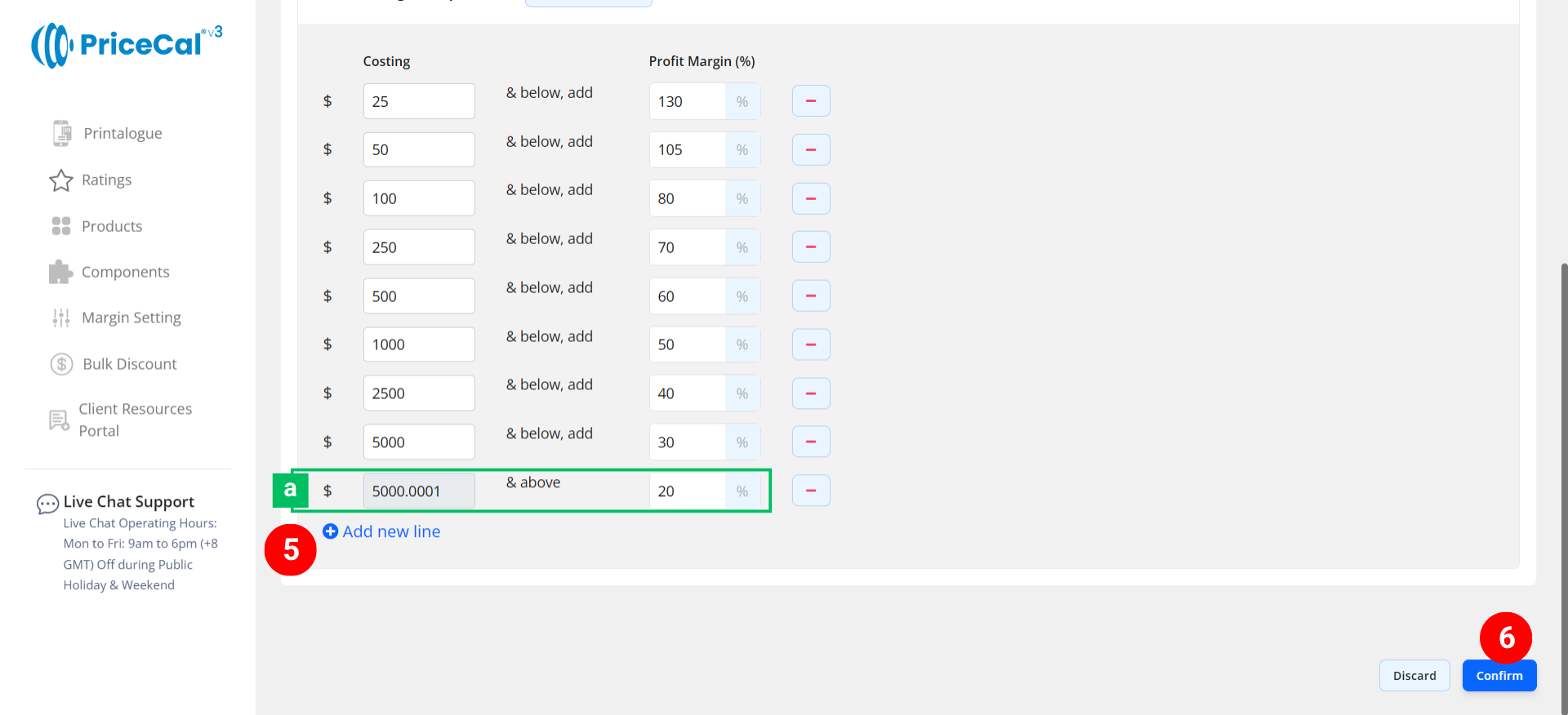
Note [a]: When you enter the last two costing levels, the final level will automatically become “Costing and above”.
This means that any cost beyond the last set range will use the same profit margin percentage automatically. - If you have more costing tiers, click “Add New Line” to add additional levels. You can define as many cost-profit combinations as needed
- Click “Save as Active”, your Profit Margin Formula is now active and ready to be applied across your print products.
💡 Best Practice Tips
-
The more tiers, the better. Adding more levels helps smooth out pricing transitions and avoids large percentage gaps between profit margins.
-
Customize per product. Profit margin is not only about markup — it’s about positioning value. Even if two products use the same material (e.g., document print vs. certificate print), you can apply different profit margins to reflect product value and market expectation.
-
Start simple. Begin with 3–4 cost tiers, then expand as your pricing structure grows.
-
Higher margin for low-cost products. Small jobs often need more handling time, so add more margin to cover effort.
-
Lower margin for high-value jobs. Keep pricing competitive for bulk or large-format jobs.
-
You can create separate margin formulas for different product categories (e.g., small format, large format, packaging).
🎯 Why Use Margin Formula
Setting a profit margin formula allows your business to:
-
✅ Maintain consistent profit across product types
-
✅ Save time recalculating prices manually
-
✅ Automatically adjust selling price when costs change
-
✅ Scale pricing logic across hundreds of print items