
⏱️ Setting Up Production Timeline
In the printing industry, customers often request faster turnaround times for urgent jobs.
PriceCal’s Production Timeline Component allows you to set up flexible production options such as Normal, Next Day, or Same Day — with automatic rush fee calculation based on percentage or fixed minimums.
🔹 What Is the Production Timeline Component?
The Production Timeline Component defines how quickly a job can be produced and how much extra (rush fee) should be charged for faster production.
This lets you manage standard and express services easily while maintaining profit control.
💡 The system calculates rush fees automatically — whichever is higher between the percentage and the minimum fee.
🧭 Navigating to Production Timeline Setup
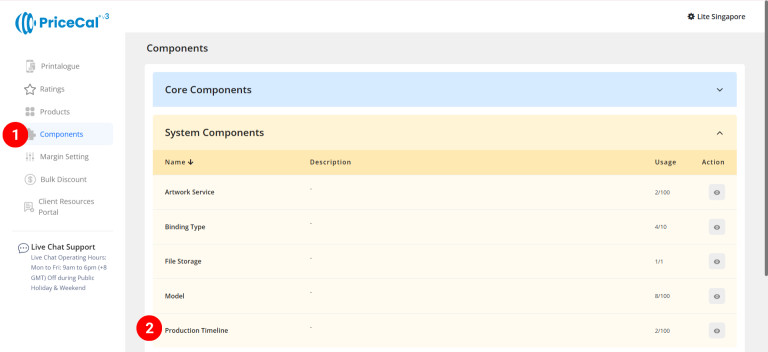
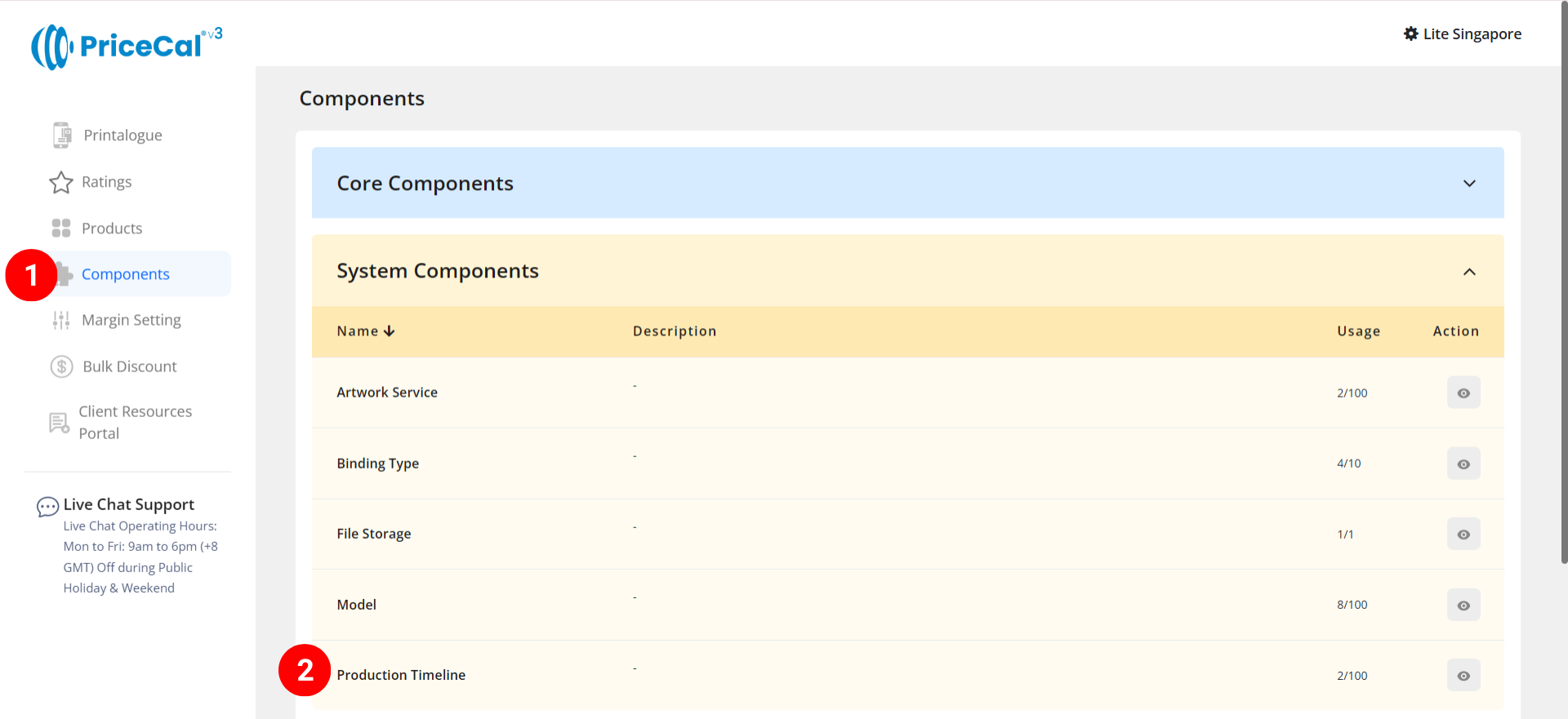
- Go to Component dashboard
- Click Production timeline category
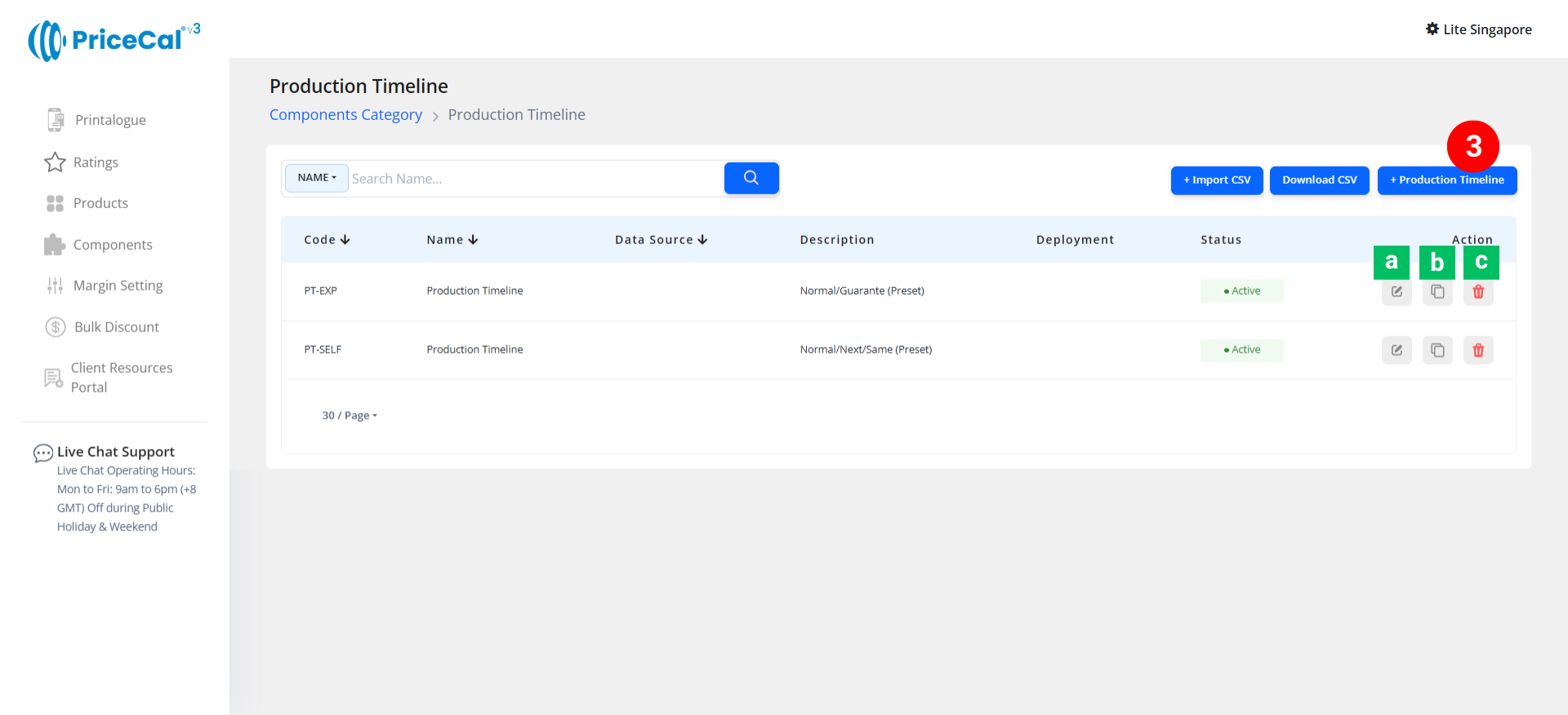
- Add Production timeline
Edit [a]: modify existing components.
Duplicate [b]: clone a component setup to reuse and create new.
Delete [c]: remove unused component.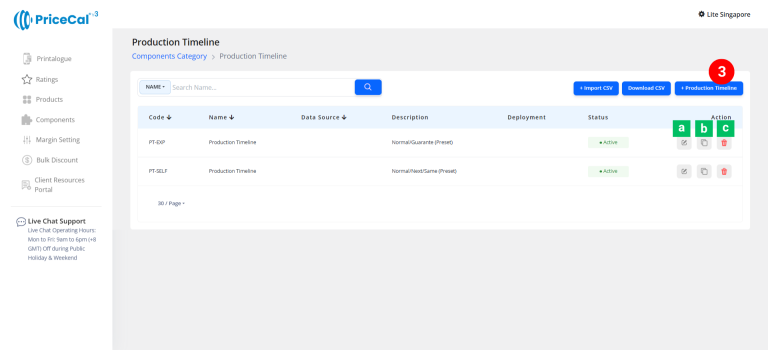
🧱 Create a Production Timeline Component
Step-by-Step
-
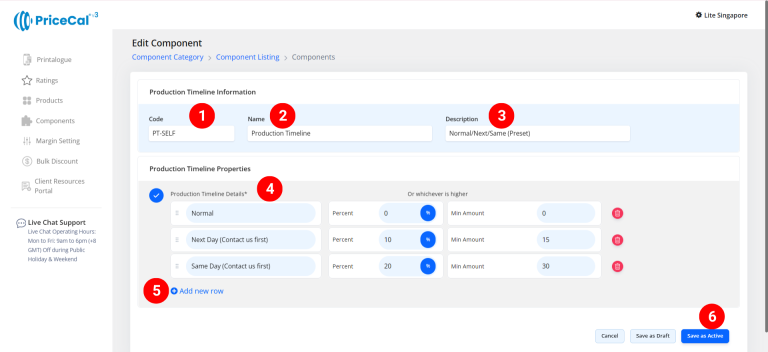
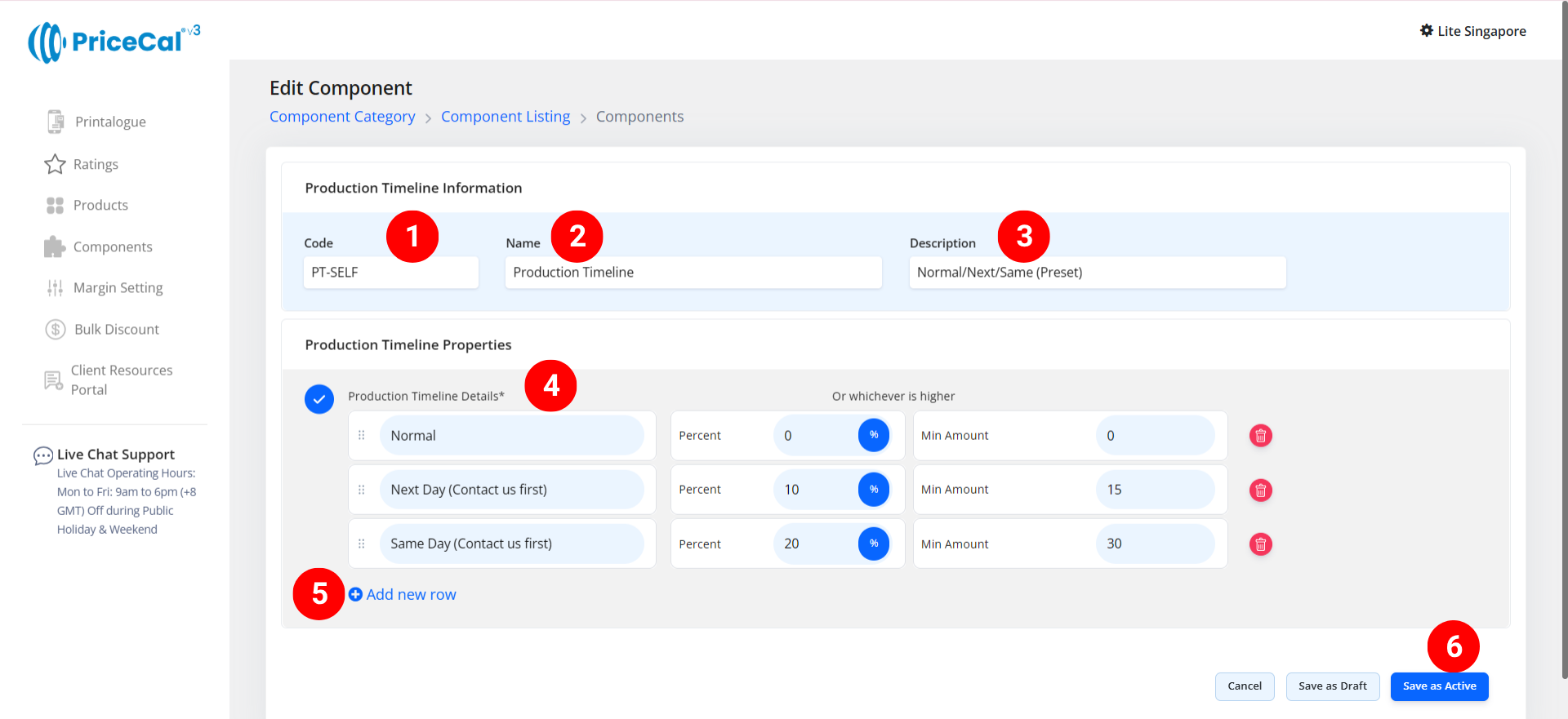
Put a unique code (up to 8 units)
-
Enter the component name. e.g. “Production Timeline” or “Print Turnaround”
-
Enter the component description. (💡 Tips: Add a short note describing what services applies to this component. Example:
“Normal/Next/Same day production” or “Standard and Express turnaround for print orders”) -
Enter the production timeline you able to arrange the printing days
– Timeline Name: enter your service name. i.e. Normal timeline, Next day, Same day.
– Percent:The rush fee percentage to be charged based on the order price.
– Min Amount: The minimum rush fee charged if the calculated percentage is lower.
💡 Note: SThe system automatically chooses the higher value between the percentage fee and the minimum fee as the rush charge.Example: If Percent = 10% and Min Amount = $15:
If order price is $100, 10% is only $10, then Rush Fee will use Min amount $15
If order price is $500, 10% is $50, it’s higher than min amount, so Rush Fee will use Percent. -
If you offer other timeline options, click “Add New Line” to add more.
-
Click “Save as Active” to save your production timeline setup.
⚙️ How PriceCal Uses Production Timeline
When customers place an order:
-
They can select their preferred production speed (Normal / Next Day / Same Day).
-
The system automatically calculates the rush fee based on your settings.
-
The selected timeline and additional fee are displayed in the order summary and applied at checkout.
✅ This provides clear pricing transparency and allows customers to pay more for faster turnaround times.
🎯 Why This Setup Is Important
Setting up Production Timeline helps your print business:
-
✅ Offer multiple turnaround options to customers
-
✅ Automate rush fee calculations accurately
-
✅ Maintain consistent profit margins for fast jobs
-
✅ Improve customer satisfaction with flexible delivery options
This component integrates seamlessly with your Product price calculator, ensuring your pricing remains dynamic and transparent.
✅ Next: Test in Your Printalogue
After saving your setup:
-
Open a product page in your PriceCal product dashboard.
-
Try selecting different production timelines.
-
Verify that the total price updates automatically with the correct rush fee.