
Overview
The SC-Item data source is designed for customized products like DTF shirts, mugs, puzzles, and other personalized items.
It provides flexibility for products with different models, materials, and print specs, all calculated per piece (By Absolute).
This makes SC-Item ideal for retail or print-on-demand style products where the customer selects a product model (e.g., shirt type) and related specifications (e.g., fabric, color, or packing).
🧭 Navigating to SC-Item Product Creation
-
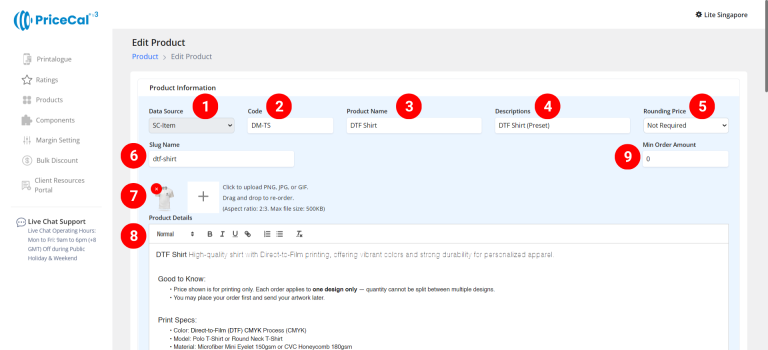
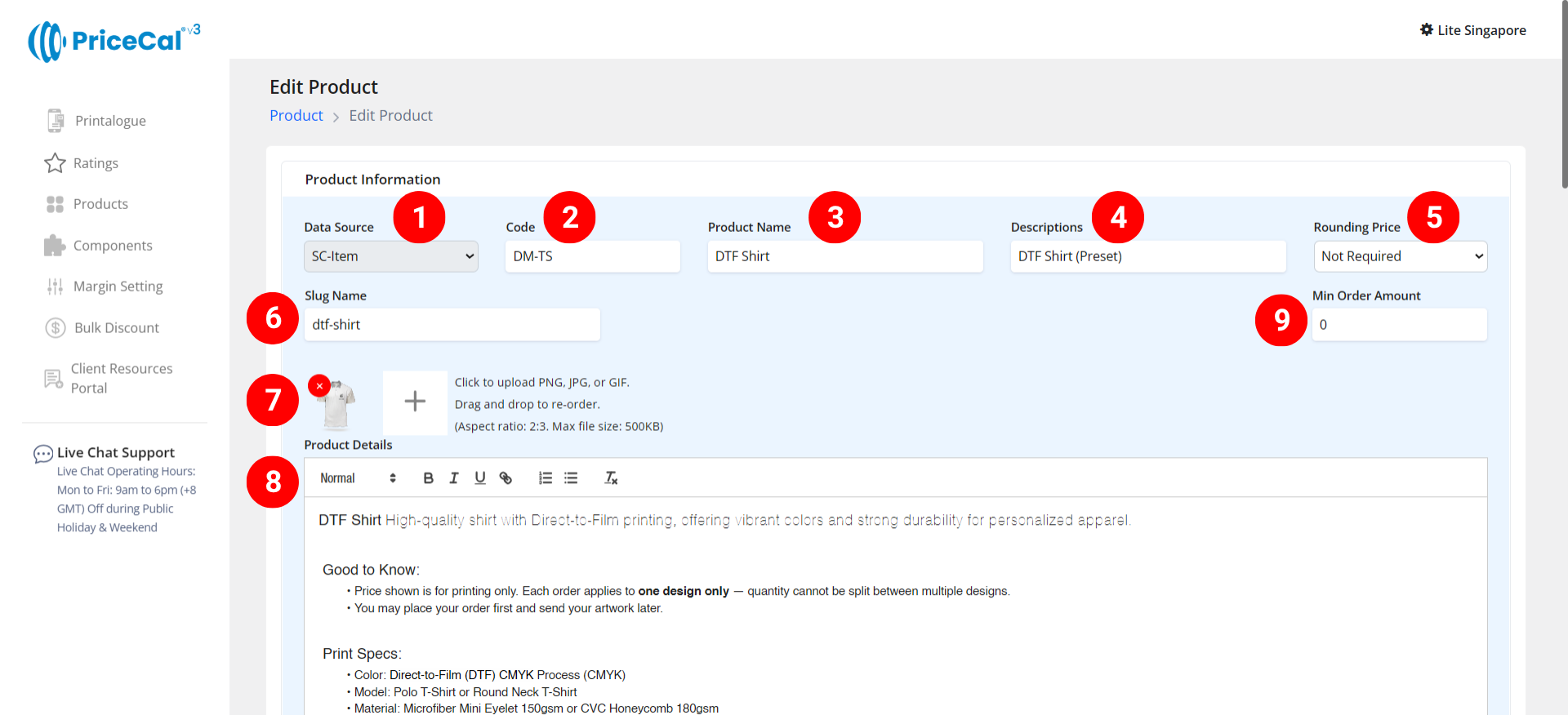
Select “SC-Item” as your product source.
-
Enter a unique code (up to 8 characters).
-
Input your Product Name, e.g., DTF Shirt, Mug, Puzzle
-
Add a short Description to identify production type. Example: “Own Production”, “Outsource Production”
-
(Optional) Choose your Rounding Price— round price up/down to achieve integer pricing.
-
Enter a Slug Name to create a product link.
Example: Slug “dtf-shirt” → your link will be
https://lite.printmart.cc/products/dtf-shirt
If no slug is specified, a random code will be used. -
Upload Product Images (up to 10).
-
Fill in your Product Details and Specifications, such as product, print specs, and production days.
-
(Optional) Set a Min Order Amount.
💡 Tip: Regardless of the print quantity or total price, there will be a minimum charge unless the calculated price exceeds the minimum order amount.
-
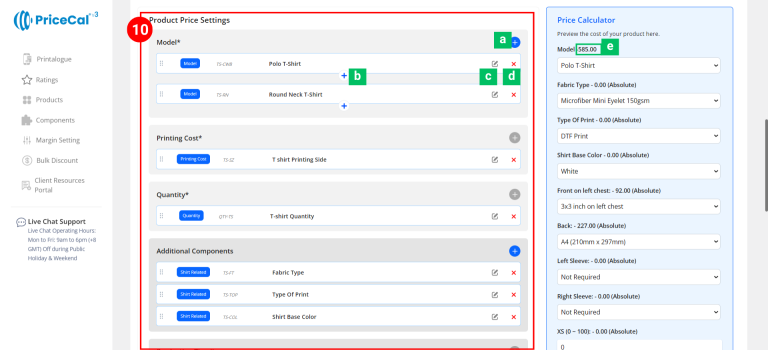
Assemble Product Components. Each product in PriceCal is built using multiple components.
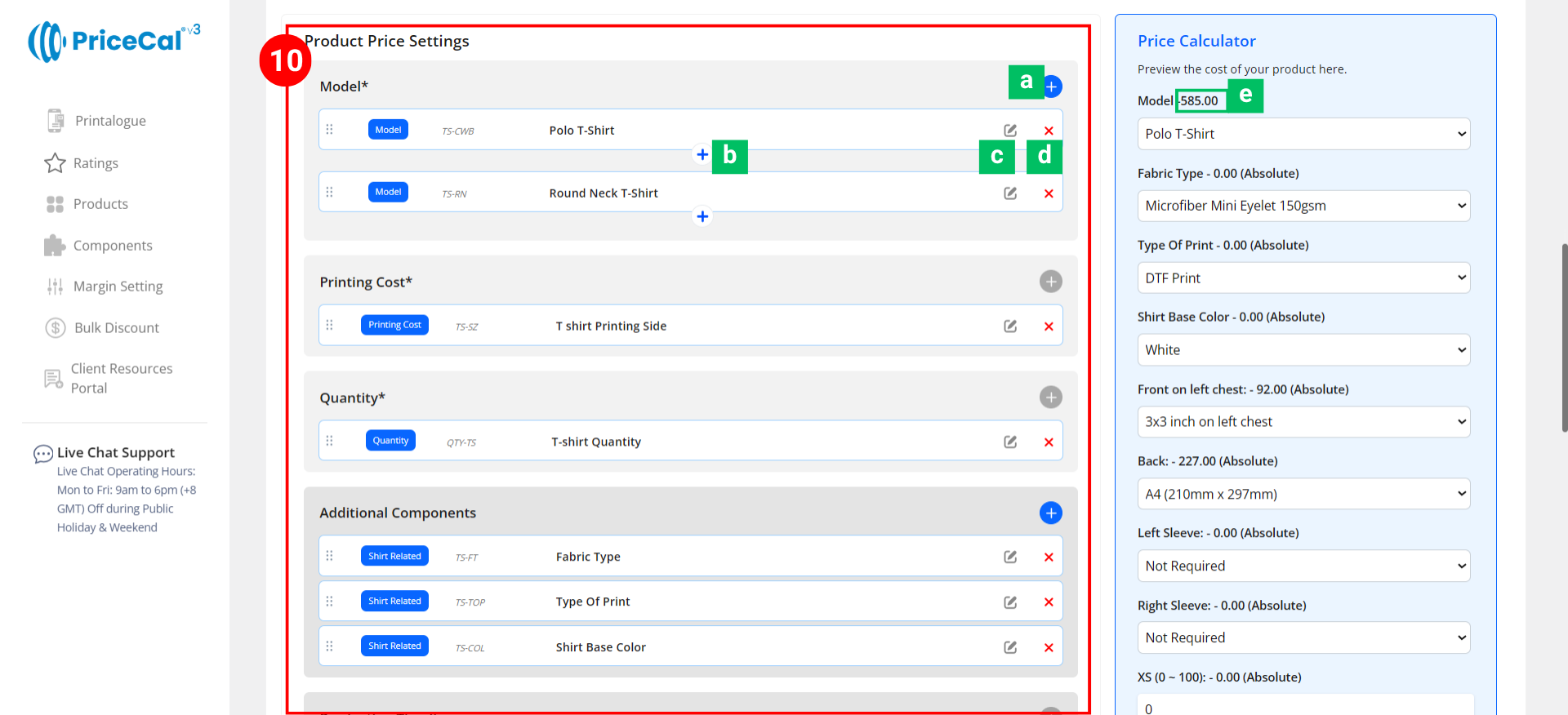
Add and organize your components under the Component Section.- Add Component [a]:Click to add or create a new component for this product.
-
Add Nesting Component for Model [b]: Add sub-components under a main one. Example: Add “DTF Print Specs” under “DTF Print Model” so it only appears when that model is selected.
- Edit [c]: Modify component setup (changes sync to all products using this component).
-
Delete [d]: Remove the component from the current product.
-
Component Cost [e]: Displays cost based on selected print size and quantity.
🔹 Required Core Components
These must be included for every SC-Item product:
-
-
Model – Define the product model (e.g., Round Neck Shirt, Polo Shirt).
-
Printing Cost – Configure Product specs and cost
-
Quantity – Define customer-selectable quantities.
-
🔸 Optional System & Custom Components
Add these depending on your product requirements:
-
-
Additional Component – Finishing options such as Fabric, Shirt Colour, Packing…etc
-
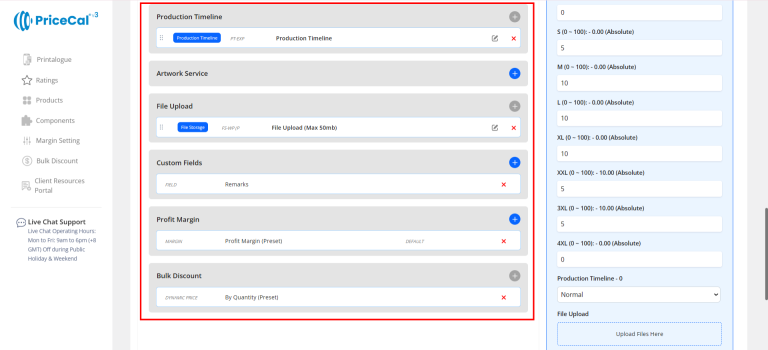
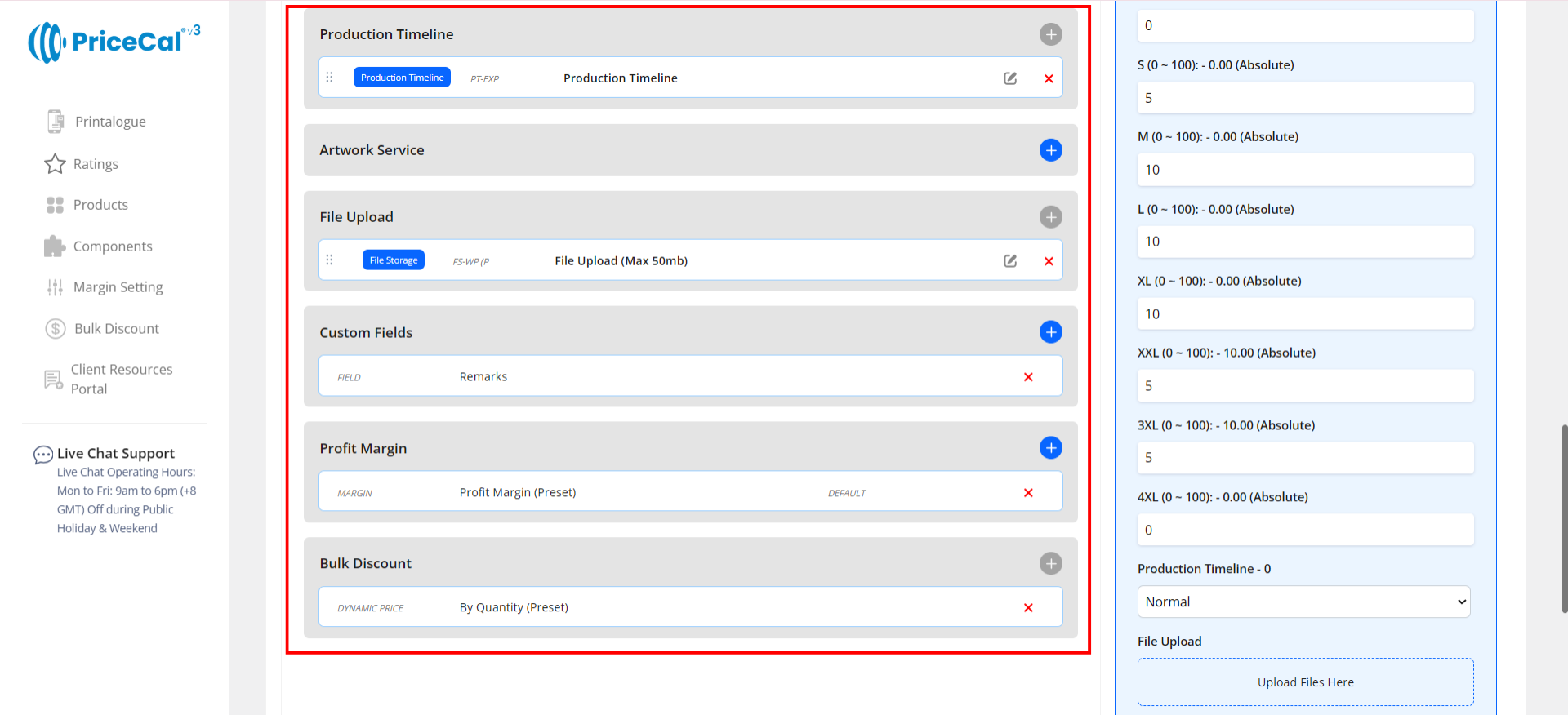
Production Timeline – Offer flexible production speed (Normal / Guaranteed Date).
-
Artwork Service – Design or setup service options if applicable.
-
File Upload – Enable file upload and select storage location (WordPress or Dropbox). [Only displayed after integration into WordPress website]
-
Custom Fields – Collect extra info or artwork links (e.g., Google Drive link, ).[Only displayed after integration into WordPress website]
-
Profit Margin – Apply different profit percentage levels.
-
Bulk Discount – Automatically apply discounts for large orders.
-
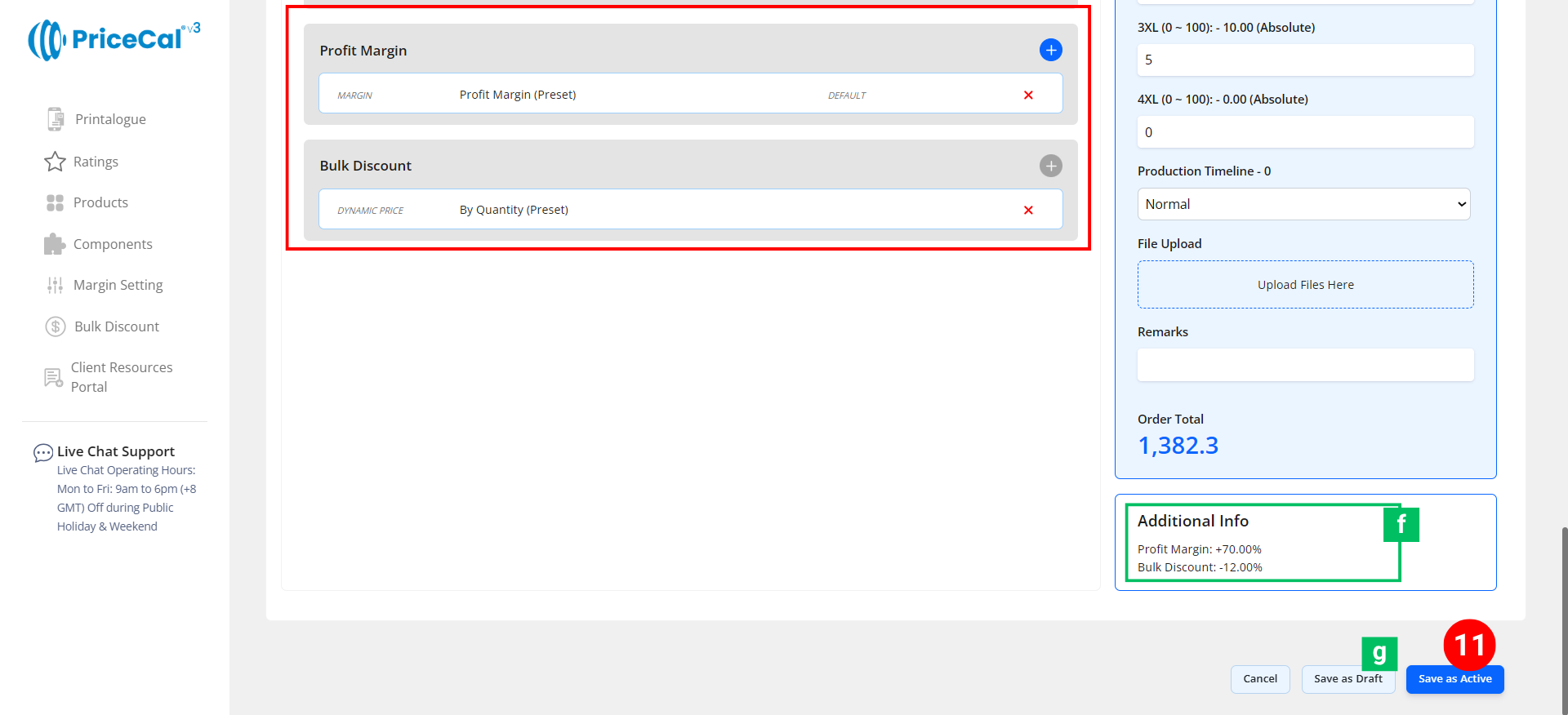
🧾 Additional Info [f]: Get instant calculation insights
-
-
Financial Overview – Displays applied profit margin and bulk discount summary.
-
11. Finalize the Product
After setting up all details and components:
-
-
Click “Save as Active” to publish the product to your storefront.
-
(Optional) Click “Save as Draft [g]” to keep the product inactive and hidden from the shop until ready.
-
💡 Best For
The SC-Item data source is best suited for:
- 👕 DTF / Sublimation Shirts
- ☕ Mugs and Tumblers
- 🧩 Puzzles and Keychains
- 🎒 Bags and Apparel Accessories
- 🏆 Personalized Gifts
- 📦 Merchandise
🧠 Best Practices & Tips
-
Start with one product model first (e.g., Round Neck Shirt) before adding more variations.
-
Use clear naming for model and print specs (e.g., “DTF Model – Black Shirt / White Shirt”).
-
Link your Printing Size component properly to each Model to ensure accurate pricing.
-
Keep pricing logic simple: Set your base price and per-piece cost clearly under “By Absolute.”
-
Add color/fabric options as additional components under the Additional component for cleaner selection.
-
Set minimum order limits for apparel products to protect your production costs.
-
Include mock-up or real photos to boost customer confidence when ordering online.
-
Always test your product calculator after saving — ensure size, color, and price interactions work correctly.