
Overview
The SC-Booklet data source is designed for products like Saddle Stitch Booklets, Perfect Bind Booklets, and Catalogs — products that require both cover and content paper configurations, as well as binding setup.
This module allows you to combine different paper materials, sizes, and binding types while ensuring accurate sheet and page calculations.
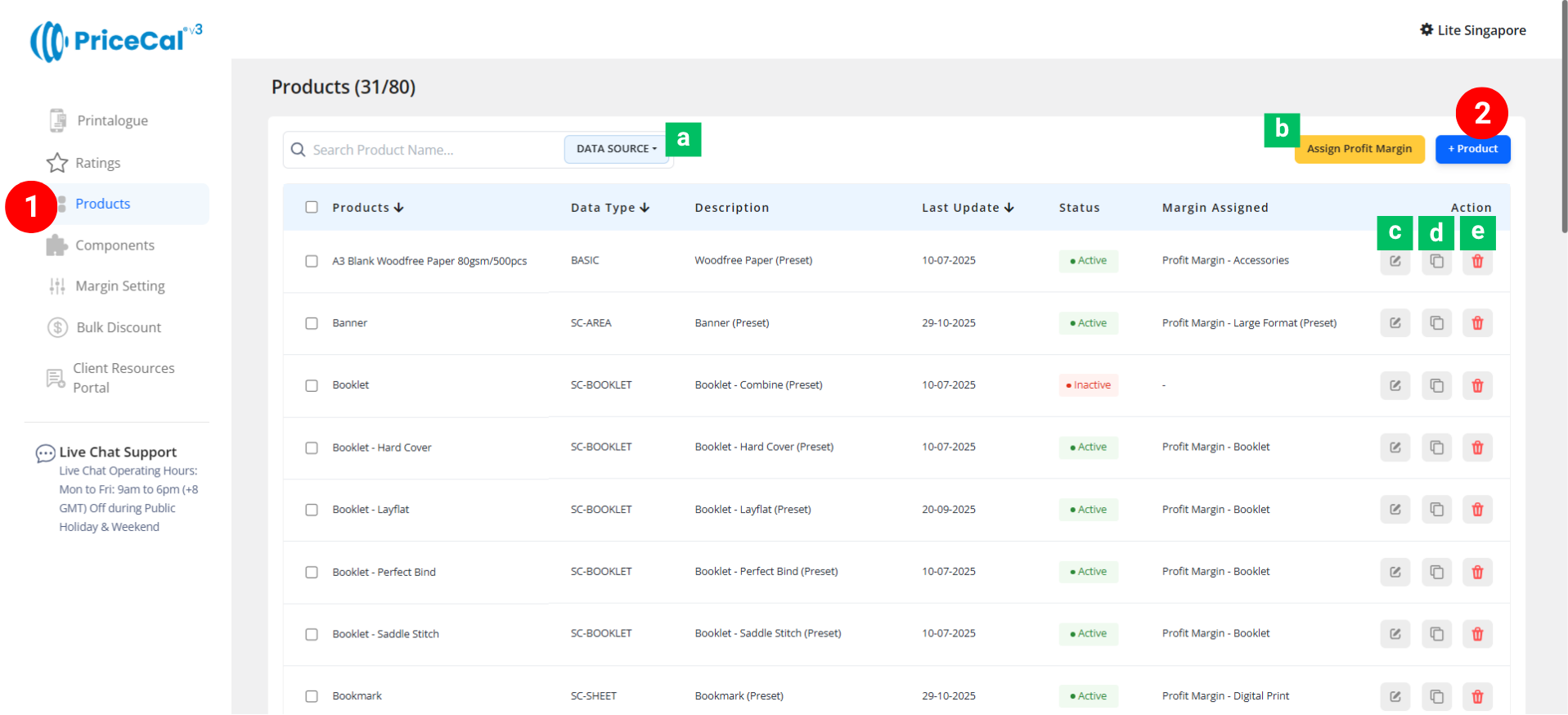
🧭 Navigating to SC-Area Product Creation
-
Go to your Product Dashboard.
-
Data Source Sorting [a] – Filter to view products from the same data source.
-
Assign Profit Margin [b] – Apply one profit margin setup to multiple products at once.
-
-
To create or manage a product, click Add Product – Start a new SC-Area product setup.
-
Edit [c] – Modify existing product details.
-
Duplicate [d] – Clone an existing product setup to reuse its structure.
-
Delete [e] – Remove unused or outdated products.
-
🧱 Create a SC-Booklet product
Step-by-Step Setup
-
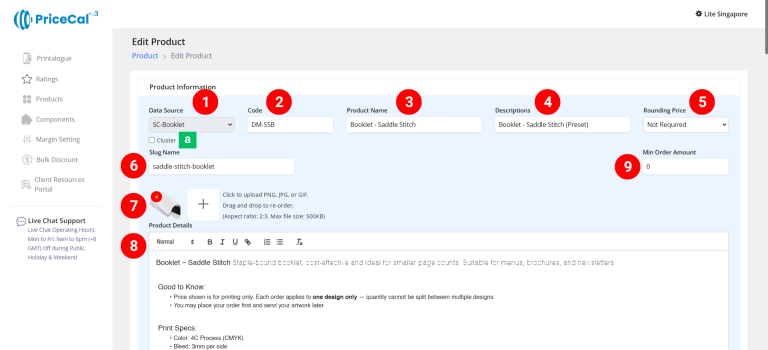
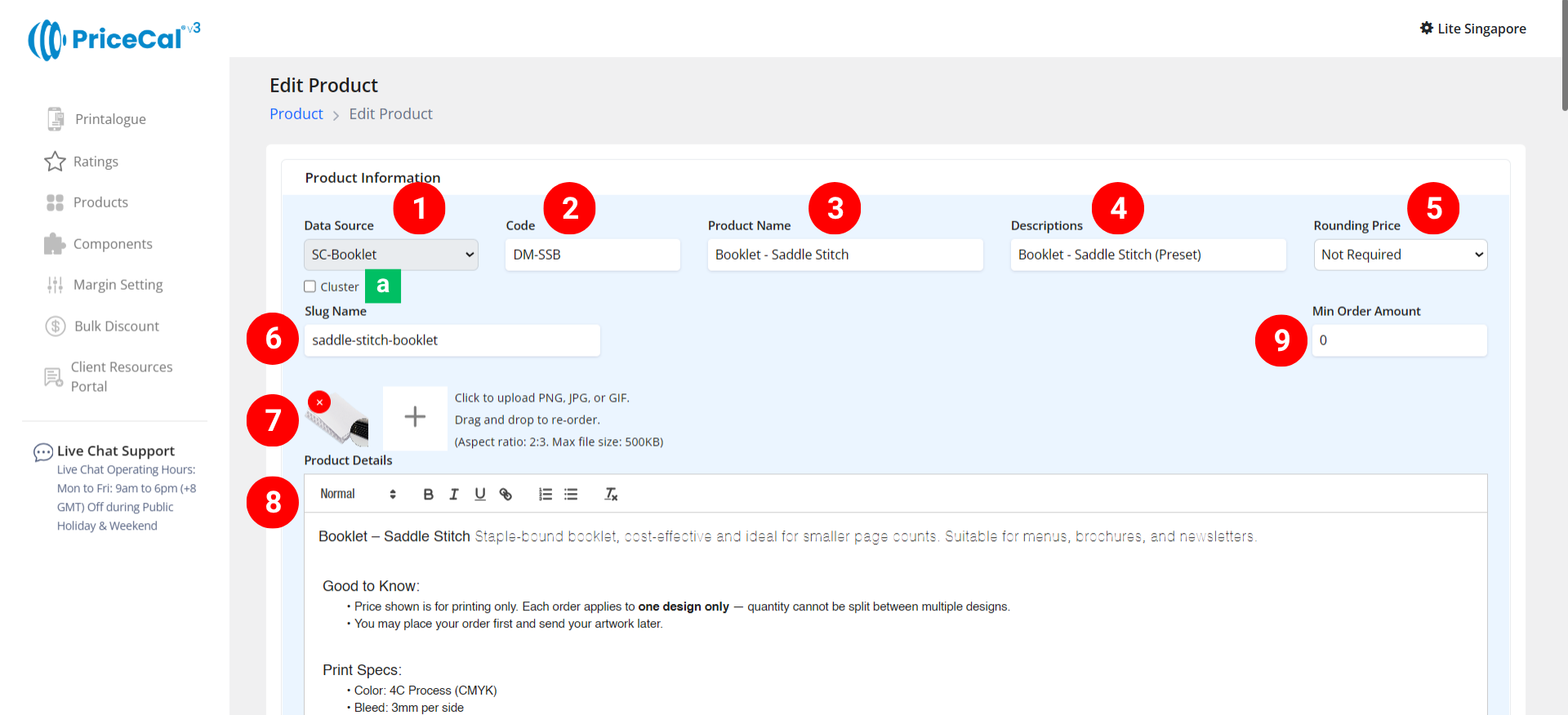
Select “SC-Booklet” as your product category.
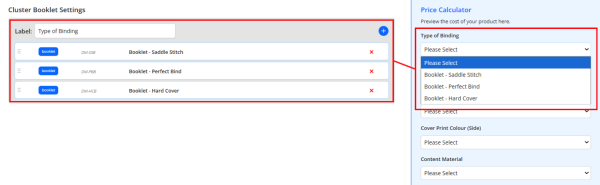
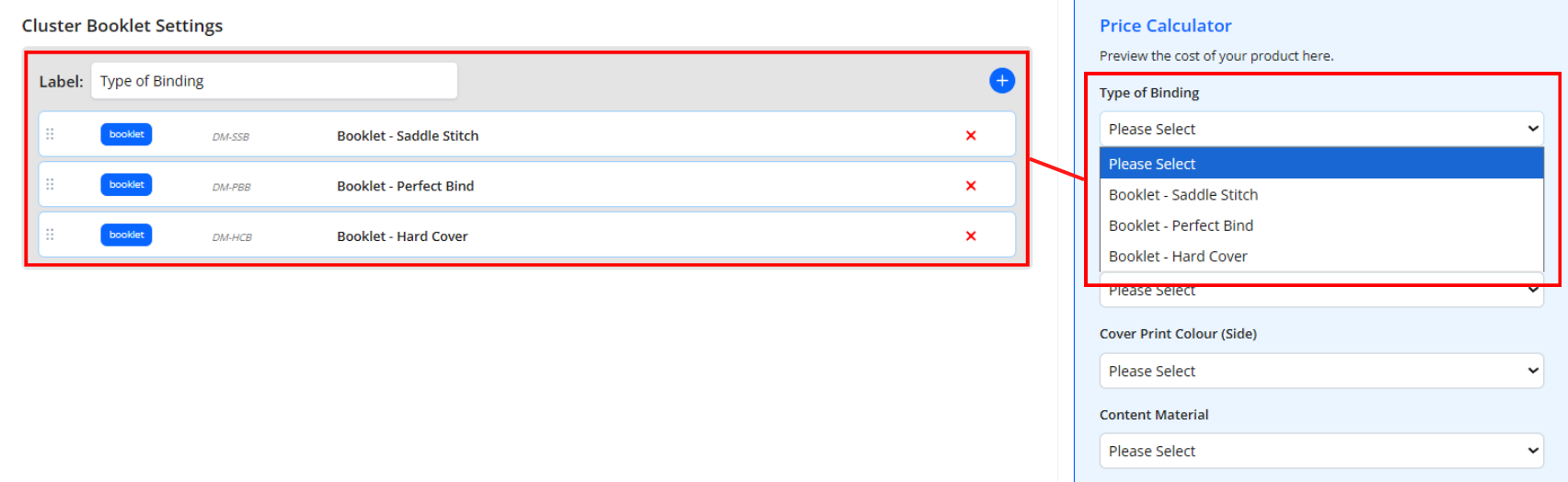
Cluster [a]: Enable Cluster if you want to integrate multiple binding types into a single product.
💡 Tip: Normally, each booklet product can only contain one binding type. Use Cluster only when you want to group multiple bindings (e.g., Saddle Stitch + Perfect Bind).
-
Enter a unique code (up to 8 characters).
-
Input your Product Name, e.g., Saddle Stitch Booklet, Perfect Bind Booklet
-
Add a short Description to identify production type. Example: “Own Production”, “Outsource Production”
-
(Optional) Choose your Rounding Price— round price up/down to achieve integer pricing.
-
Enter a Slug Name to create a product link.
Example: Slug “saddle stitch booklet” → your link will be
https://lite.printmart.cc/products/saddle-stitch-booklet
If no slug is specified, a random code will be used. -
Upload Product Images (up to 10).
-
Fill in your Product Details and Specifications, such as product, print specs, and production days.
-
(Optional) Set a Min Order Amount.
💡 Tip: Regardless of the print quantity or total price, there will be a minimum charge unless the calculated price exceeds the minimum order amount.
-
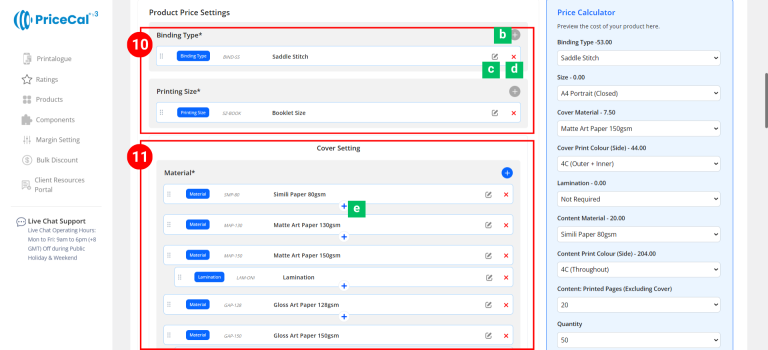
Assemble Product Components.
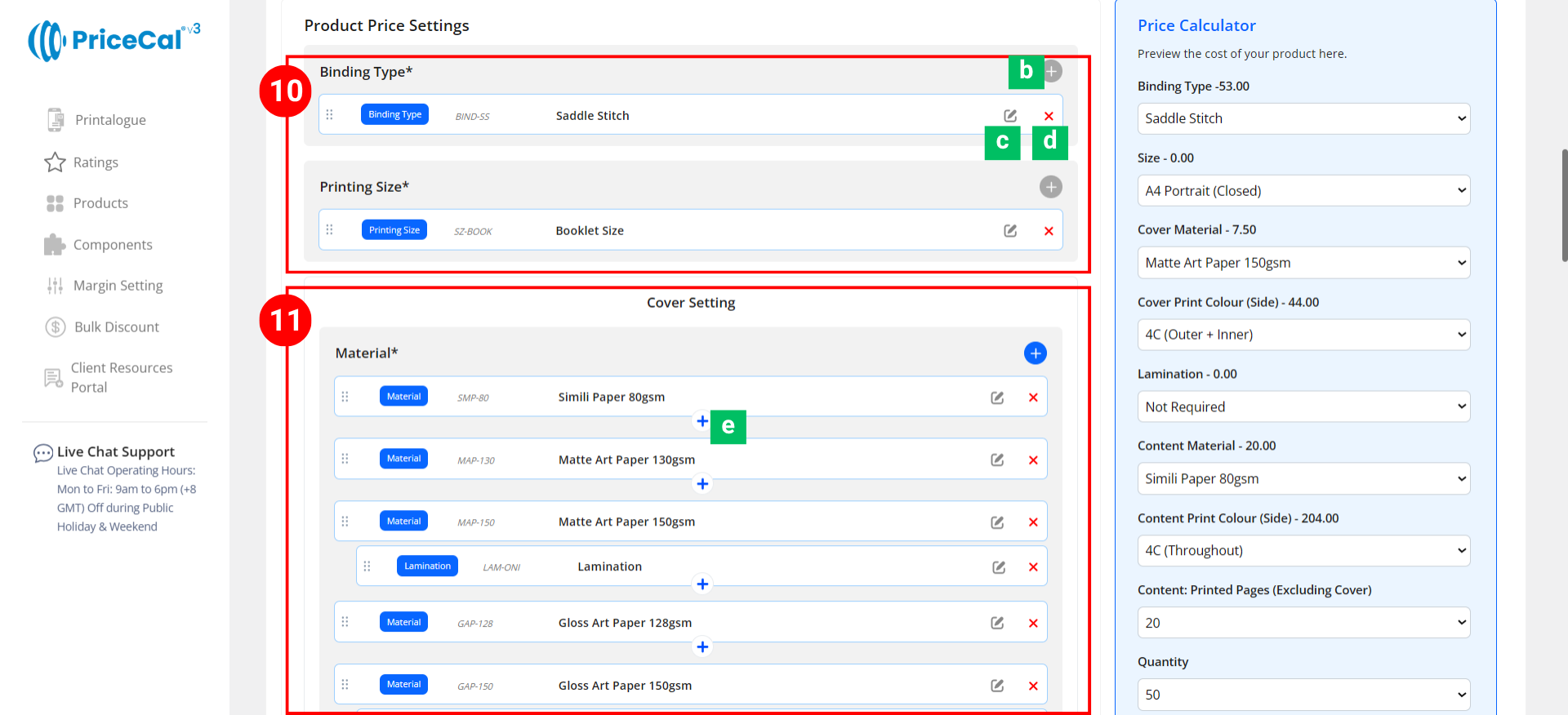
Add your essential Booklet Components — this includes Binding Type and Booklet Size.- Add Component [b]:Click to add or create a new component for this product.
- Edit [c]: Modify component setup (changes sync to all products using this component).
- Delete [d]: Remove the component from the current product.
-
Add and organize your Booklet Cover components under the Cover Setting Section.
-
Add Nesting Component for Material [e]: Add sub-components under a main one. Example: Add “Lamintion” under “310gsm Art Card” so it only appears when that material is selected.
-
- Add and organize your Booklet Content components under the Content Setting Section.
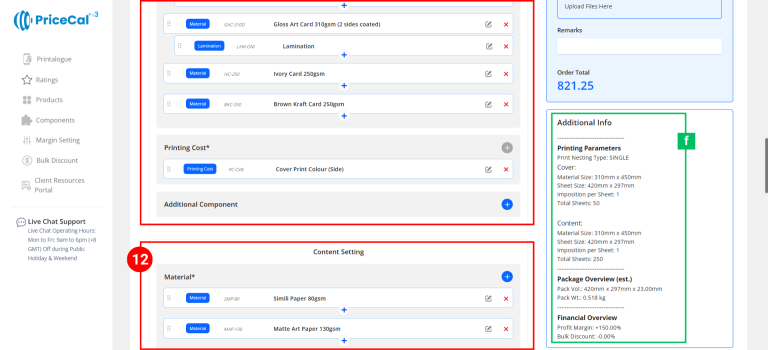
🧾 Additional Info [f]: Get instant calculation insights
-
-
Printing Parameters – Shows nesting type, material size, Imposition per Sheet, and Total Sheet of Cover and Content paper.
-
Package Overview (est.) – Calculates estimated volume and weight based on GSM, thickness, and quantity.
-
Financial Overview – Displays applied profit margin and bulk discount summary.
-
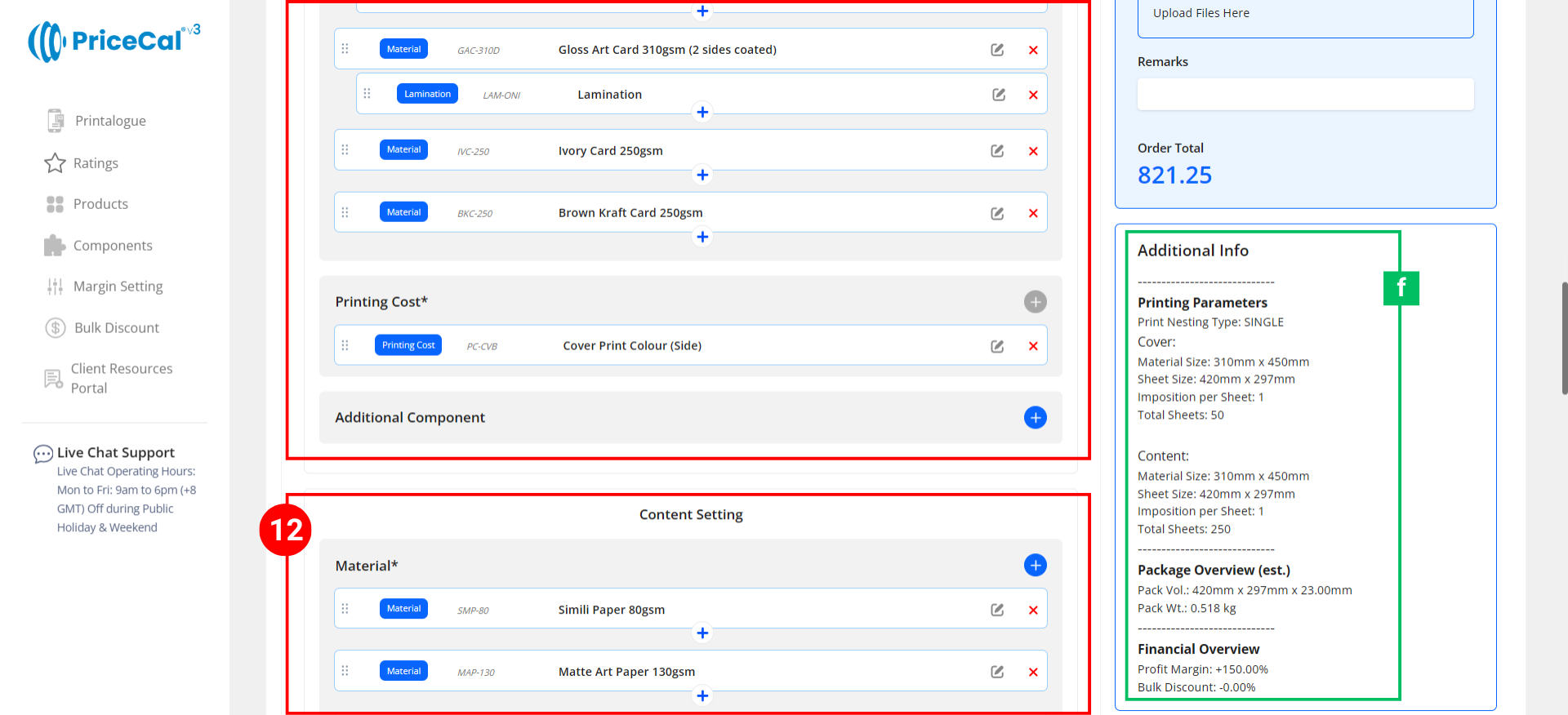
🔹 Required Core Components
These must be included for every SC-Area product:
-
-
Material – Define the printing material
-
Printing Cost – Configure Printing type and cost
-
Quantity – Define customer-selectable quantities.
-
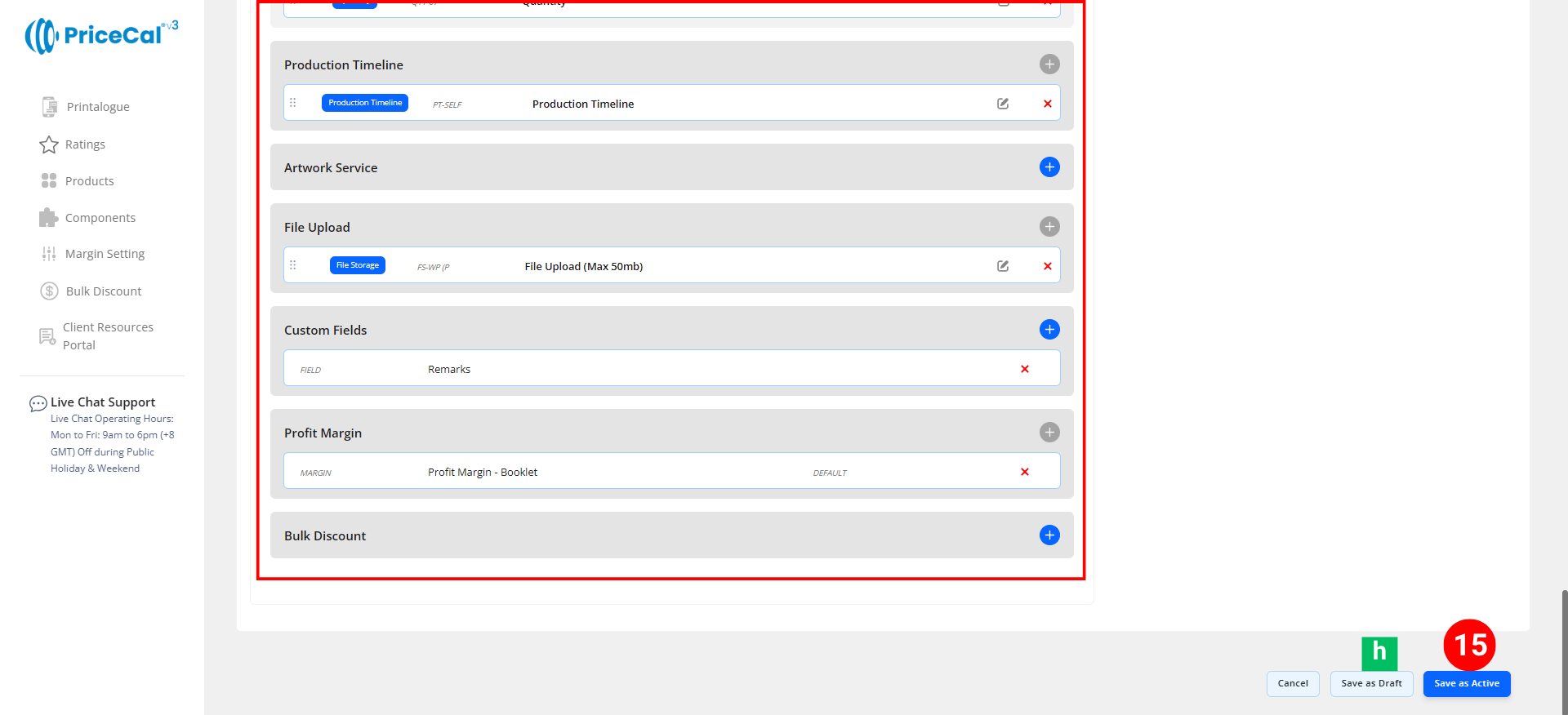
🔸 Optional System & Custom Components
Add these depending on your product requirements:
-
-
Additional Component – Finishing options such as Lamination, VDP, or Cutting.
-
Production Timeline – Offer flexible production speed (Normal / Next Day / Same Day).
-
Artwork Service – Design or setup service options if applicable.
-
File Upload – Enable file upload and select storage location (WordPress or Dropbox). [Only displayed after integration into WordPress website]
-
Custom Fields – Collect extra info or artwork links (e.g., Google Drive link, ).[Only displayed after integration into WordPress website]
-
Profit Margin – Apply different profit percentage levels.
-
Bulk Discount – Automatically apply discounts for large orders.
-
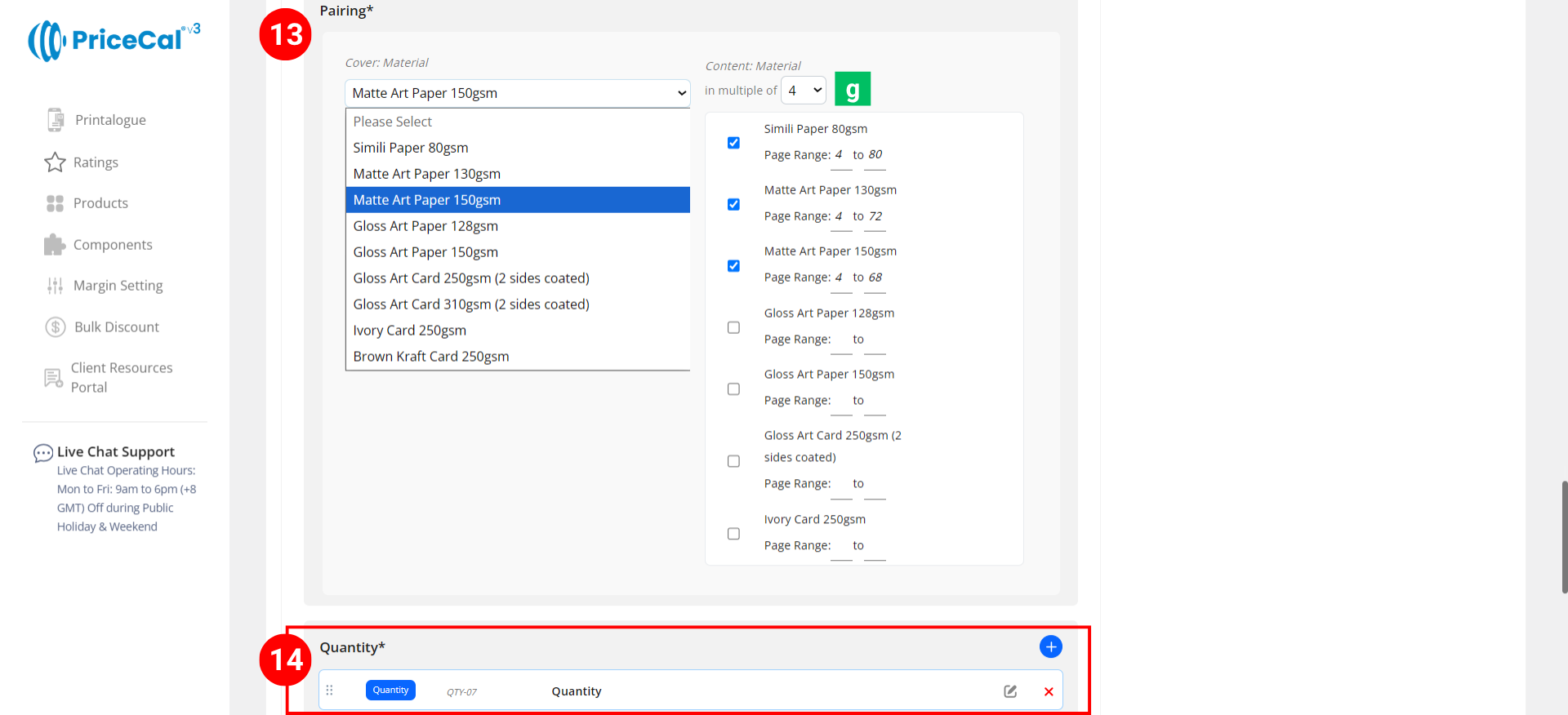
13. Pairing of Cover and Content Materials
After selecting a Cover Material, link the matching Content Materials and set the minimum and maximum page count for each.
Multiple of [g]: Choose between Multiple of 2 or 4 pages. 💡 Tips:
-
-
Folding an A3 sheet in half to A4 gives 4 pages per sheet.
-
Cutting front and back only (no folding) results in 2 pages per sheet.
-
14. Add the Quantity Component and other optional system or custom components to complete your product setup.
15. Finalize the Product. After setting up all details and components:
-
-
Click “Save as Active” to publish the product to your storefront.
-
(Optional) Click “Save as Draft [h]” to keep the product inactive and hidden from the shop until ready.
-
💡 Best For
Ideal for booklet-based products such as:
📘 Saddle Stitch Booklets
📗 Perfect Bind Catalogs
📙 Annual Reports
📔 Company Profiles
📚 Magazines, Manuals, and Brochures
🧠 Best Practices & Tips
-
Always keep the cover material heavier than the content (e.g., 260–310gsm cover with 80–128gsm inner).
-
Use multiples of 4 pages for Saddle Stitch or Perfect Bind — prevents blank sheets.
-
Enable Lamination under cover material for better presentation and durability.
-
Add cluster binding options only when your pricing logic between binding types is stable (avoid confusion).
-
Name your materials clearly (e.g., “Cover – 310gsm Art Card / Content – 128gsm Art Paper”).
-
Include clear preview images — customers visualize book thickness and binding type.
-
Set a minimum order amount to protect profit from small quantity jobs.
-
Test one complete product end-to-end before cloning to ensure formula accuracy.