
🧱 Overview
The SC-Basic data source is designed for products that don’t require detailed material, size, or print cost breakdowns — such as Easel Stands, Sample Kits, or other accessories.
It allows you to set a fixed cost per piece while still utilizing PriceCal’s core features like profit margin, artwork service, and quantity selection.
🧭 Navigating to API Product Creation
-
Go to your Product Dashboard.
-
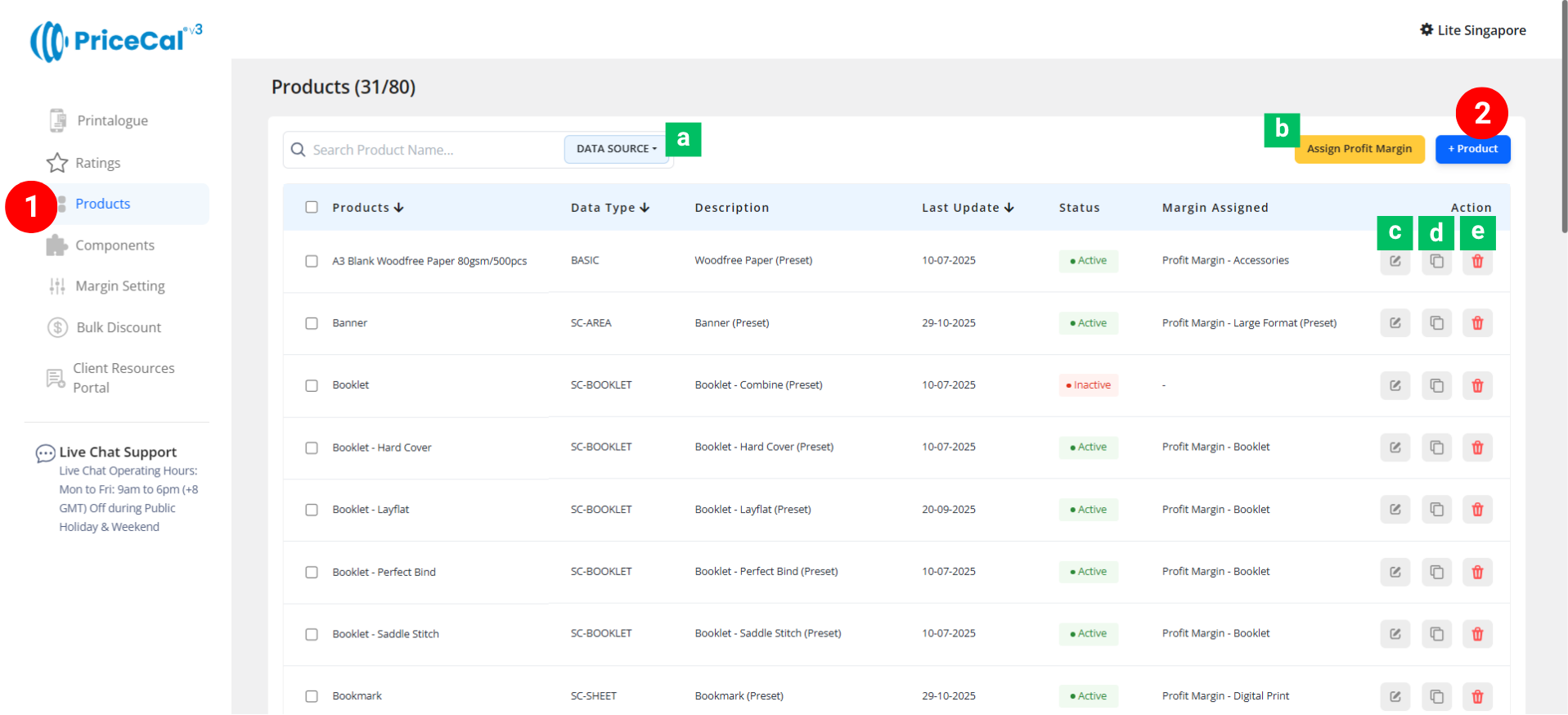
Data Source Sorting [a] – Filter to view products from the same data source.
-
Assign Profit Margin [b] – Apply one profit margin setup to multiple products at once.
-
-
To create or manage a product, click Add Product – Start a new product setup.
-
Edit [c] – Modify existing product details.
-
Duplicate [d] – Clone an existing product setup to reuse its structure.
-
Delete [e] – Remove unused or outdated products.
-
🧱 Create a SC-Basic product
Step-by-Step Setup
-
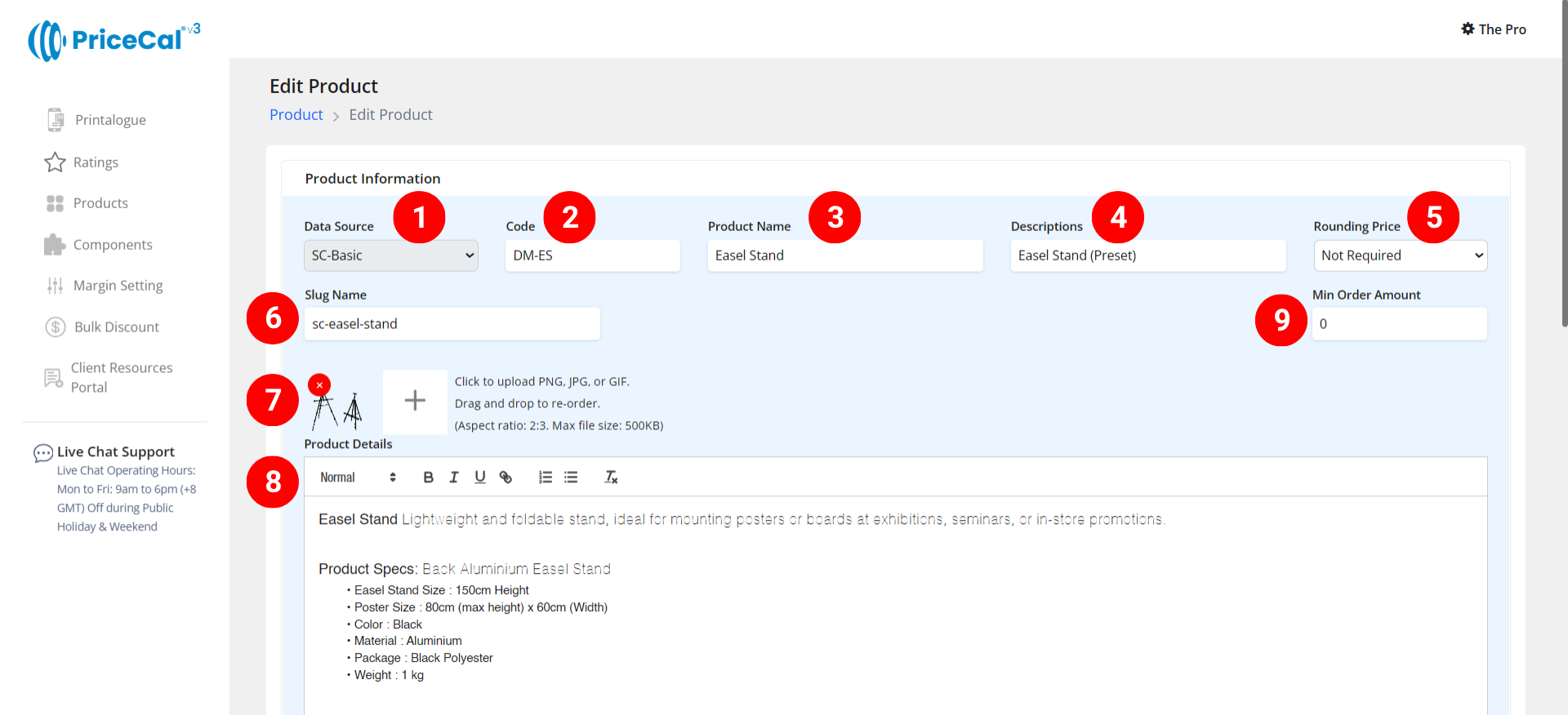
Select “SC-Basic” as your data source
-
Enter a unique code (up to 8 characters).
-
Input your Product Name e.g. Easel Stand, Sample Kit
-
Add a short Description to identify production type. Example: “Own Production”, “Outsource Production”
-
(Optional) Choose your Rounding Price— round price up/down to achieve integer pricing.
-
Enter a Slug Name to create a product link.
Example: Slug “easel stand” → your link will be
https://lite.printmart.cc/products/easel-stand
If no slug is specified, a random code will be used. -
Upload Product Images (up to 10).
-
Fill in your Product Details and Specifications, such as product, print specs, and production days.
-
(Optional) Set a Min Order Amount.
💡 Tip: Regardless of the print quantity or total price, there will be a minimum charge unless the calculated price exceeds the minimum order amount.
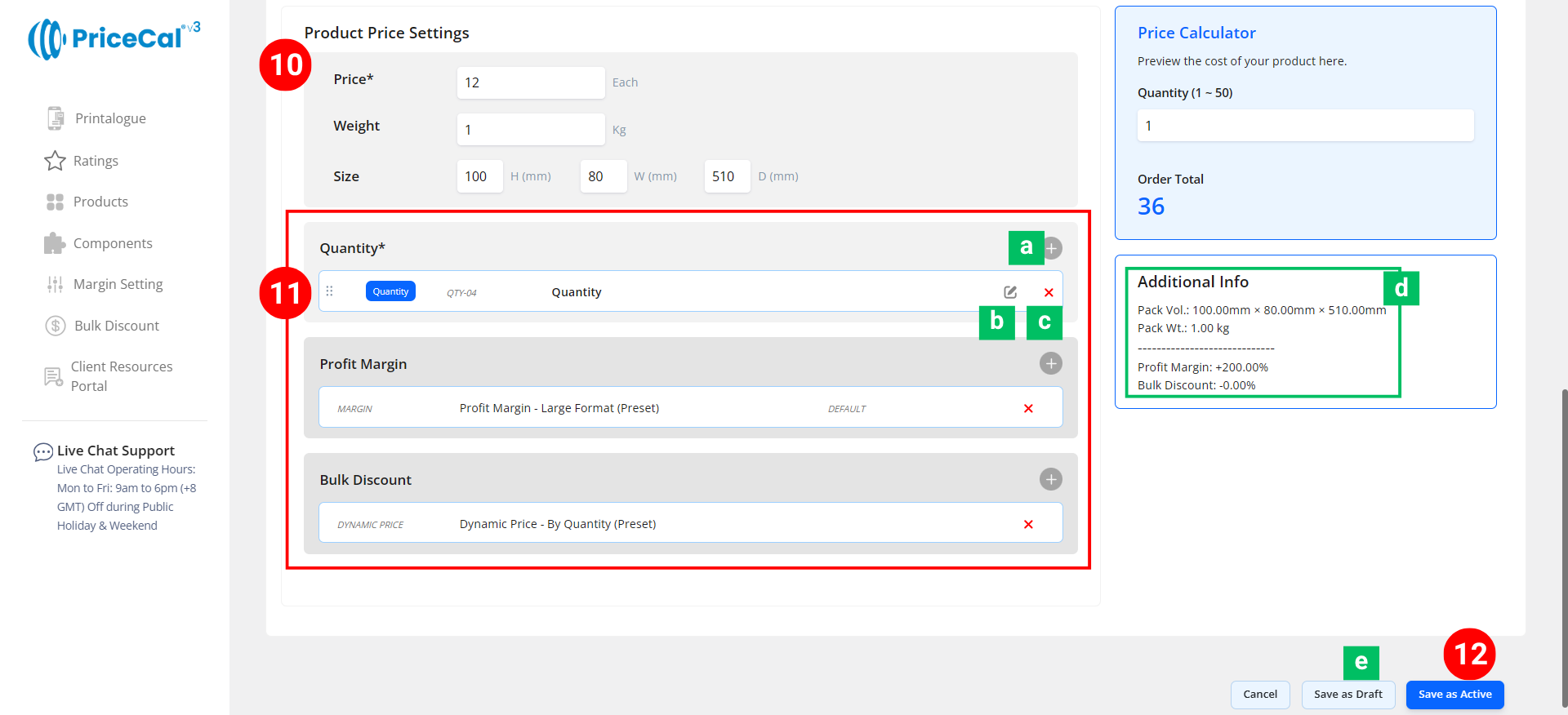
- Enter the product cost per piece, Weight and Size.
-
Assemble Product Components. Each product in PriceCal is built using multiple components.
Add and organize your components under the Component Section.- Add Component [a]: Add or create a new component (e.g., Quantity, Profit Margin, Bulk Discount).
-
Edit [b]: Modify component setup (changes sync to all products using this component).
-
Delete [c]: Remove the component from the current product.
🔸 Optional System & Custom Components
Add these depending on your product requirements:
-
-
-
Quantity – Define customer-selectable quantities.
-
Profit Margin – Apply different profit percentage levels.
- Bulk Discount – Automatically apply discounts for large orders.
-
-
🧾 Additional Info [d]: Get instant calculation insights
-
-
- Package Overview (est.) – Calculates estimated volume and weight based on GSM, thickness, and quantity.
- Financial Overview – Displays applied profit margin and bulk discount summary.
-
12. Finalize the Product
After setting up all details and components:
-
-
-
Click “Save as Active” to publish the product to your storefront.
-
(Optional) Click “Save as Draft [e]” to keep the product inactive and hidden from the shop until ready.
-
-
💡 Best For
Simple products such as Easel Stands, Sample Kits, Display Accessories, or non-print items that only need cost-per-piece pricing without print area calculations.