
🖼️ How to Create a Large Format Print Product (Banner, Poster, Foamboard)
In PriceCal, SC-Area is used for products that are calculated based on print area (SQFT) — such as banners, posters, foam boards, and other large format prints.
This tutorial will guide you through each step to set up an SC-Area product correctly and efficiently.
🧭 Navigating to SC-Area Product Creation
-
Go to your Product Dashboard.
-
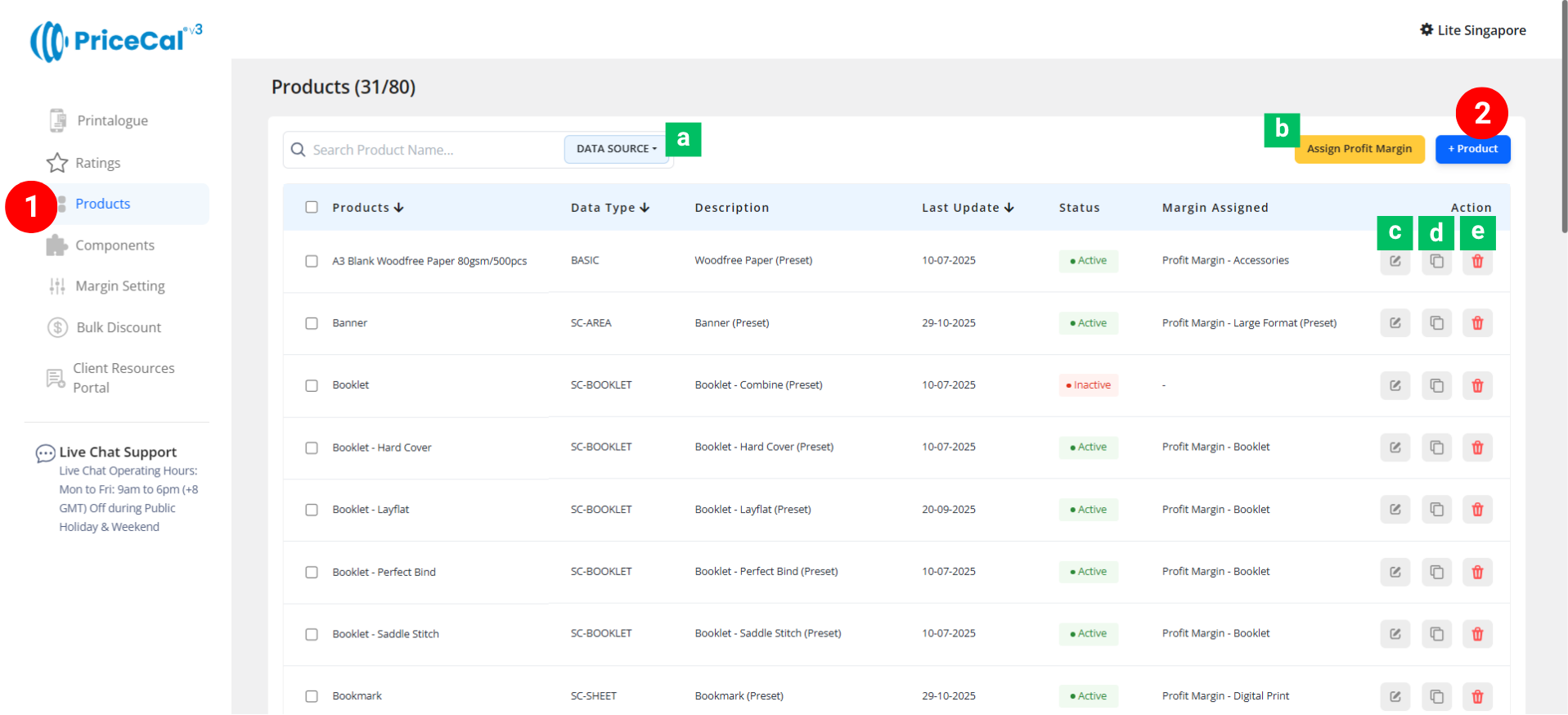
Data Source Sorting [a] – Filter to view products from the same data source.
-
Assign Profit Margin [b] – Apply one profit margin setup to multiple products at once.
-
-
To create or manage a product, click Add Product – Start a new SC-Area product setup.
-
Edit [c] – Modify existing product details.
-
Duplicate [d] – Clone an existing product setup to reuse its structure.
-
Delete [e] – Remove unused or outdated products.
-
🧱 Create a SC-Area product
Step-by-Step Setup
-
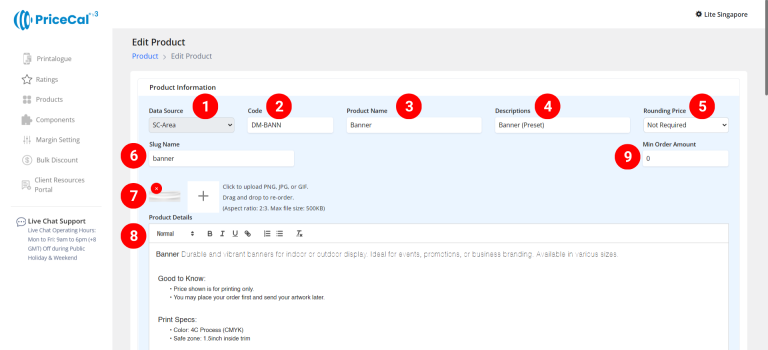
Select “SC-Area” as your product source.
-
Enter a unique code (up to 8 characters).
-
Input your Product Name, e.g., Banner, Poster, Foamboard.
-
Add a short Description to identify production type. Example: “Own Production”, “Outsource Production”
-
(Optional) Choose your Rounding Price— round price up/down to achieve integer pricing.
-
Enter a Slug Name to create a product link.
Example: Slug “banner” → your link will be
https://lite.printmart.cc/products/banner
If no slug is specified, a random code will be used. -
Upload Product Images (up to 10).
-
Fill in your Product Details and Specifications, such as product, print specs, and production days.
-
(Optional) Set a Min Order Amount.
💡 Tip: Regardless of the print quantity or total price, there will be a minimum charge unless the calculated price exceeds the minimum order amount.
-
Assemble Product Components. Each product in PriceCal is built using multiple components.
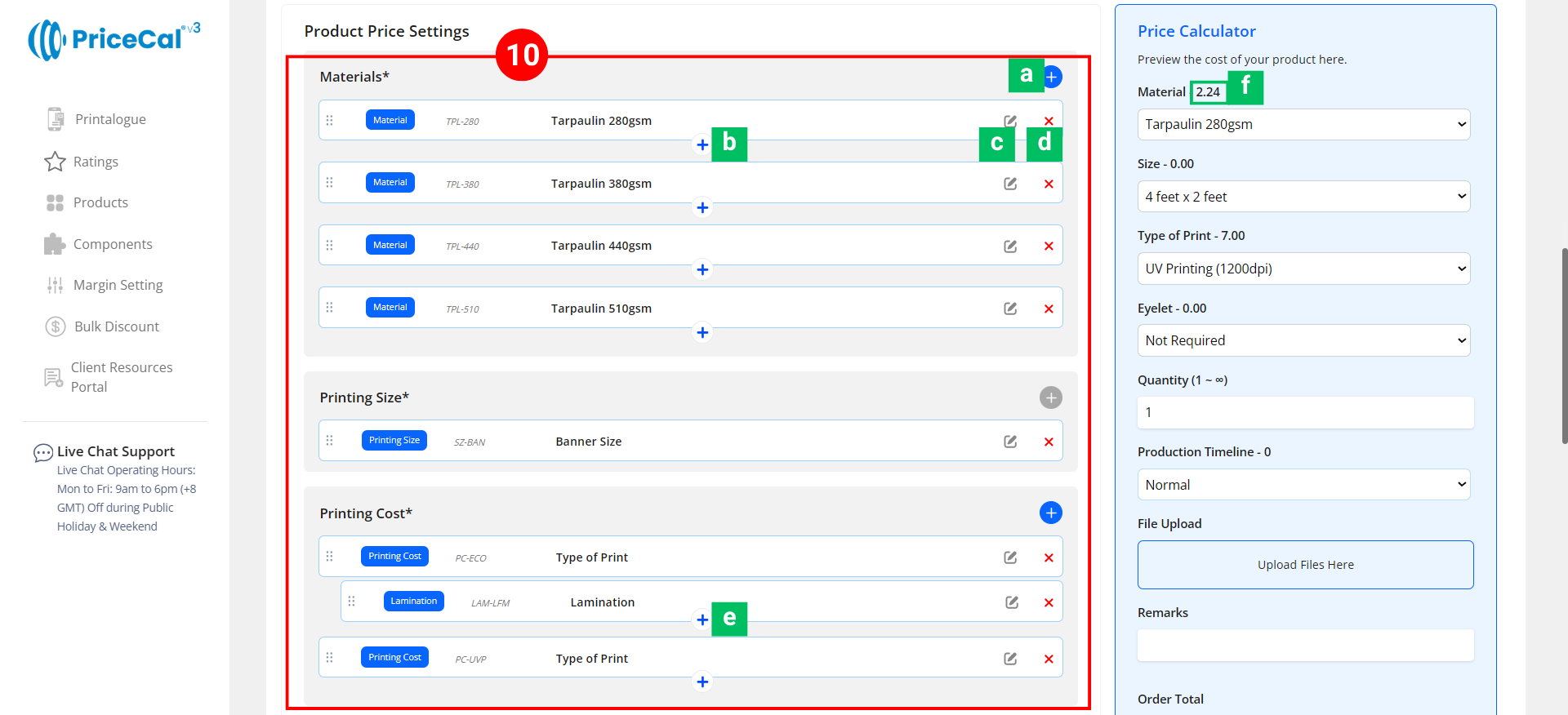
Add and organize your components under the Component Section.- Add Component [a]:Click to add or create a new component for this product.
-
Add Nesting Component for Material [b]: Add sub-components under a main one. Example: Add “Eyelet” under “Tarpaulin material” so it only appears when that material is selected.
- Edit [c]: Modify component setup (changes sync to all products using this component).
-
Delete [d]: Remove the component from the current product.
-
Add Nesting Component for Print Cost [e]: Add sub-components under a main one. Example: Add “Lamination” under “Eco-Solvent Print” so it only appears when that print cost is selected.
-
Component Cost [f]: Displays cost based on selected print size and quantity.
🔹 Required Core Components
These must be included for every SC-Area product:
-
-
Material – Define the printing material (e.g., Foamboard, Tarpaulin, Poster Paper).
-
Printing Size – Set product print size
-
Printing Cost – Configure Printing type and cost
-
Quantity – Define customer-selectable quantities.
-
🔸 Optional System & Custom Components
Add these depending on your product requirements:
-
-
Additional Component – Finishing options such as Lamination, Eyelet, or Cutting.
-
Production Timeline – Offer flexible production speed (Normal / Next Day / Same Day).
-
Artwork Service – Design or setup service options if applicable.
-
File Upload – Enable file upload and select storage location (WordPress or Dropbox). [Only displayed after integration into WordPress website]
-
Custom Fields – Collect extra info or artwork links (e.g., Google Drive link, ).[Only displayed after integration into WordPress website]
-
Profit Margin – Apply different profit percentage levels.
-
Bulk Discount – Automatically apply discounts for large orders.
-
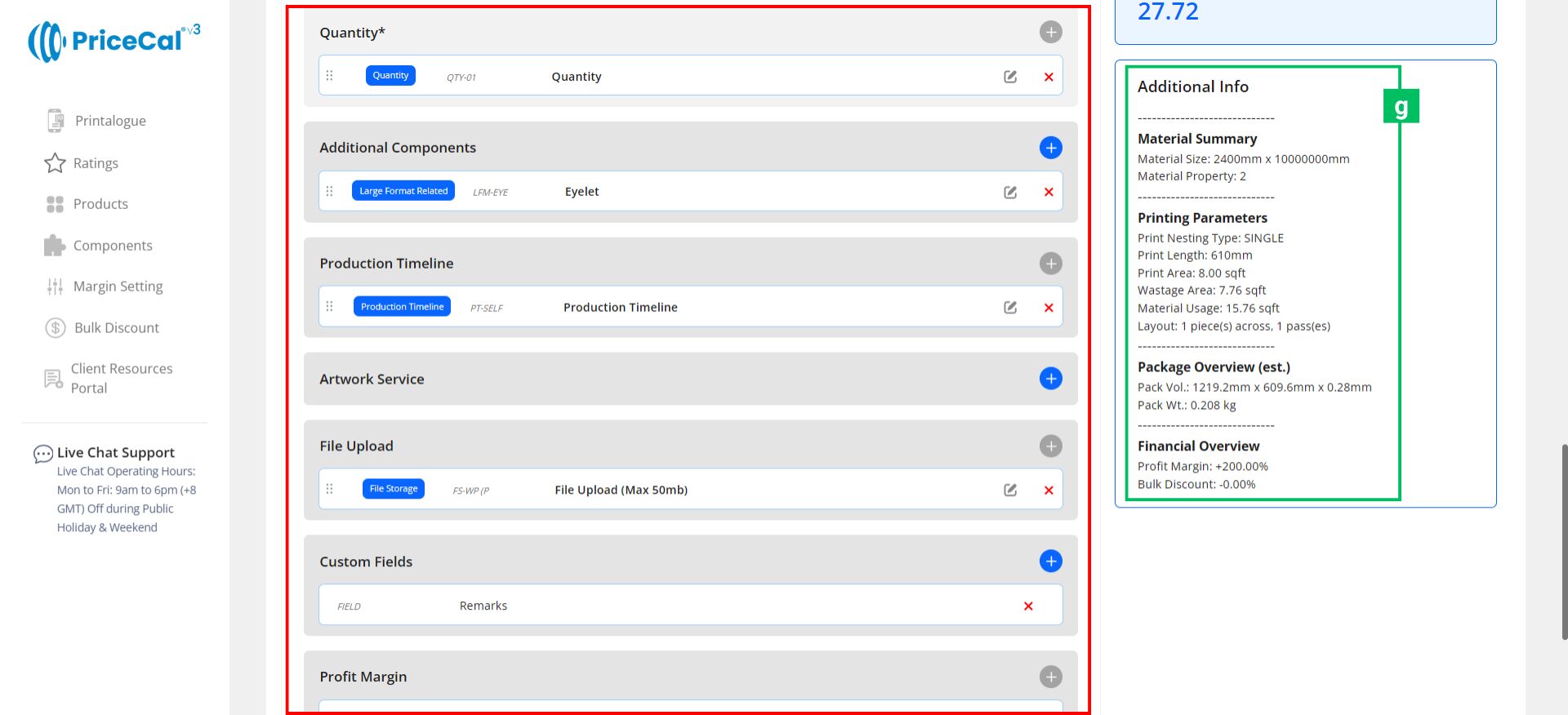
🧾 Additional Info [g]: Get instant calculation insights
-
-
Material Summary – Displays the currently selected material and size.
-
Printing Parameters – Shows nesting type, print length, print area, and usage.
-
-
-
-
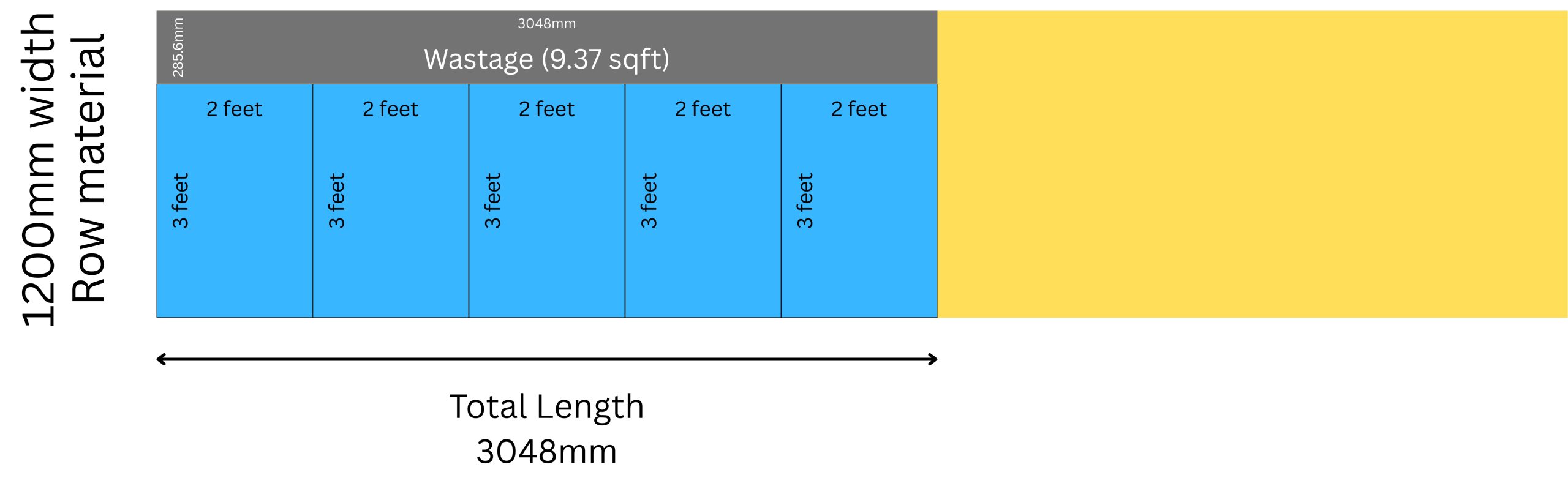
- The selected print size is 3ft x 2ft, it’s 6 sqft
- Wastage is 285.6mm (max width of material – print width) x 3048mm (total height) = 9.37 sqft
- To produce 5 pcs, total print sqft = ⌈6/5pcs⌉= 30 sqft
-
-
-
-
Package Overview (est.) – Calculates estimated volume and weight based on GSM, thickness, and quantity.
-
Financial Overview – Displays applied profit margin and bulk discount summary.
-
11. Finalize the Product
After setting up all details and components:
-
-
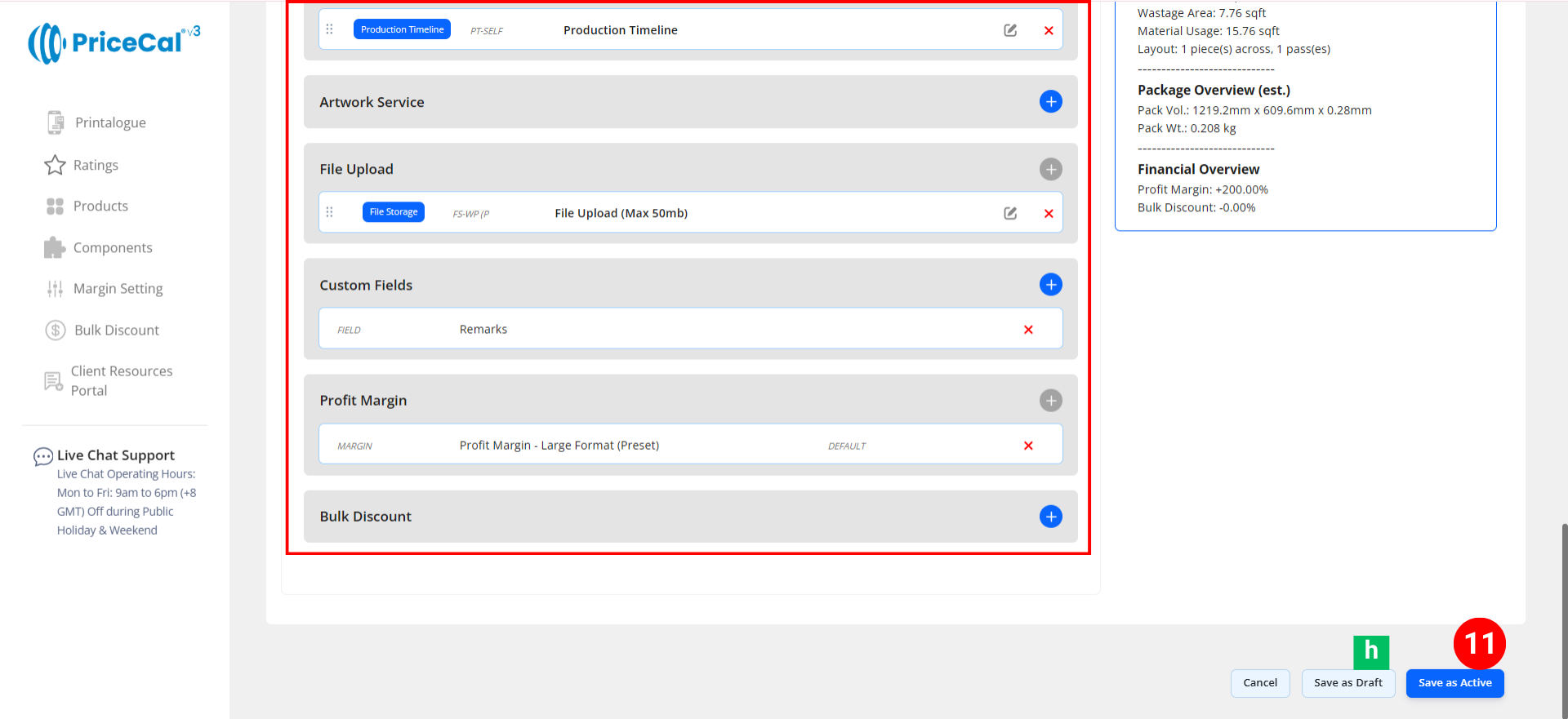
Click “Save as Active” to publish the product to your storefront.
-
(Optional) Click “Save as Draft [h]” to keep the product inactive and hidden from the shop until ready.
-
💡 Pro Tip
-
Use the Duplicate [d] function to quickly create similar SC-Area products — for example, clone Foamboard to make Poster, then just adjust the material and pricing components.
-
The SC-Area setup is best suited for large-format print products, including:
Posters, Banners, Wall Stickers, Display Systems and other signage-based applications.