PriceCal Tutorial

Whether you're setting up your first product or fine-tuning complex pricing rules, these tutorials will help you get the most out of PriceCal. Follow along step-by-step to automate your pricing, reduce manual work, and set up your branded storefront. No technical skills needed – our presets and guides make setup straightforward. Pick a tutorial below and start streamlining your quoting process today.

Tutorial Categories

Product Setup (CSV)

Overview

The CSV Product setup is designed for products with complex or highly customized pricing structures that are best managed through a CSV price list.
This is ideal for items with many price permutations — such as Tent Cards, NCR Forms, or Calendar — where each option, size, or quantity has a specific price.

With PriceCal’s CSV Data Source, you can upload a full pricing file directly, saving countless hours of manual setup while maintaining full flexibility to add optional components and profit margins.


🧭  Navigating to CSV Product Creation

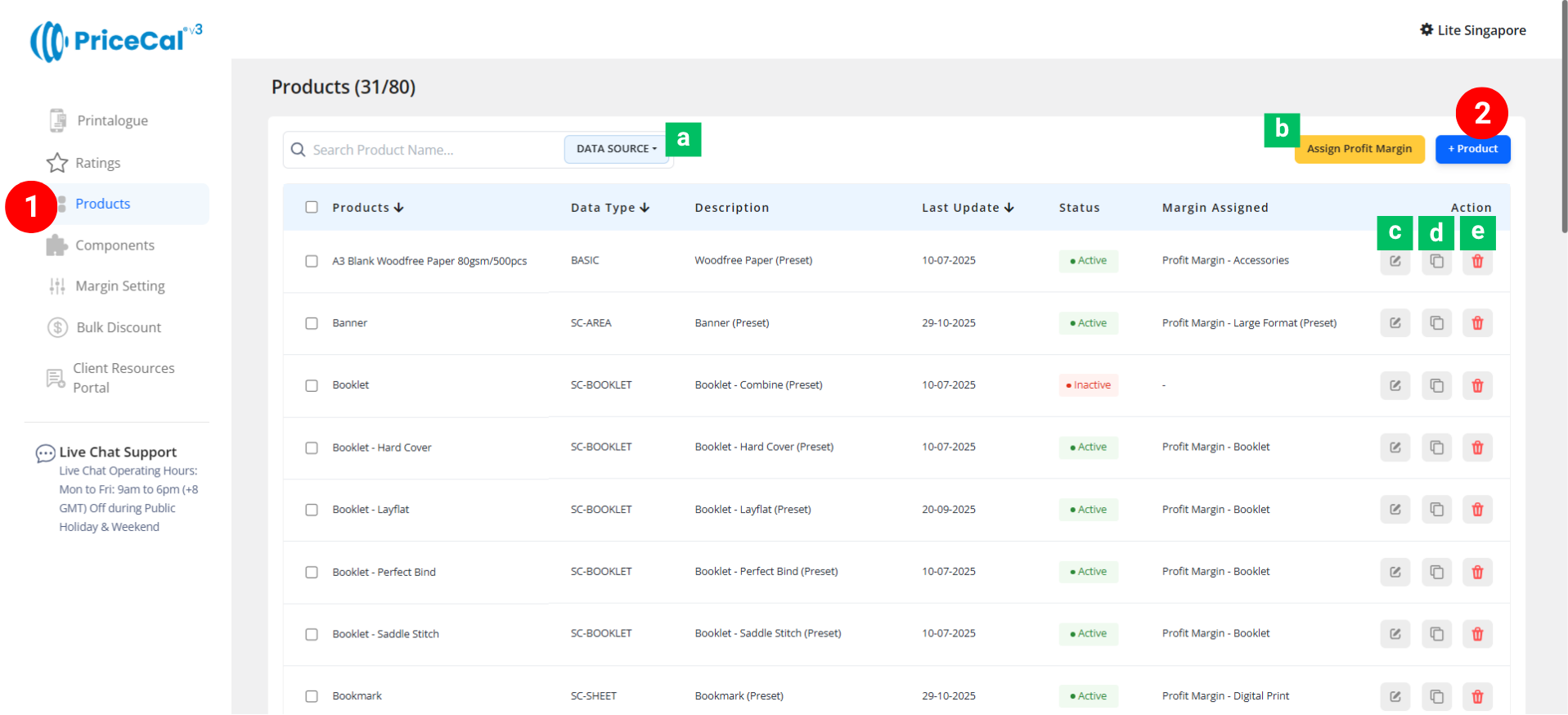
  1. Go to your Product Dashboard.

    • Data Source Sorting [a] – Filter to view products from the same data source.

    • Assign Profit Margin [b] – Apply one profit margin setup to multiple products at once.

  2. To create or manage a product, click Add Product – Start a new product setup.

    • Edit [c] – Modify existing product details.

    • Duplicate [d] – Clone an existing product setup to reuse its structure.

    • Delete [e] – Remove unused or outdated products.


🧱 Create a CSV product

Step-by-Step Setup

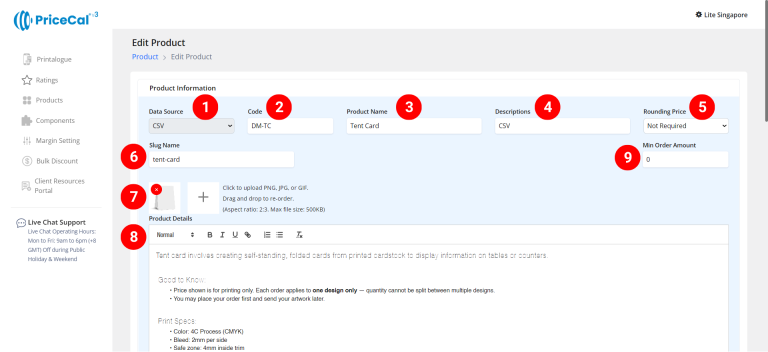
  1. Select “CSV” as your product category.

  2. Enter a unique code (up to 8 characters).

  3. Input your Product Name based on the CSV pricing file you prepared

  4. Add a short Description to identify production type. Example: “Own Production”, “Outsource Production”

  5. (Optional) Choose your Rounding Price— round price up/down to achieve integer pricing.

  6. Enter a Slug Name to create a product link.

    Example: Slug “tent-card” → your link will be https://lite.printmart.cc/products/tent-card
    If no slug is specified, a random code will be used.

  7. Upload Product Images (up to 10).

  8. Fill in your Product Details and Specifications, such as product, print specs, and production days.

  9. (Optional) Set a Min Order Amount.
    💡 Tip: Regardless of the print quantity or total price, there will be a minimum charge unless the calculated price exceeds the minimum order amount.
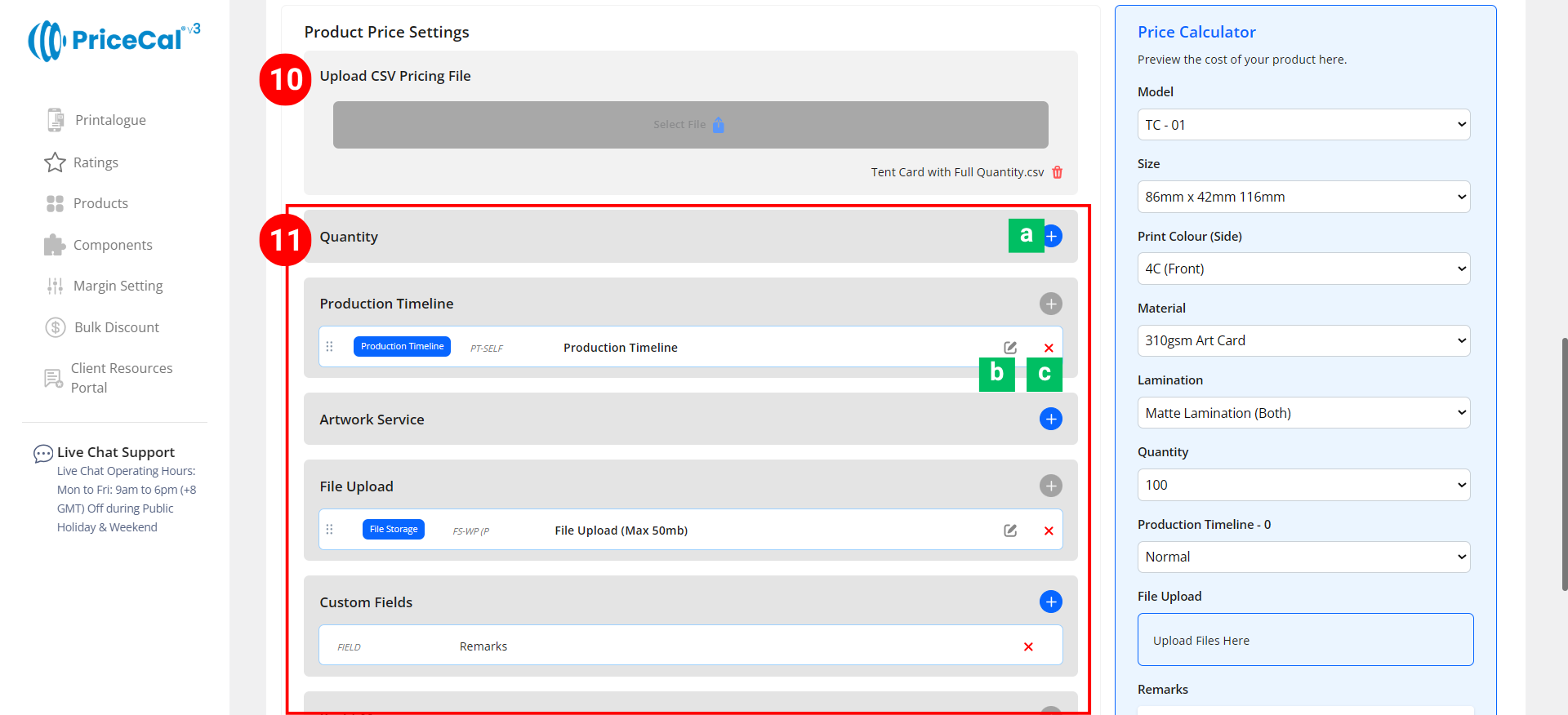
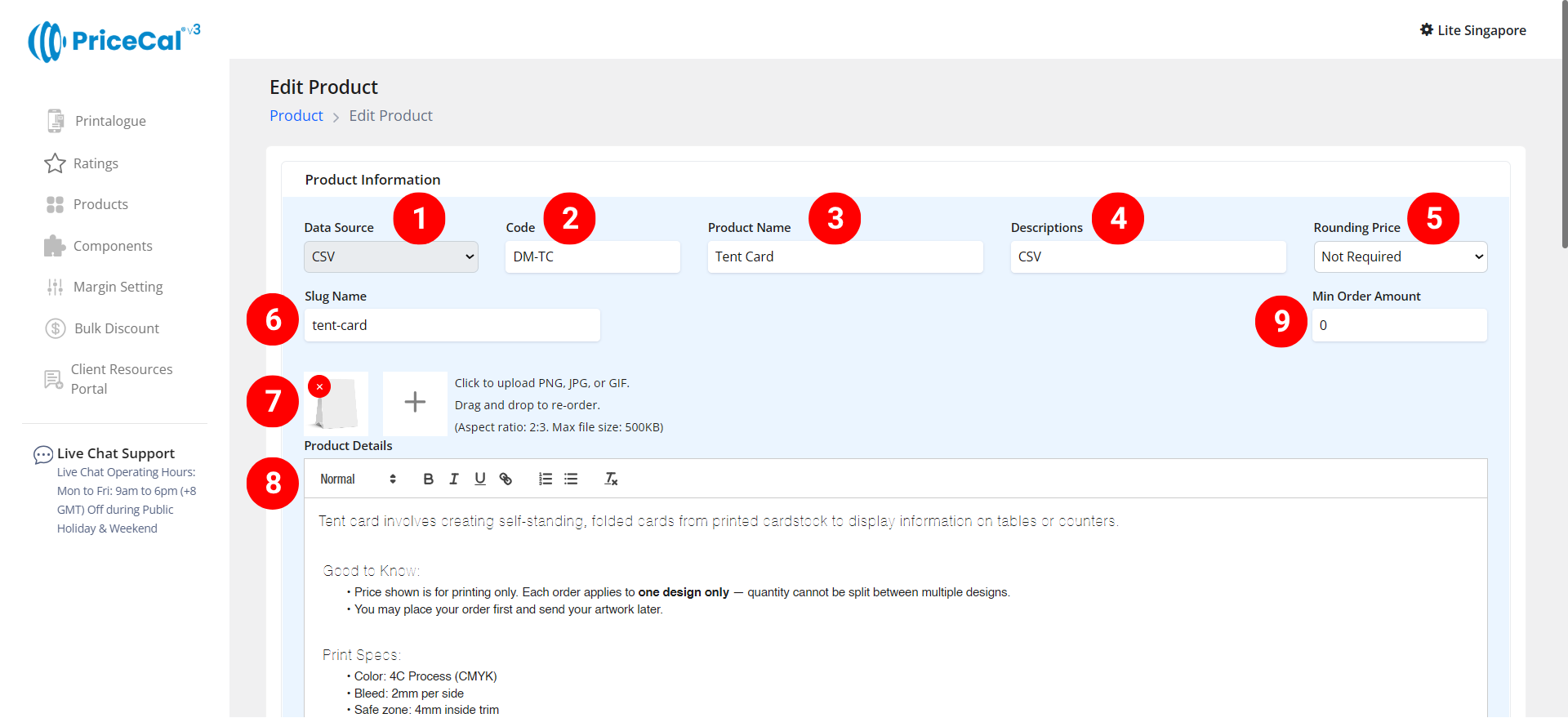
  10. Upload your CSV pricing file. [How to create CSV pricing file?]
  11. Assemble Components. You can still add extra services, margins, or options using the Components section.

    • Add Component [a]: Add or create a new component (e.g., Artwork Service, Timeline).
    • Edit [b]: Modify component setup (changes sync to all products using this component).

    • Delete [c]: Remove the component from the current product.

🔸 Optional System & Custom Components

Add these depending on your product requirements:

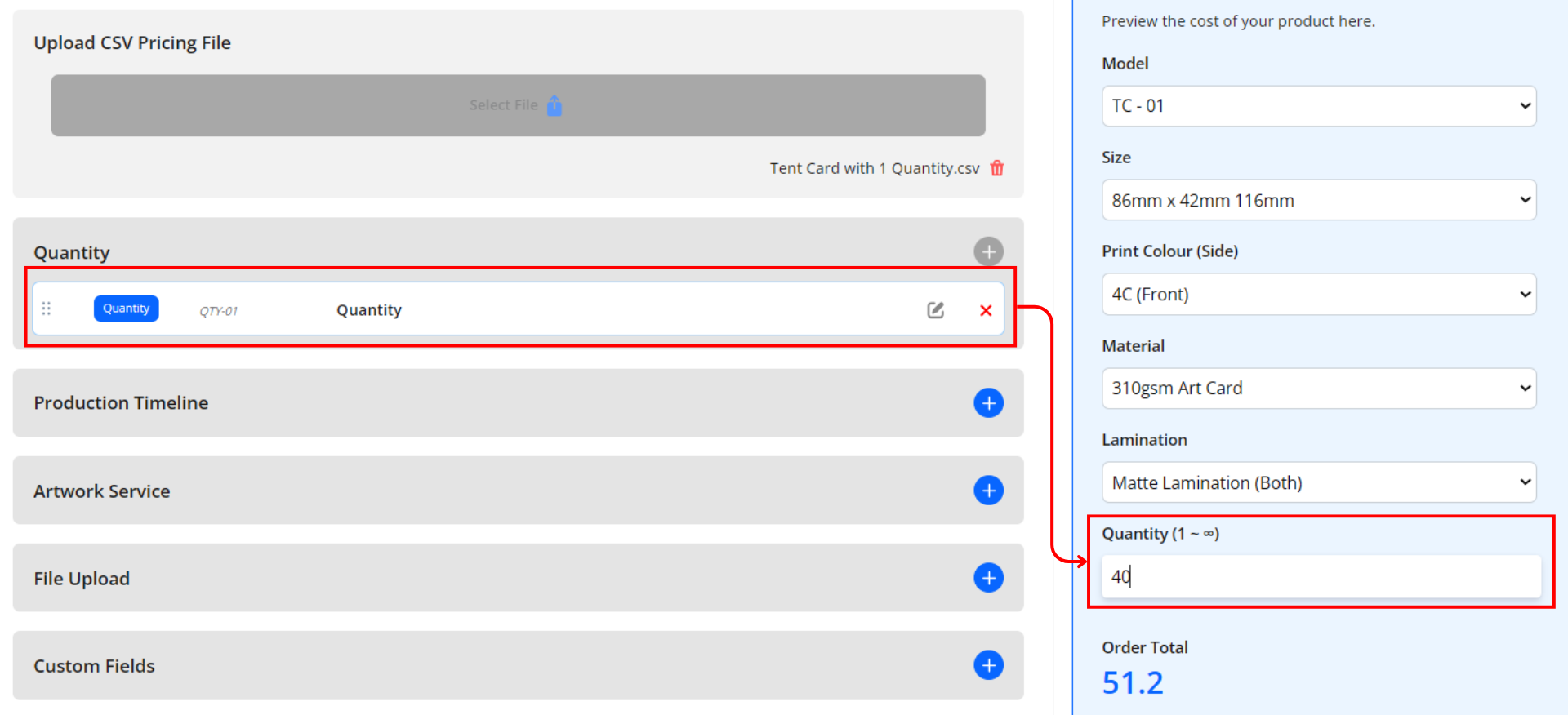
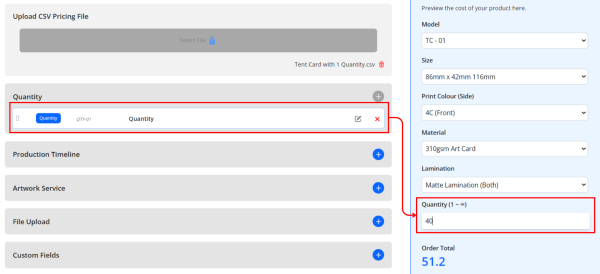
    • Quantity – Define customer-selectable quantities. (for CSV price file with 1 Quantity only)
      Just prepare the 1-piece cost in your CSV file — the system will automatically calculate the total price by multiplying 1 piece cost × quantity.
    • Production Timeline – Offer flexible production speed (Normal / Guaranteed Date).

    • Artwork Service – Design or setup service options if applicable.

    • File Upload – Enable file upload and select storage location (WordPress or Dropbox). [Only displayed after integration into WordPress website]

    • Custom Fields – Collect extra info or artwork links (e.g., Google Drive link, ).[Only displayed after integration into WordPress website]

    • Profit Margin – Apply different profit percentage levels.

    • Bulk Discount – Automatically apply discounts for large orders.

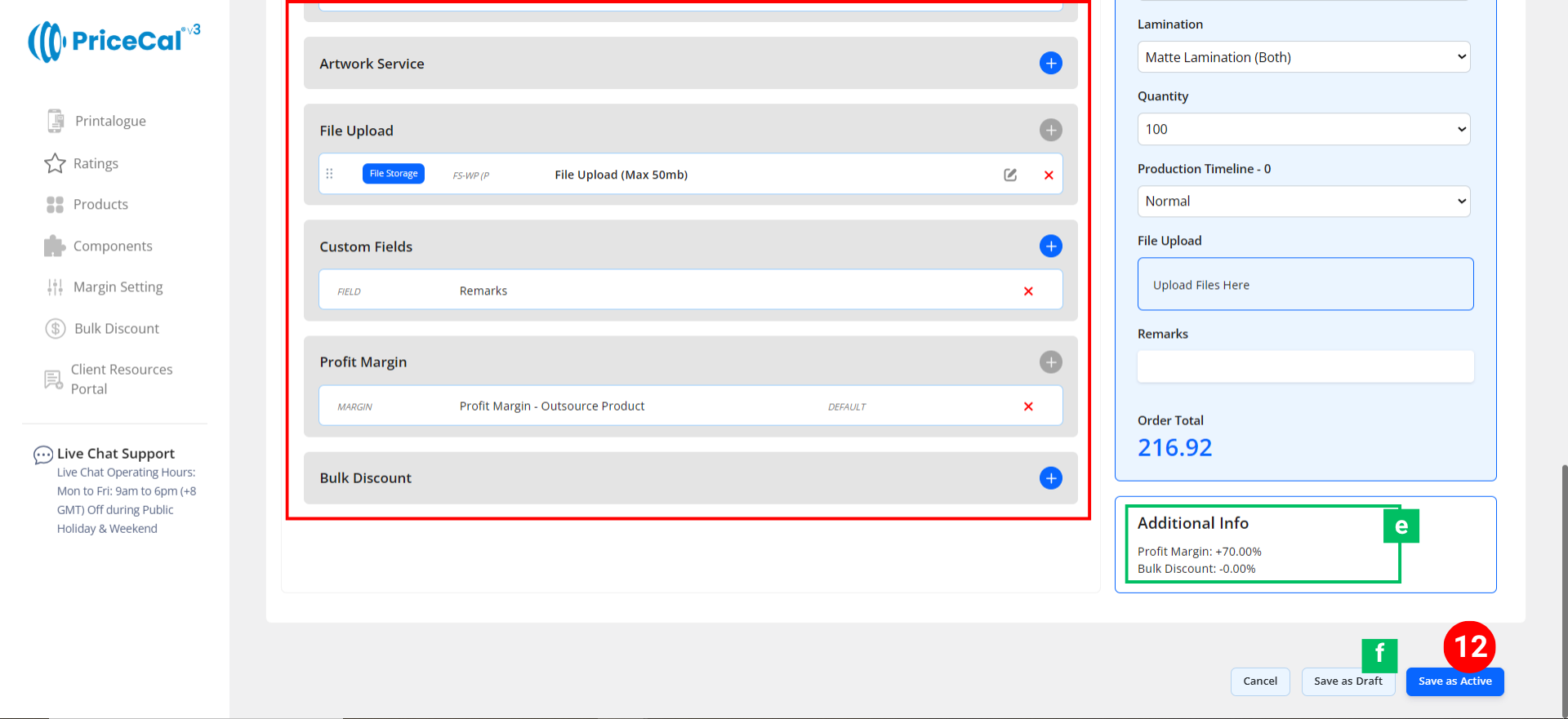
🧾 Additional Info [e]: Get instant calculation insights

      • Financial Overview – Displays applied profit margin


12. Finalize the Product

After setting up all details and components:

      • Click “Save as Active” to publish the product to your storefront.

      • (Optional) Click “Save as Draft [f]” to keep the product inactive and hidden from the shop until ready.


💡 Best For

The CSV Product Data Source is ideal for:

  • 🧾 Tent Cards
  • 📋 NCR / Invoice Books
  • 🎫 Event Passes or Labels
  • 📘 Certificates / Certificates with Options
  • 💎 Promotional Items with tiered pricing

🧠 Best Practices & Tips

  1. Prepare your CSV clearly — keep column titles simple and consistent.

  2. Use Full Quantity CSV for complex pricing, or 1 Quantity CSV if using system Quantity component.

  3. Include optional components like profit margin and timeline for more flexibility.

  4. Add a minimum order amount to protect from underpriced small orders.

  5. Use rounding for clean pricing and better customer perception.

  6. Test uploaded prices before publishing to ensure accurate display.

  7. Add clear product images to make each option easy to identify visually.

©2025 PriceCal.co

API

SC-Sheet calculates printing costs by determining the number of large sheets required based on material, size, printing method, and quantity.

For example, if a customer orders 1,000 business cards (89mm x 54mm), SC-Sheet calculates how many fit on a standard sheet, the total sheets needed, and the printing cost. Additional finishing like lamination or diecut is factored in separately, ensuring precise pricing while optimizing material usage and profitability.

What products are best suited for API?

Click on the products below to see API in action!

SC-Sheet

SC-Sheet calculates printing costs by determining the number of large sheets required based on material, size, printing method, and quantity.

For example, if a customer orders 1,000 business cards (89mm x 54mm), SC-Sheet calculates how many fit on a standard sheet, the total sheets needed, and the printing cost. Additional finishing like lamination or diecut is factored in separately, ensuring precise pricing while optimizing material usage and profitability.

What products are best suited for SC-Sheet?

Click on the products below to see SC-Sheet in action!

CSV

CSV is the most flexible way to manage and price products with fixed options or variations that don’t require dynamic calculations. Ideal for products with pre-set combinations of attributes like size, material, finish, and quantity, CSV enables
printers to create custom pricing tables in Excel (CSV format). Once the table is computed, simply upload it into PriceCal, and our Price Calculator will convert it into a systematic selection, generating the price based on the chosen options.

For instance, when calculating the price for a roll-up standee, printers can set up variables like type (e.g., Standard, Deluxe), size (Small, Medium, Large), print method (Digital, Offset), and quantity (e.g., 1, 5, 10). These variables are then organized in a CSV file, and upon upload, the system will automatically generate the correct pricing based on the selected options.

What products are best suited for CSV?

Click on the products below to see CSV in action!

  • Banners (Size, Material, Print Method, Quantity)
  • Packaging Boxes (Type, Size, Printing Method, Finishing)
  • Signage (Material, Size, Print Method, Quantity)
  • Stationery (Size, Material, Print Method, Quantity)
  • Promotional Products (Type, Design, Print Location, Quantity)

SC-Packaging

SC-Packaging is designed to handle pricing for packaging products such as boxes and cartons by calculating costs based on material, size, and finishing components. Through our strategic partnership with Pacdora, printers gain access
to a wide variety of box models, including double tuck boxes, auto-lock boxes, mailer boxes, and more.

This tool works similarly to SC-Sheet by calculating the open size of the selected box model and using the input dimensions to determine material usage, printing costs, and additional finishing. Components like gluing, die-cutting, and assembly costs can be seamlessly factored into the pricing

For example, if a customer orders 2,000 auto-lock boxes measuring 200mm x 150mm x 100mm, SC-Packaging will generate the total material required based on the box’s flat layout, calculate the printing and die-cutting costs, and include any finishing or assembly charges.

Exciting Benefits from Our Pacdora Partnership

Thanks to this collaboration, printers can now:

✅ Retrieve dielines instantly upon customer order.

✅ Offer customers access to Pacdora’s design studio to create and edit packaging
artwork effortlessly.

What products are best suited for SC-Packaging?

Click on the products below to see SC-Packaging in action!

SC-Item

SC-Item is designed for pricing single-item print customization, making it ideal for products like apparel, drinkware, and promotional merchandise. Unlike other pricing tools, SC-Item allows for flexible order quantities across different variations, such as sizes, colors, and print locations.

For example, in t-shirt printing, customers can choose to print on the front, back, or sleeves and place an order with specific quantity breakdowns—20 Large, 10 Small, 15 Medium, etc. SC-Item calculates the cost based on the print locations, total quantity, and any additional customization options like embroidery, heat transfer, or DTF printing.

What products are best suited for SC-Item?

Click on the products below to see SC-Item in action!

SC-Booklet

SC-Booklet is designed to generate precise pricing for multi-page products like booklets, catalogs, and magazines by calculating the material cost, printing method, and binding requirements. It determines the number of sheets required to fulfill an order based on the total number of pages, paper type, and sheet size. Additionally, SC-Booklet supports various binding methods, including saddle stitching and perfect binding, ensuring flexibility in product customization.

For example, if a customer orders 500 copies of a 32-page booklet, SC-Booklet calculates the number of large sheets needed based on the imposition layout. If the inner pages are printed on 150gsm matte paper and the cover on 300gsm glossy
paper, it determines how many sheets of each material are required and factors in the printing and finishing costs accordingly. The system also accommodates add-ons like spot UV, lamination, and special finishes.

What products are best suited for SC-Booklet?

Click on the products below to see SC-Booklet in action!

  • Corporate brochures
  • Annual reports
  • Event programs
  • Product catalogs
  • Training manuals
  • Magazines
  • Cookbooks
  • Portfolios
  • School yearbooks
  • Art books

SC-Area

SC-Area calculates printing costs based on the total print area (sq ft). When a user enters the length and width of the final print, SC-Area determines the total printable area and generates the cost accordingly. It also factors in additional finishing based on the perimeter, making it ideal for products that require eyelets, frames, or poles.

For example, if a customer orders a banner measuring 10ft x 3ft, SC-Area will calculate the total print area (30 sq ft) and generate the cost. If finishing options like eyelets every 2ft or a poles are added, SC-Area factors in these costs based on the perimeter. This tool is perfect for large-format prints such as banners, buntings, billboards, and signage, ensuring accurate pricing and seamless cost calculation.

What products are best suited for SC-Area?

Click on the products below to see SC-Area in action!

  • Magnetic signs
  • Metal / Aluminum signs
  • Die-cut stickers (large format)
  • PVC boards (Forex board prints)
  • Corflute / Corrugated plastic signs
  • Canvas prints
  • Tension fabric displays
  • Construction site signage
  • Directional & wayfinding signs
  • Table covers & table runners
  • Street pole banners
  • Retail window clings
  • Estate agent boards
  • Event standees & cutouts
  • Door signs & nameplates

PriceCal bags Best eCommerce Fulfilment Award 2023

PriceCal, conceptualized and brought to life by Welson and his dynamic team, emerged from a vision to revolutionize the print industry's approach to online sales....