
🎁 Setting Up Printing Size (SC-Box and SC-Packaging)
For box packaging-based products such as boxes, sleeves, and display packaging, defining the printing size ensures that PriceCal accurately calculates material usage, layout nesting, and production costs.
This tutorial walks you through setting up the Printing Size for SC-Box and SC-Packaging products.
🔹 What Is Printing Size in SC-Packaging?
In SC-Box and SC-Packaging, the Printing Size defines the flat (unfolded) layout of the packaging before folding into its 3D form.
It directly connects with your Material and Printing Cost components to calculate printing sheet requirements, layout arrangement, and total cost per packaging size.
This setup ensures accuracy whether you’re producing custom carton boxes, gift boxes, or display packaging.
🧭 Navigating to Printing Size Setup
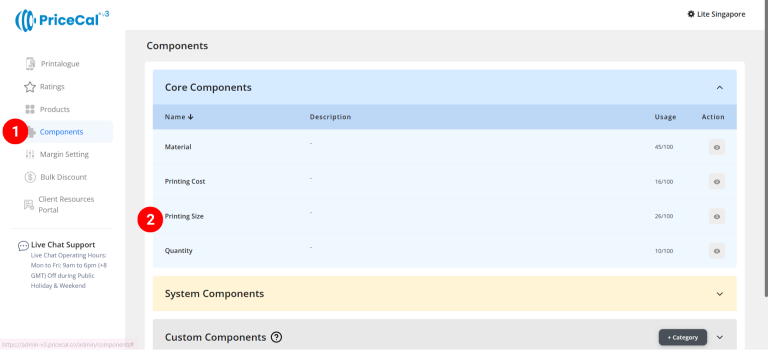
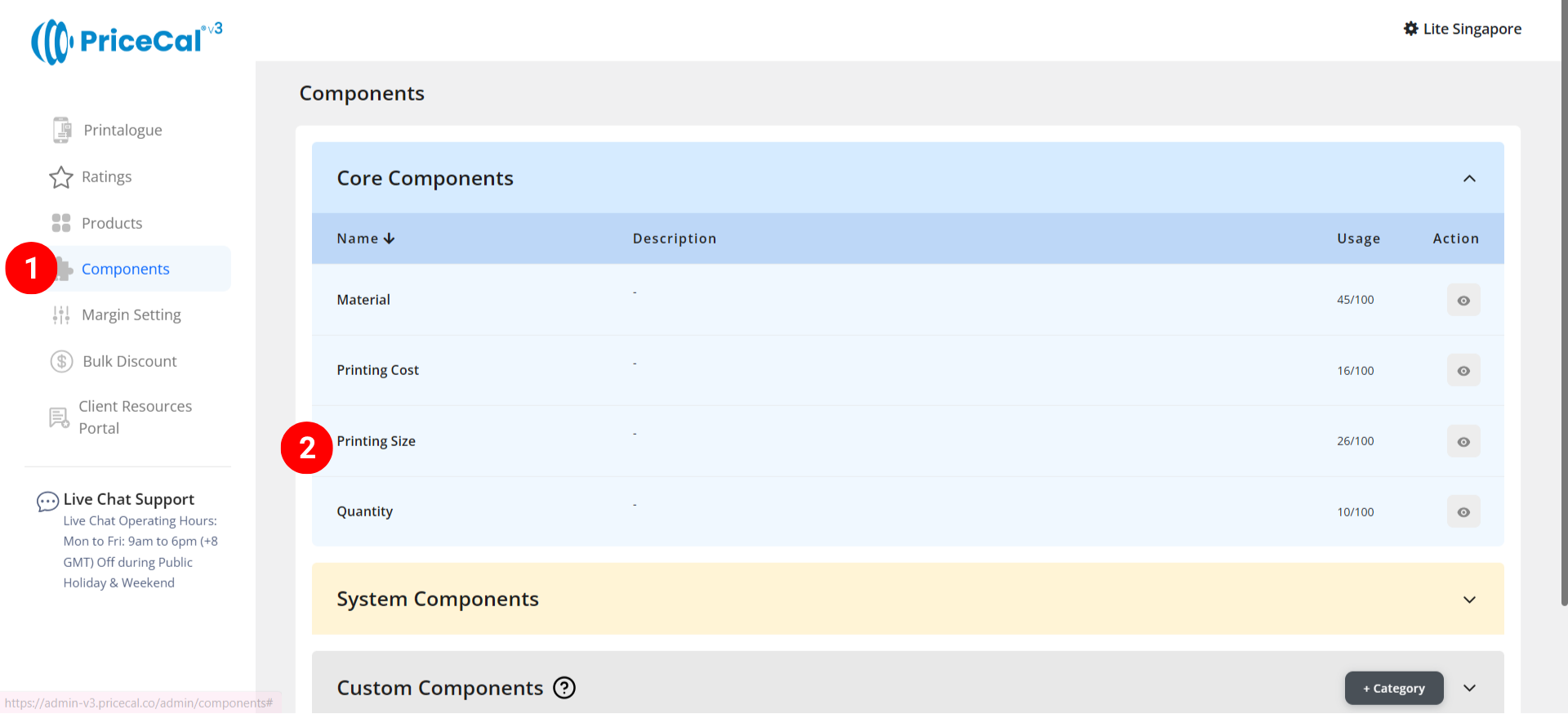
- Go to Component dashboard
- Click Printing Size category
- Add Printing Size
Edit [a]: modify existing components.
Duplicate [b]: clone a component setup to reuse and create new.
Delete [c]: remove unused component.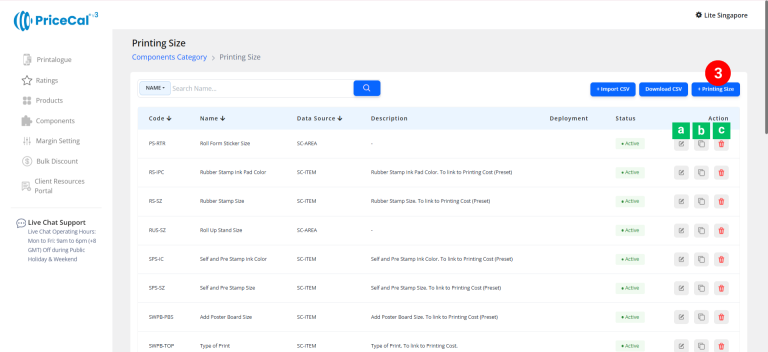

🧱 Create a Packaging-Based Printing Size (SC-Box and SC-Packaging)
Step-by-Step
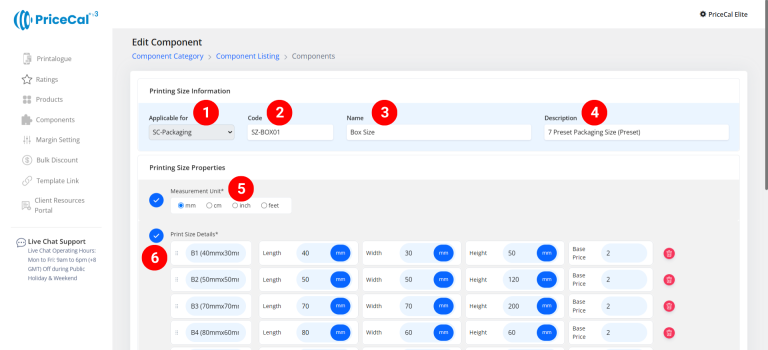
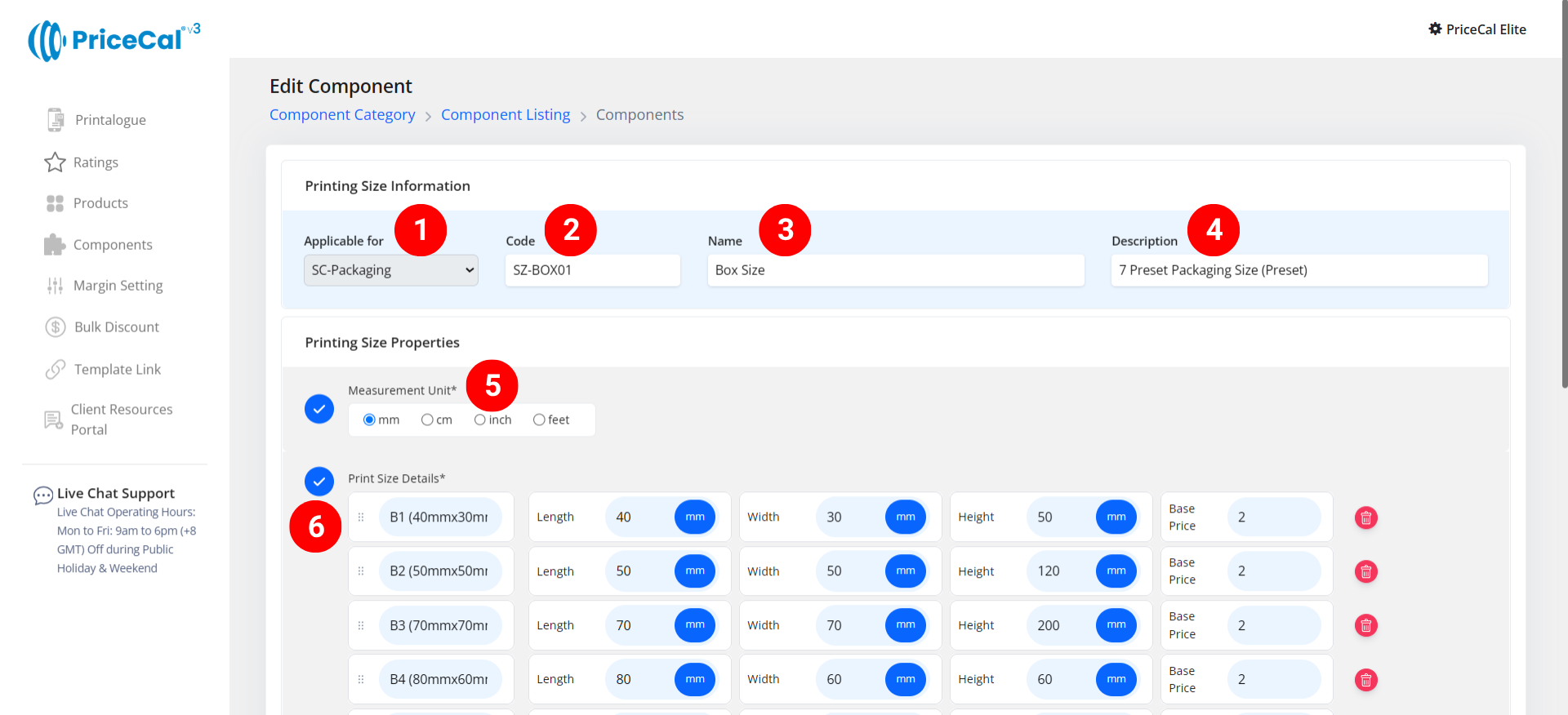
- select “SC-Box/Packaging”
-
Put a unique code (up to 8 units)
-
Enter the printing size name. i.e. Packaging Size, Carton Size
-
Enter the printing size component description. (💡 Note: Add a short note to describe this product type/size, such as “box size for tuck end box only”. This helps you easily identify it later.)
-
Select measurement unit
-
Enter the print size detail
– Size Label: Size shown to customer. e.g., “B1 (40mmx30mmx50mm)”
– Max Length & Width & Height: Input size numbers to match the size label
– Base Price: One-time setup or startup fee before any per-sheet cost applies.
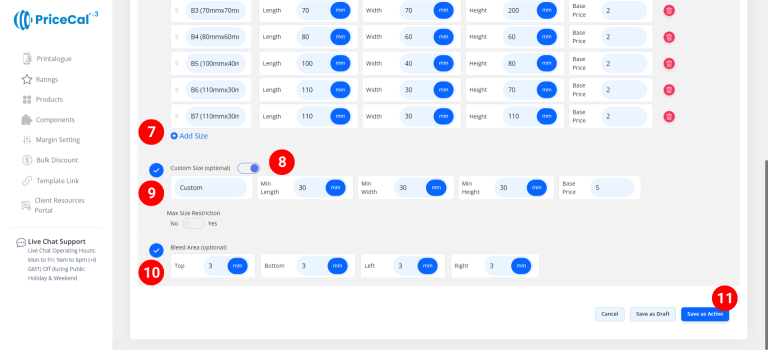
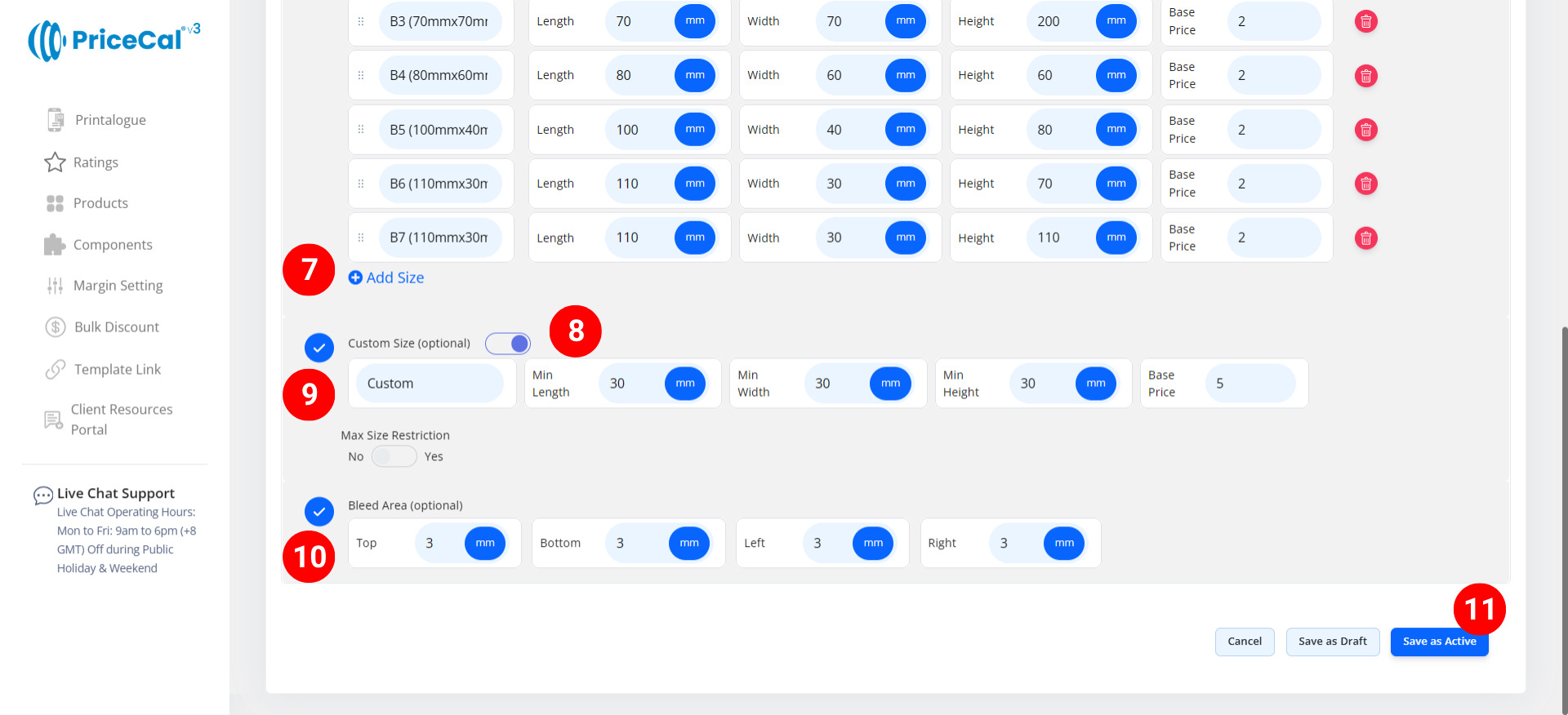
- Add print size if you have other print sizes available for your customers to choose from
-
(optional) Turn on Custom size if you able to print the product with custom size
– Min Length & Width & Height: Enter the min size that can be printed and cut for this product size.
– Base Price: can add a One-time setup or startup fee for the custom size print service -
(optional) Turn on Max Size Restriction if you want to limit how large customers can order.
– Max Width & Height: Enter the maximum open box size (size before folding as a box) that can be printed and cut. -
(optional) Enter the bleed area size. This ensures your design extends beyond the trim line and prevents white borders after cutting.
-
Click “Save as Active” to save your print size setup.
💡 Best Practices & Tips
-
Best for: Folding carton boxes, sleeve boxes, display boxes, and custom packaging.
-
Keep measurements consistent (preferably in millimeters) for accuracy.
-
Ensure the open box (flat layout) size corresponds correctly with your packaging model.
-
For SC-Packaging, when integrated with Pacdora, your selected size can be visualized in 3D and designed directly online using Design Studio.
✅ Next: Configure Printing Cost and Quantity
After completing your Printing Size, proceed to set up the Printing Cost and Quantity components to complete your product’s pricing flow.