
🖨️ Excard is a well-known Malaysian online printing factory that supplies a wide range of printed products to resellers. They provide price lists in two formats:
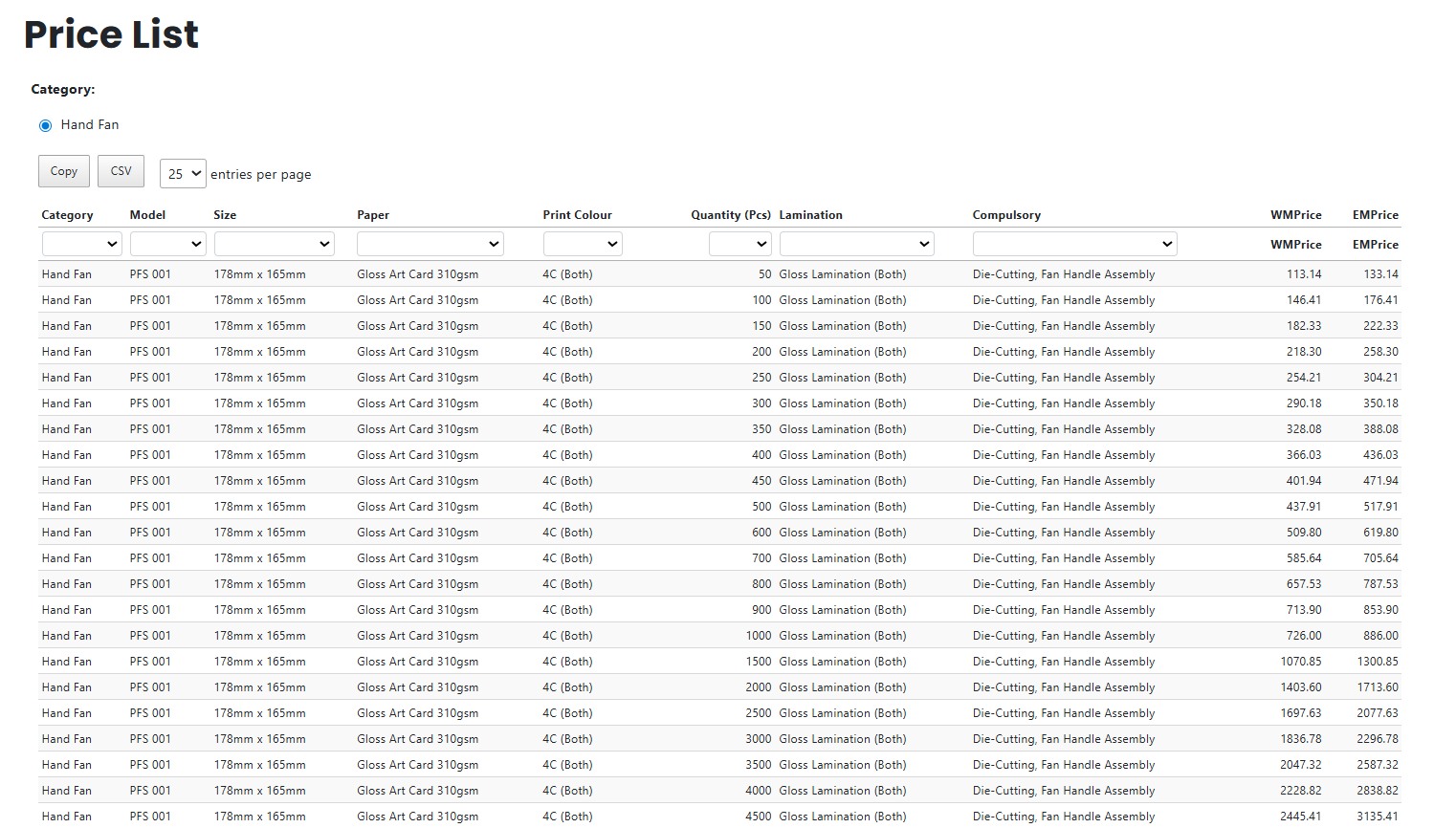
- New Version – full price list downloadable as CSV
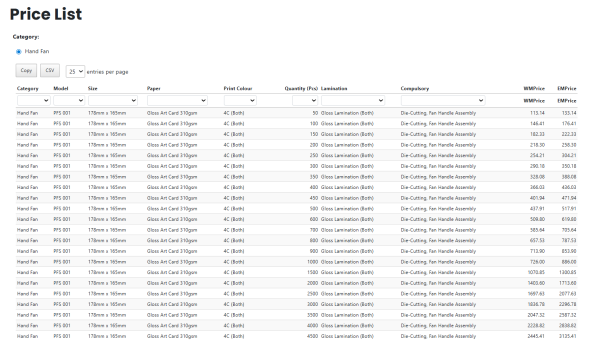
- Old Version – requires selecting specs first, and sometimes no CSV is provided, refer to “How to Prepare CSV File” tutorial to create your own price list.
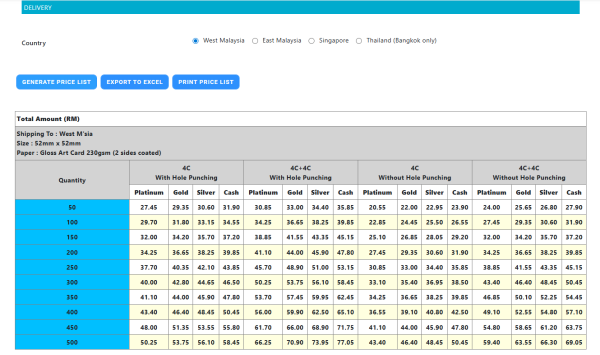
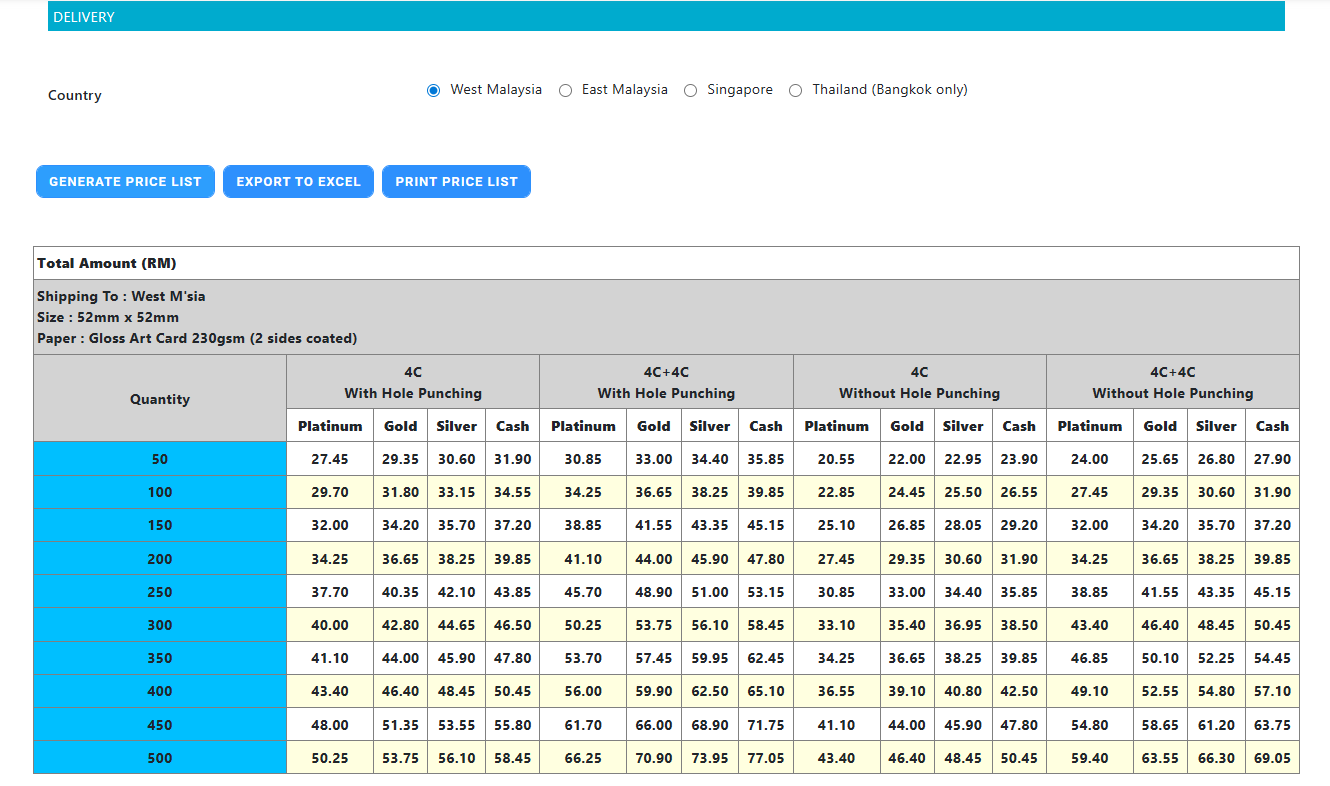
This guide helps you download the CSV and prepare it properly before using it in your pricing setup.
📥 Step 1. Download the Excard Price List
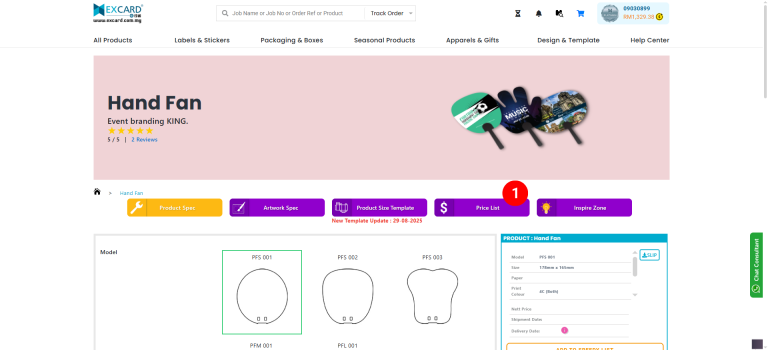
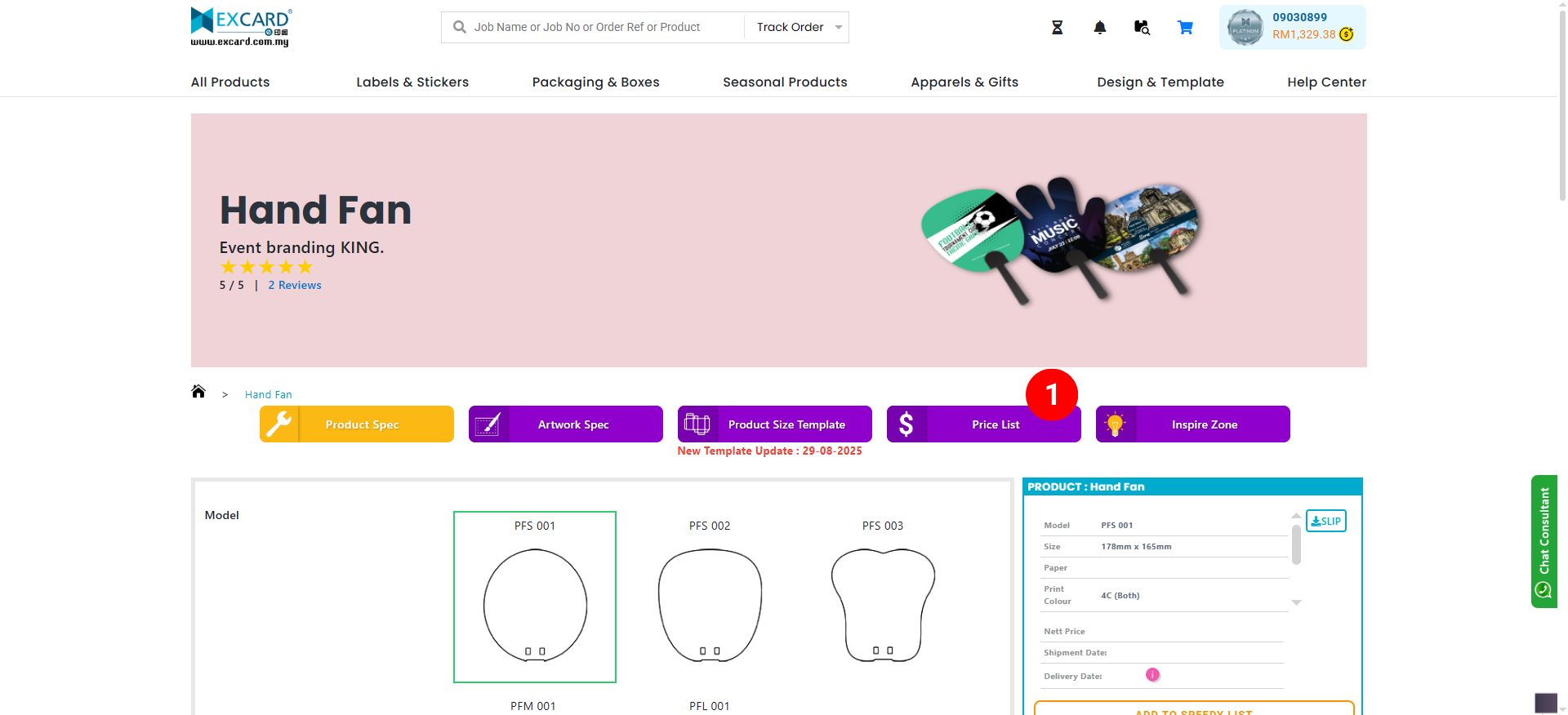
After selecting the product on the Excard website:
- Click “Price List”
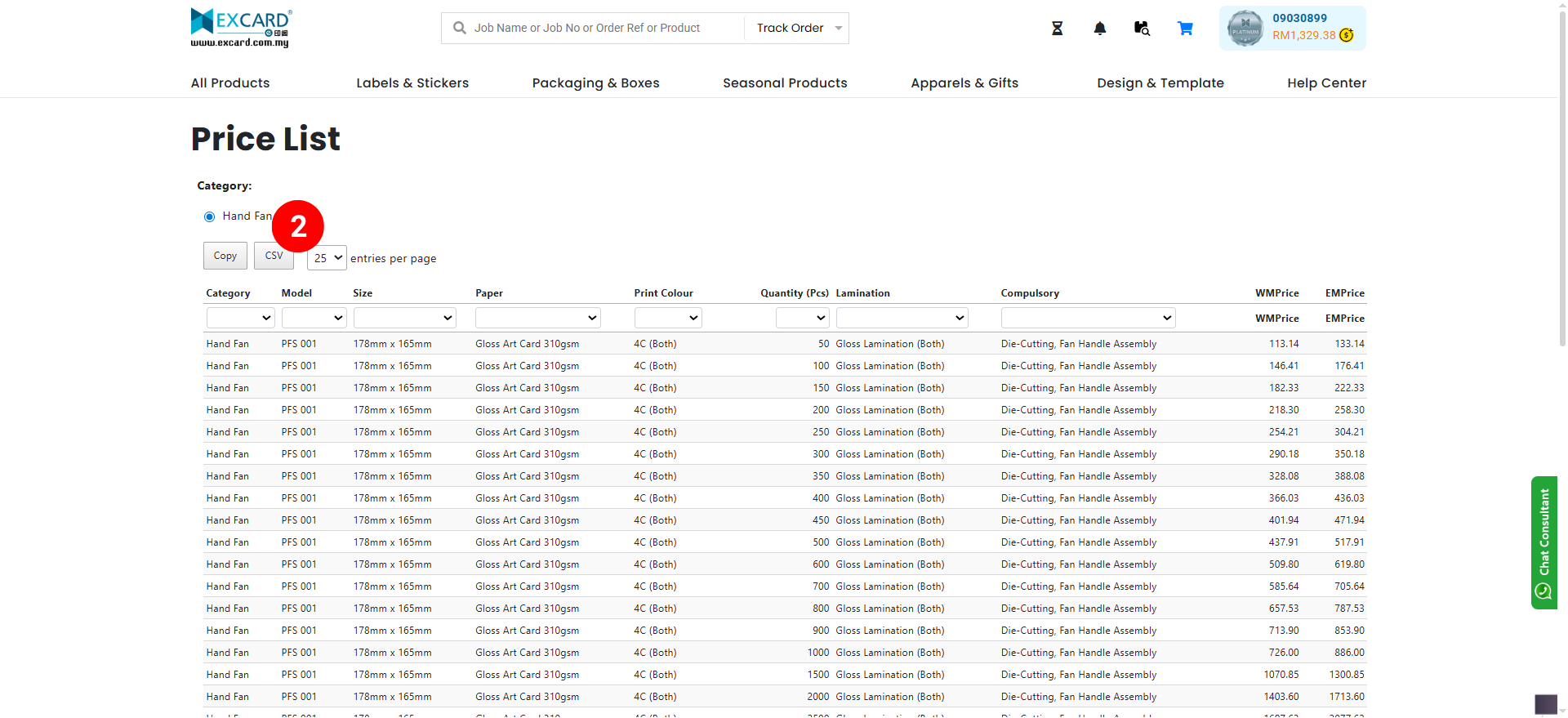
- — Download the CSV File
⬇️ Click “CSV” to download the price list (available for New Version price list).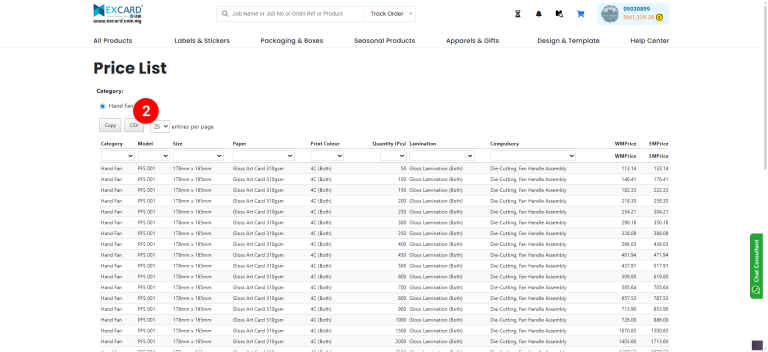
⚠️ If you don’t see a CSV download option:
You are using the Old Version → refer to “How to Prepare CSV File” tutorial to create your own price list.
🛠️ Step 2. Prepare the CSV File (Required Adjustments)
Once the file is downloaded, follow these steps to clean and standardize it.
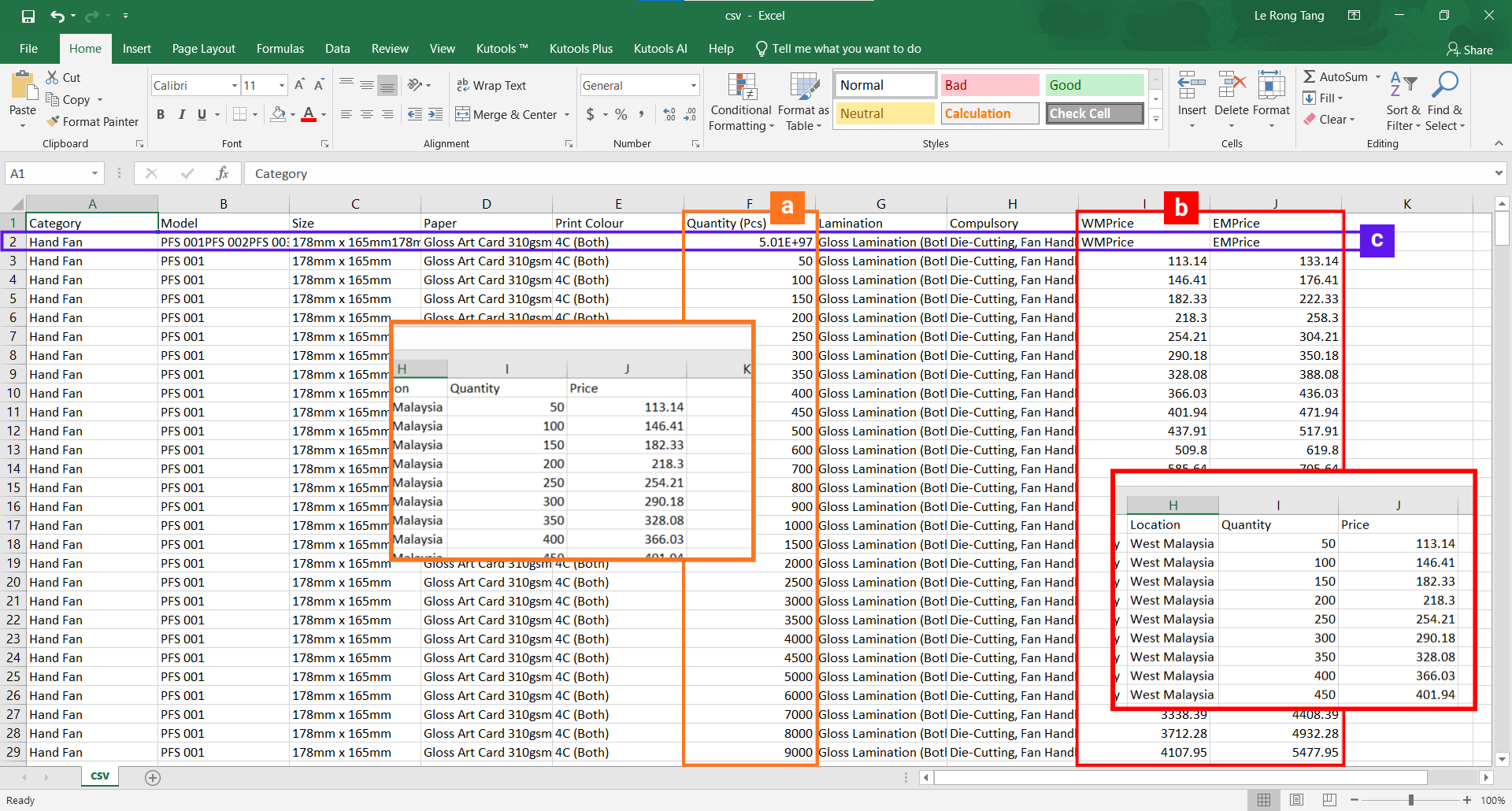
a. Standardize the Quantity Column
📝 Change: “Quantity (Pcs)” → “Quantity”
📌 Then move the Quantity column next to the Price column. The “Quantity” and “Price” columns must be the last two columns.
b. Combine West & East Malaysia Price Lists
Excard splits prices into WMPrice (West Malaysia) and EMPrice (East Malaysia).
You need to merge them into one column.
-
Add a new column: “Location”
➕ Fill all rows with: West Malaysia -
Duplicate the entire price list
– Copy all rows → paste below
– Change Location to East Malaysia -
Replace the Price column for East Malaysia
🔁 Move EMPrice → Price (So your duplicated rows now show East Malaysia pricing)
c. Delete the Second Row
❌ Remove row 2 completely.
It only displays product specs and does not function in the CSV price list structure.
You can download the Original File and Edited File of this Excard price list for hand fans to compare and ensure:
- Column names match
- Structure matches
- WM/EM pricing is correctly merged
- Duplicate rows are correct
- No spec preview row remains
⚠️ Notes & Common Mistakes to Avoid
-
Do NOT keep WMPrice / EMPrice columns
→ Only “Price” column should remain after merging. -
Ensure all rows include a Location value if Excard’s Price List included West and East Price
→ Otherwise system cannot identify which region’s pricing is used. -
Make sure quantity is numeric
→ Remove “pcs” or any symbols.
➡️ Next Steps After Editing
Once your CSV is cleaned:
- ✅ Save your edited CSV file
- ➕ Import the file into your pricing setup when CSV product setup
- 🔍 Test random specs to ensure correct mapping
- 💾 Keep Edited versions for future updates