
🧩 Setting Up Model (SC-Item)
For item-based products such as T-shirts, mugs, tote bags, and merchandise, each product type has different base costs.
In PriceCal, the Model Component helps you define those item types (models) and their associated costs per piece — giving you full control over your item pricing structure.
🔹 What Is the Model Component?
The Model Component defines what type of item or product variant is being printed, along with its associated cost structure.
This allows you to manage and price multiple product models under one product listing — for example, different types of T-shirts or mugs.
💡 Think of it as the base cost setup for each product model before printing costs, quantities, or customizations are added.
🧭 Navigating to Model Setup
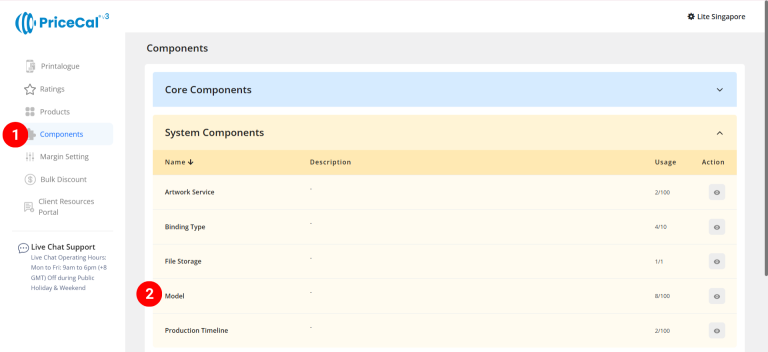
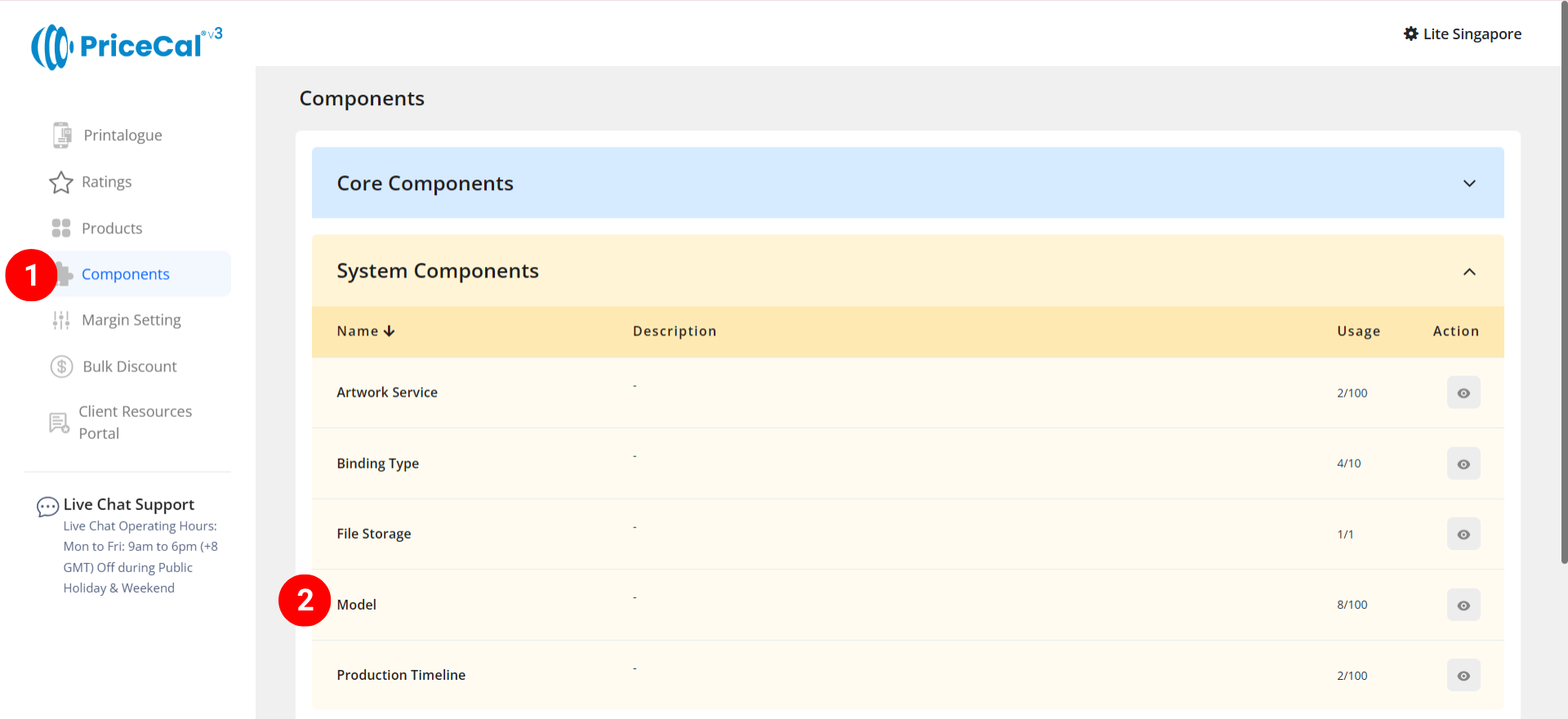
- Go to Component dashboard
- Click Model category
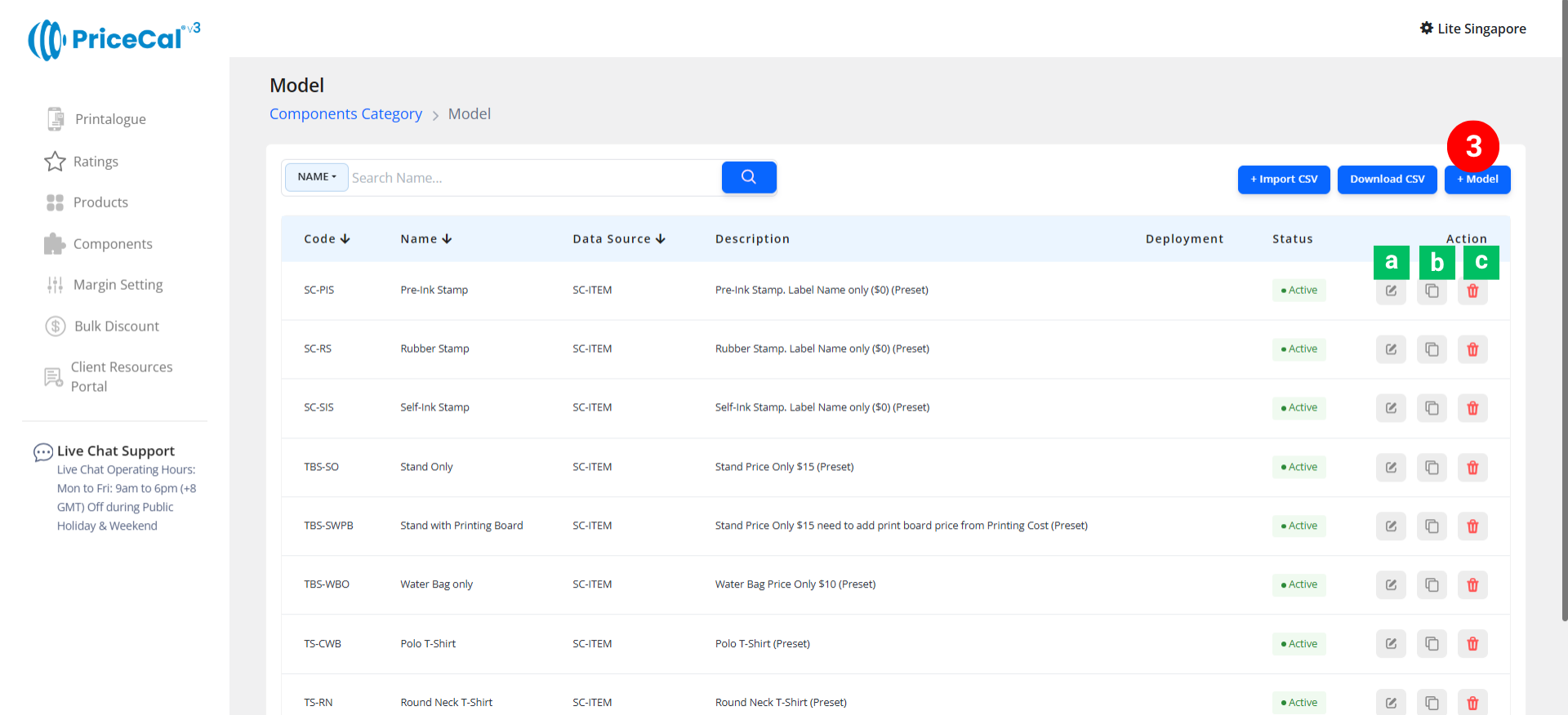
- Add model type
Edit [a]: modify existing components.
Duplicate [b]: clone a component setup to reuse and create new.
Delete [c]: remove unused component.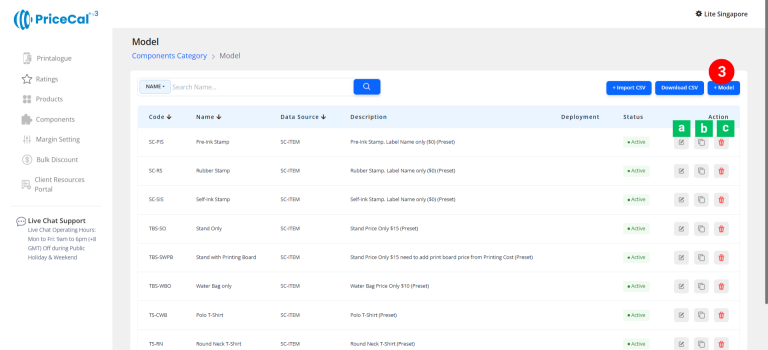
🧱 Create a Model Type (SC-Item)
Step-by-Step
-
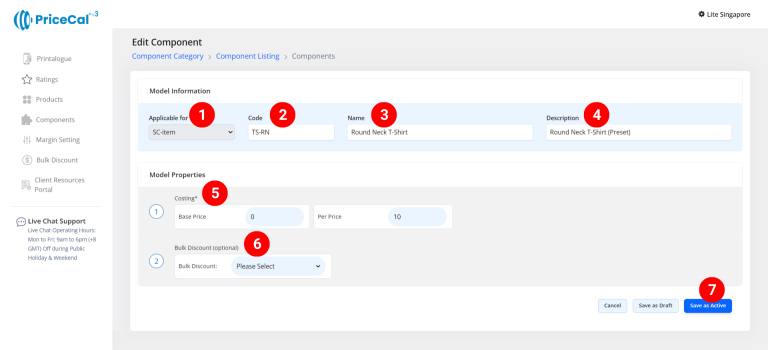
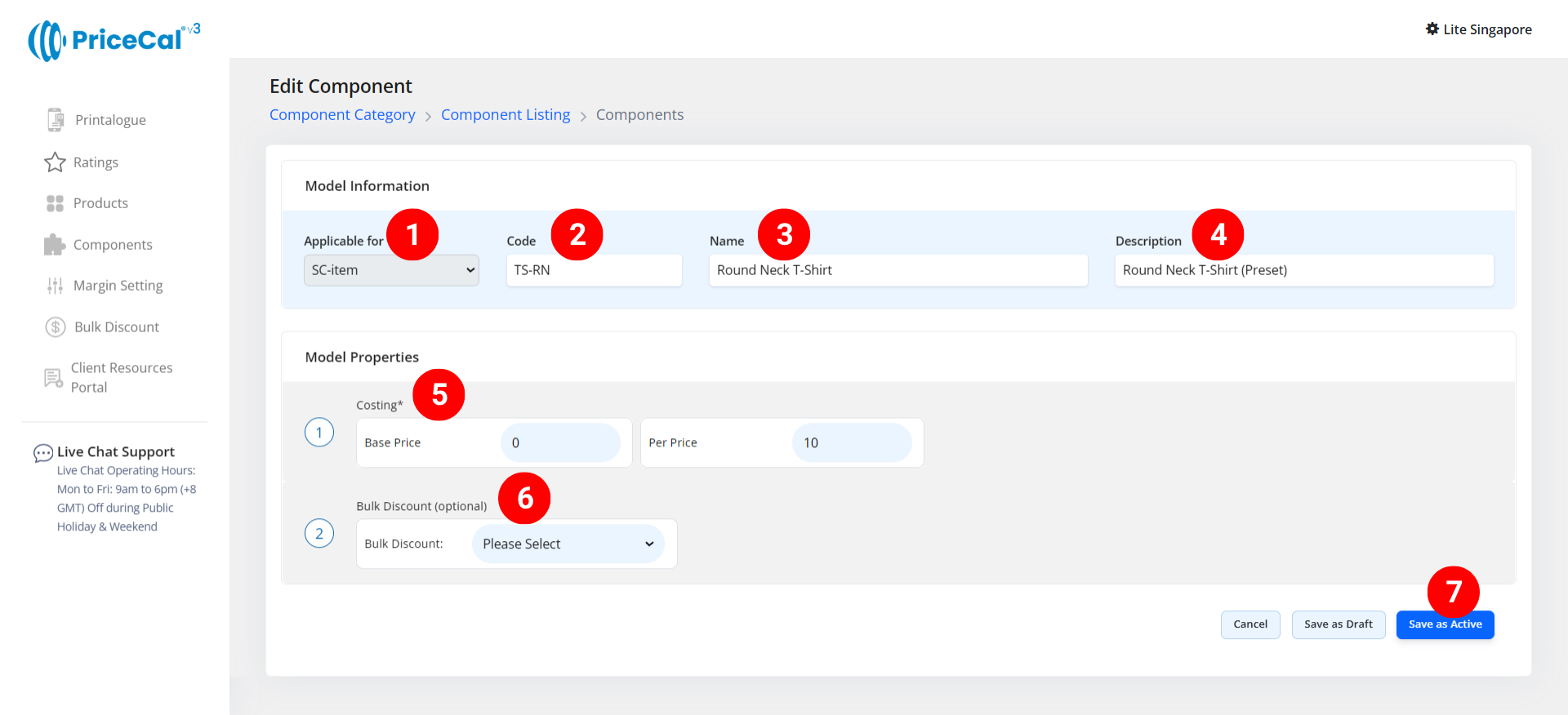
select “SC-Item”
-
Put a unique code (up to 8 units)
-
Enter the model name. e.g. Round Neck Shirt, Coloured Mug
-
Enter the component description. 💡 Tips: Add a short note describing what model applies to this product. Example:
“Round Neck shirt with cost $10”, “Inner Coloured Mug with cost $3” -
Enter the cost detail
– Base Price: One-time setup or startup fee before any per-piece cost applies.
– Per Price: Cost per piece of print quantity - (optional) Set a Bulk Discount. If no need, just keep it in “Please Select”
💡 Tips: When the per-piece cost becomes higher than intended for large quantities, use bulk discounts to bring it down automatically — maintaining competitive pricing and profit margins. -
Click “Save as Active” to save your model setup.
⚙️ How PriceCal Uses Model in SC-Item Products
When a customer selects an item product:
-
The system applies your Base Price and Per Price setup for the chosen model.
-
It multiplies the Per Price × quantity ordered.
-
Applies any bulk discount if applicable.
-
Combines with Printing Cost, Printing Size, and Quantity components for the final price.
✅ This ensures that every product model is priced correctly, even when multiple variants exist in your catalog.
🎯 Why This Setup Is Important
Setting up Model Types allows your system to:
-
✅ Differentiate product models (T-shirts, mugs, bags, etc.)
-
✅ Manage different per-piece and base costs
-
✅ Automatically apply discounts for large orders
-
✅ Ensure pricing accuracy for each unique product
This is a core component for SC-Item products, as it defines the base product type before any print or quantity customization is applied.
✅ Next: Connect Model to Printing Size & Cost
After setting up your Model Component:
-
Link it to the relevant Printing Size and Printing Cost components.
-
Test in the PriceCal product dashboard to ensure correct pricing per model.
-
Verify that discounts apply correctly when quantity increases.