✂️Setting Up Custom Components (SC-Sheet / SC-Booklet / SC-Box / SC-Packaging)
The Custom Component Setup allows you to create finishing or special process options (such as cutting type, folding, or lamination) for your print products.
This setup gives you full flexibility to define cost structures by sheet or by piece and to apply them selectively to certain product types.
🧭 Navigating to Custom Component Setup
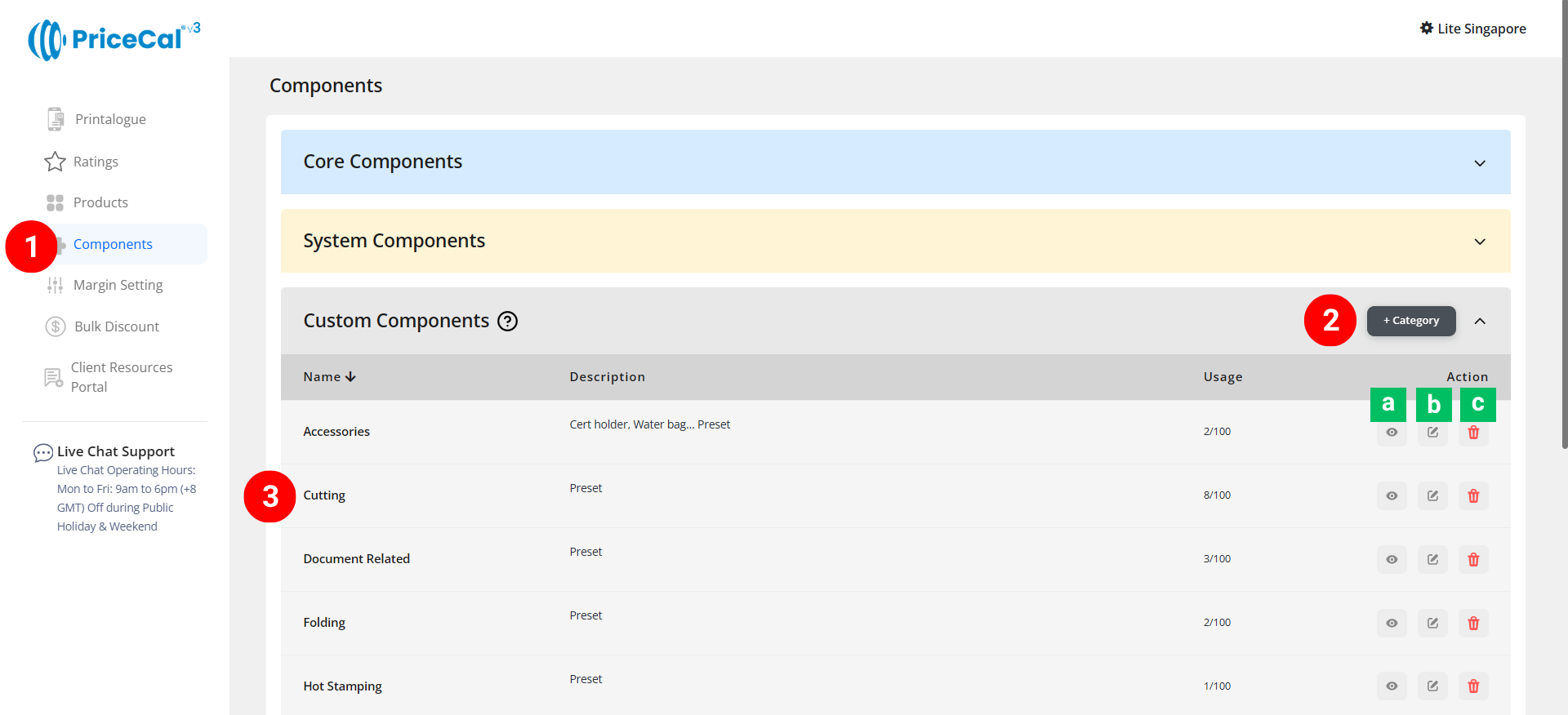
- Go to Component dashboard
-
Add a new category
- Click the category you created
View [a]: Enter the category
Edit [b]: Edit the category name and description
Delete [c]: remove unused category.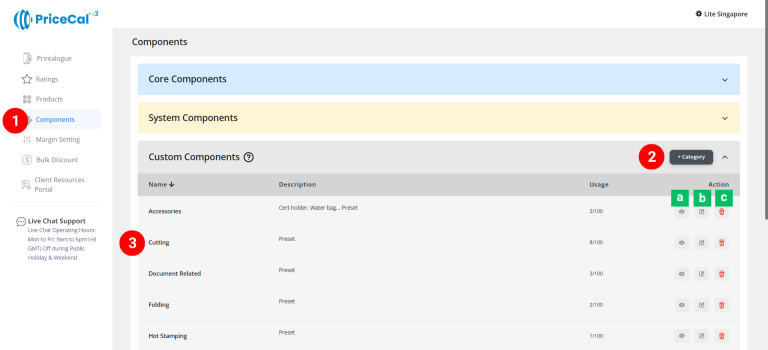
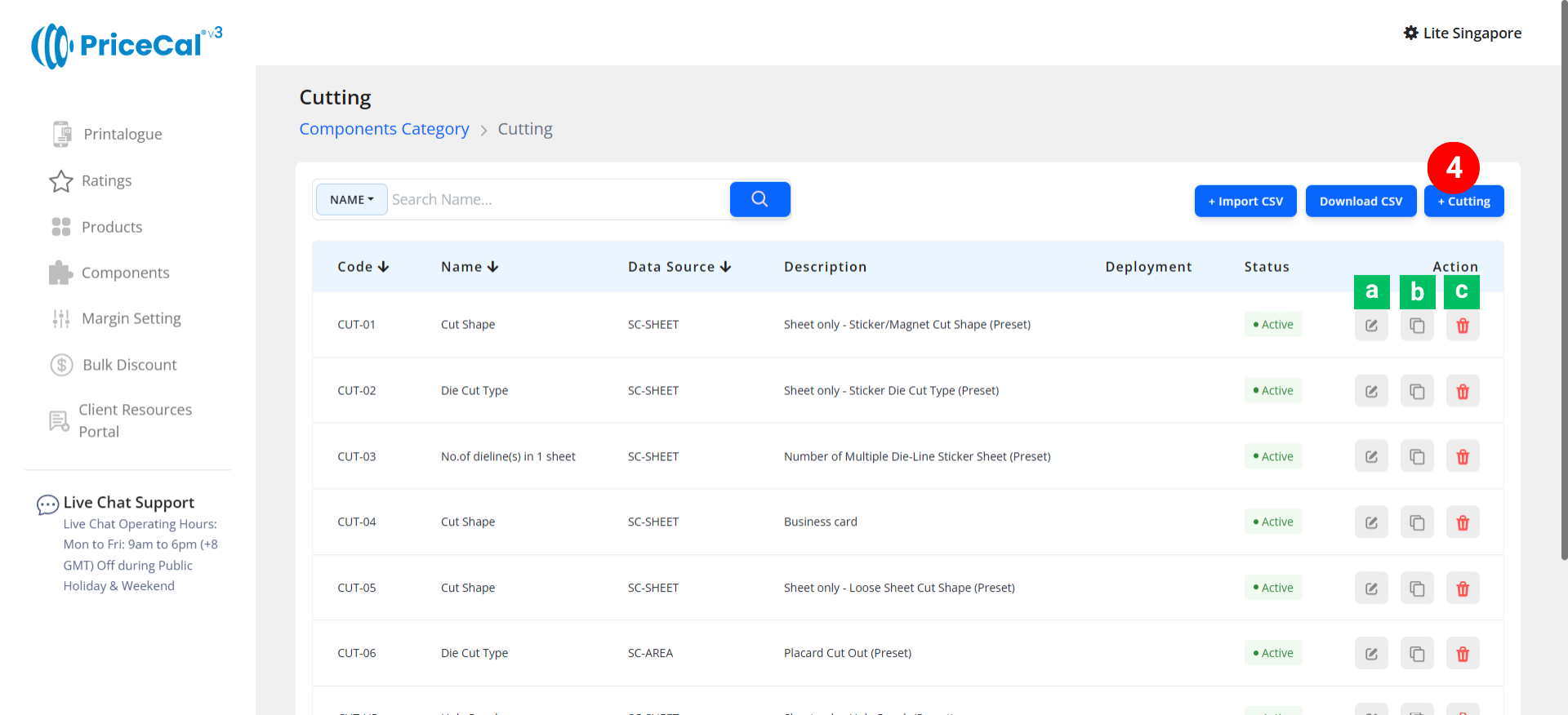
- Add Cutting
Edit [a]: modify existing components.
Duplicate [b]: clone a component setup to reuse and create new.
Delete [c]: remove unused component.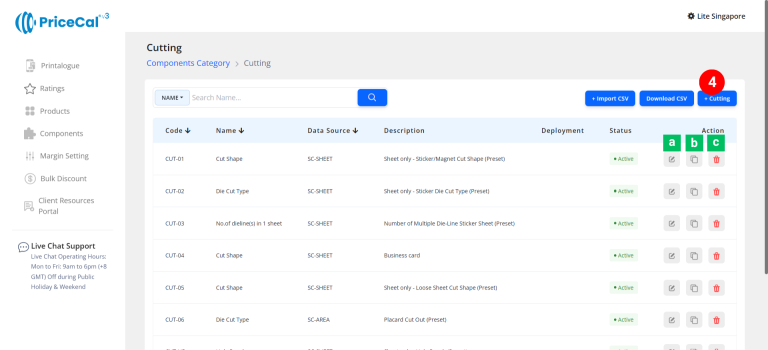
🧱 Create a Custom Component (SC-Sheet / SC-Booklet / SC-Box / SC-Packaging)
Step-by-Step
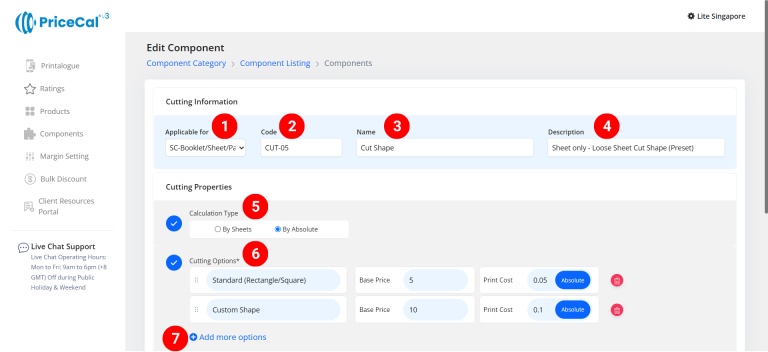
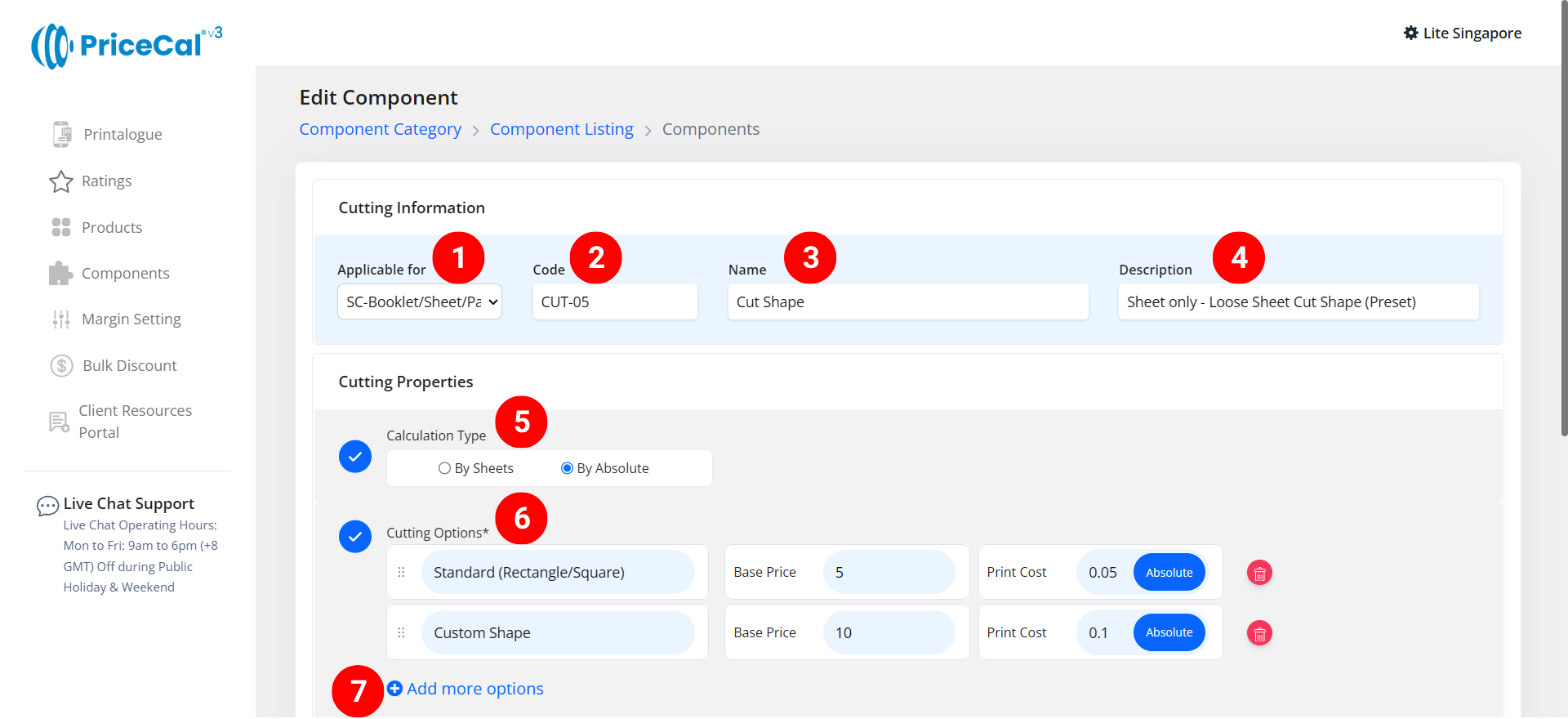
- select “SC-Box/Bkt/Pkg/Sht”
-
Put a unique code (up to 8 units)
-
Enter the component name. i.e. “Cut Shape”, “Cutting Type”
-
Add a short note that helps you quickly identify what this component does.
💡 Example: “Sheet only — Loose Sheet Cut Shape”, “Applicable for packaging cut lines + glued” -
Select the printing cost type.
– By Sheet: calculates how many print pieces can fit within the maximum printable area of one sheet.It then multiplies the number of sheets needed by your per-sheet print cost. (total sheets required x print cost per sheet).
– By Absolute: Calculates the finsihing cost per piece, multiplying the total print quantity by a per-piece rate. (print quantity x print cost per absolute)
💡 Tips: Use “By Sheet” for lamination or surface finishing, and “By Absolute” for cutting, folding, or add-on accessories. - Enter the print cost detail
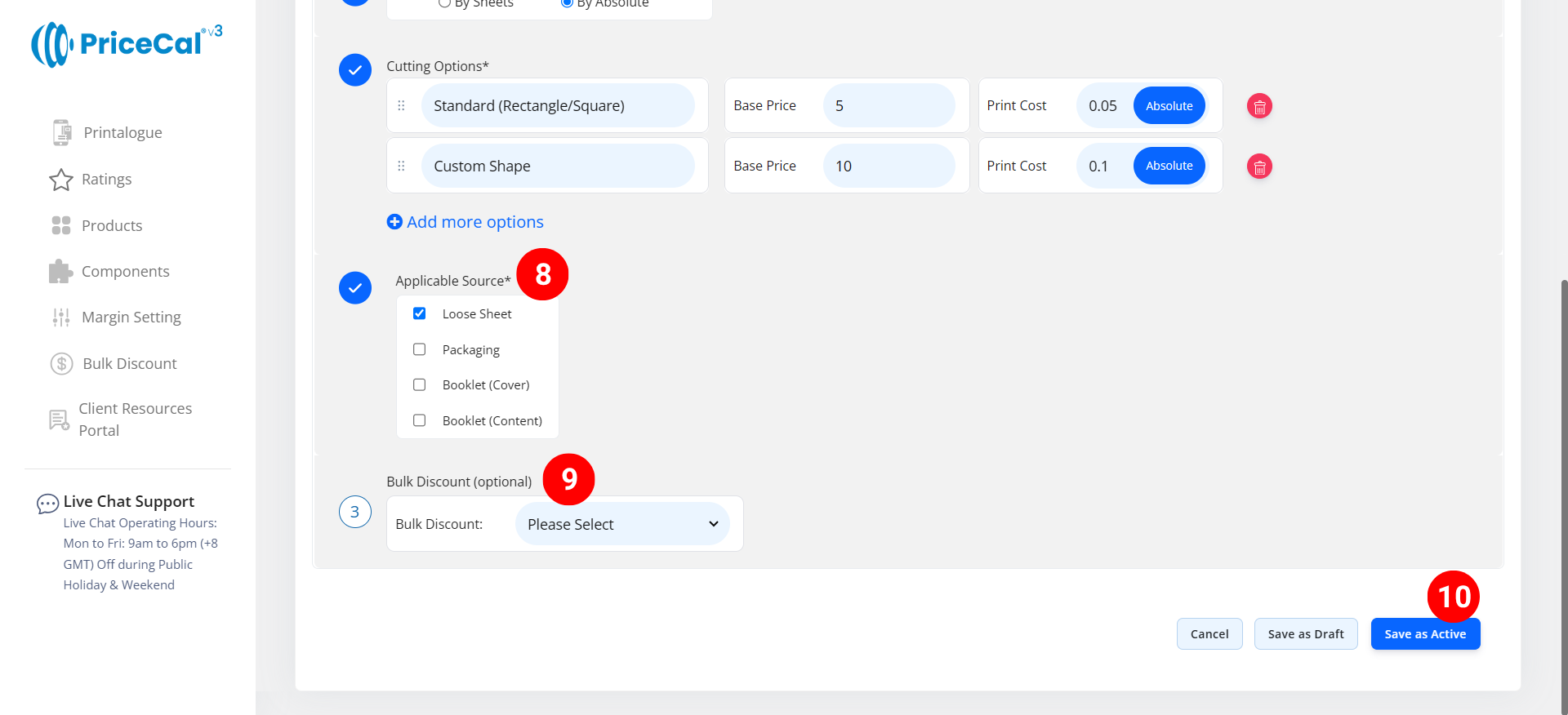
– Selection Name: The name of the specification customers will see (e.g., “Rectangle/Square,” “Custom Shape”, “Kiss Cut”).
– Base Price: One-time setup/startup cost before per-sheet or per-piece cost applies
– Per Sheet: Cost per sheet for this finishing (used when “By Sheet” is selected)
– Per Absolute: Cost per individual piece (used when “By Absolute” is selected) -
Add new line if you have other finishing specifications available for your customers to choose from
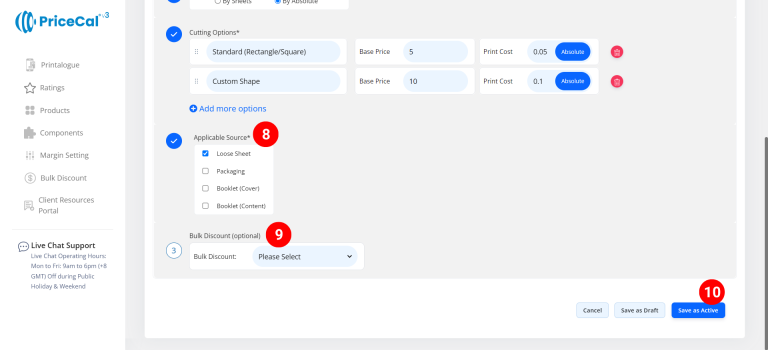
- In “Applicable Sources”, tick the product types for which this finsihing can be used.
If service only suitable product by sheet (such as business card), then just tick “Loose Sheet”. If it’s also can print booklet or packaging, then you can also tick them.
– Loose Sheet: for sheet form product (SC-Sheet)
– Packaging: for packaging box product (SC-Box and SC-Packaging)
– Book Cover: for booklet Cover pages only (SC-Booklet)
– Book Content: for booklet Content pages only (SC-Booklet)🧩 You can tick multiple product types if the finishing applies to several categories.
- (optional) Set a Bulk Discount. If no need, just keep it in “Please Select”
Tips: When the cutting cost per piece is higher than desired at large quantities, apply a bulk discount to reduce it automatically. -
Click “Save as Active” to finalize your additional finishing setup.
💡 Tips for Best Results
-
Use “By Sheet” for lamination, varnish, or coating — processes done on full sheets.
-
Use “By Absolute” for per-item work like cutting, creasing, folding, or packaging assembly.
-
Apply selectively. Not every finishing applies to all product types — limit to relevant ones for clarity.
-
Add a bulk discount when large-volume orders make production more efficient.
-
Name clearly. Include the process type in the component name (e.g., “Cutting Type – Kiss Cut”).