Best for:
Large-format printing · Inkjet printing · Area-based pricing · Custom sizes
Banners are typically priced by print area (width × height) instead of sheet count.
When you print banners in-house and need to support custom sizes, different materials, and finishing options, SC-Area is the most suitable product type.
When to Use SC-Area for Banners
Use SC-Area if you:
- Print banners in-house
- Use large-format / inkjet printers
- Price products by square size (sqft)
- Support custom width and height
- Offer material-specific finishing (eyelet, hemming, pole pocket)
A. First for all, you need to add a new product
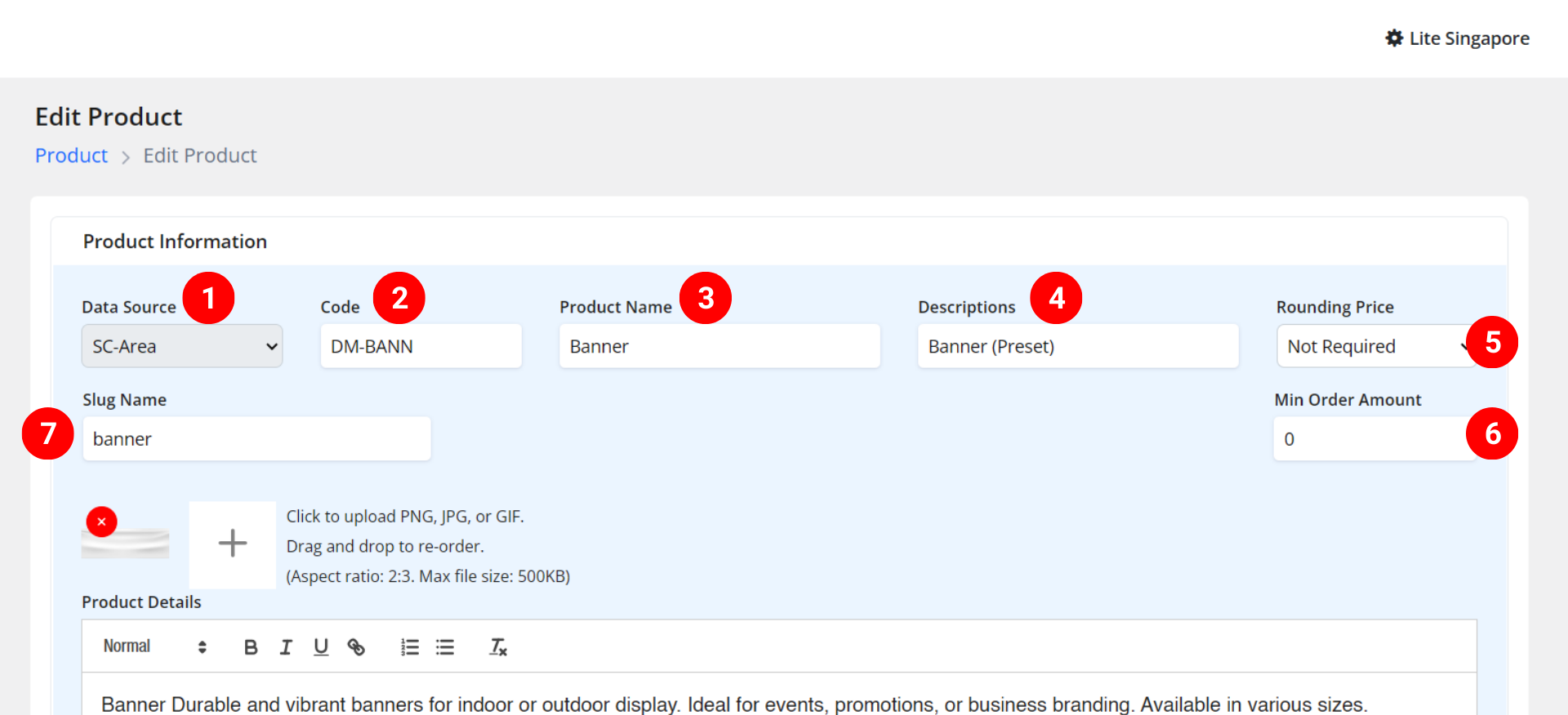
1. Select Product Source: SC-Area
2. Enter the product code: You can enter your product SKU or product abbreviation. Example, Demo-Banner >> DM-BAN
3. Product Name: Banner
4. Description: In-house production (only admin can view this in the PriceCal dashboard)
5. (Optional) Set rounding to set the price to an integer based on your market price
6. (Optional) Min Order Amount: for min charge for this job no matter the size or quantity.
Example: If you select a print price of $9, but the minimum order amount is $15, then this order will be charged $15 unless the print price is higher than $15.7. Enter the slug name: banner
Slug must be lowercase, contain only letters, numbers, and ‘-‘, and cannot start or end with a ‘-‘
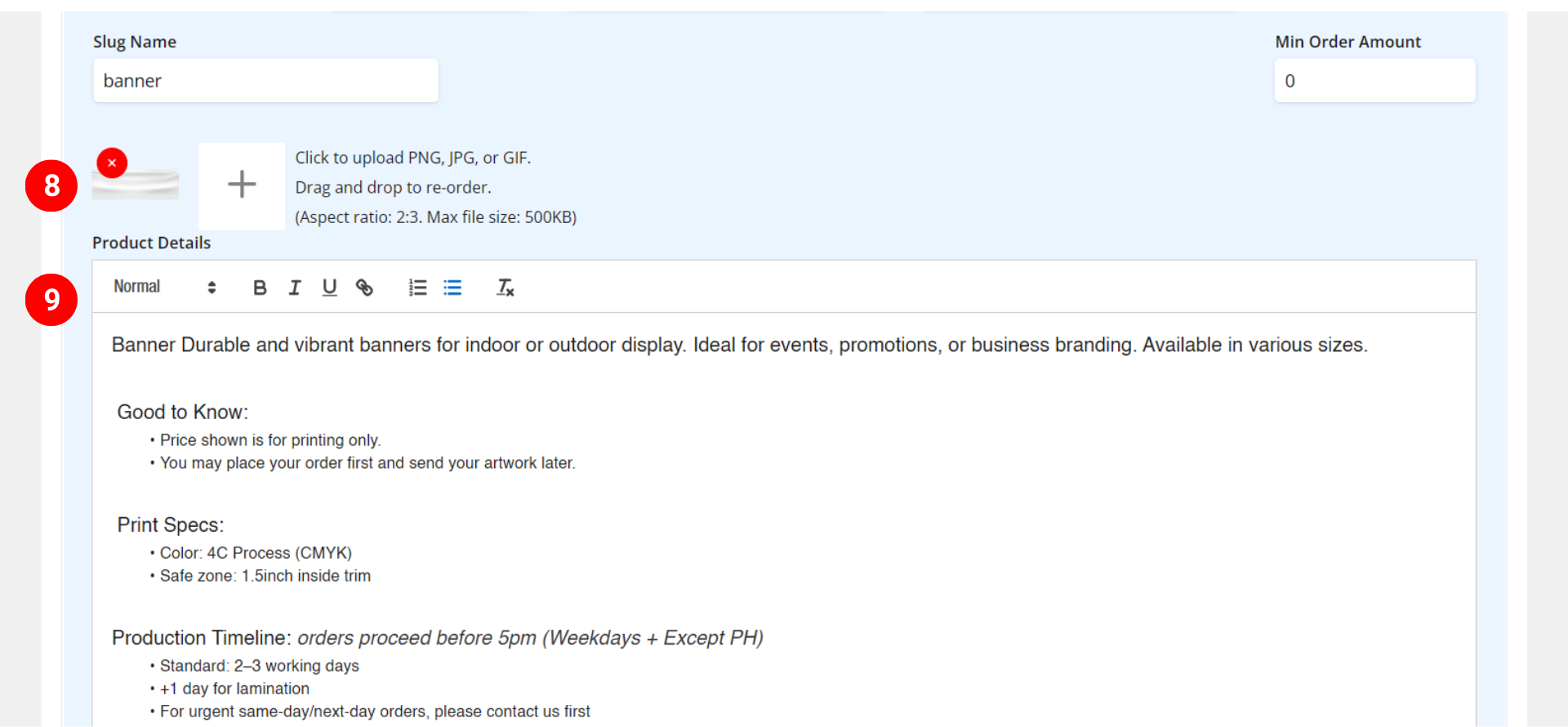
8. Upload your banner product image
9. Fill in your product description, important information that needs to be communicated to customers, such as “Good to know”, printing specs, production timeline, etc
🔗 Related tutorial: SC-Area Product Creation
B. Add Material
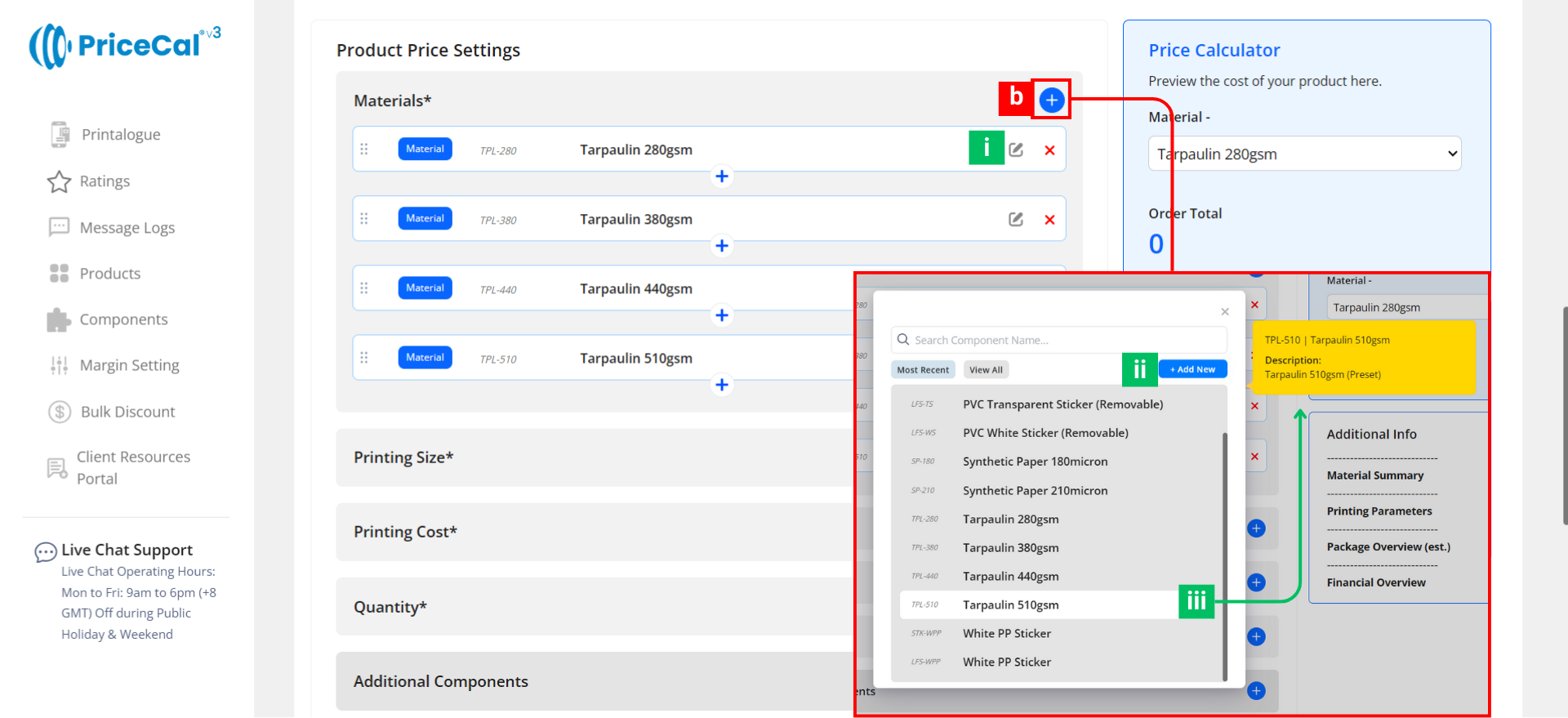
- Example: Tarpaulin 280gsm
- Add more paper options if needed
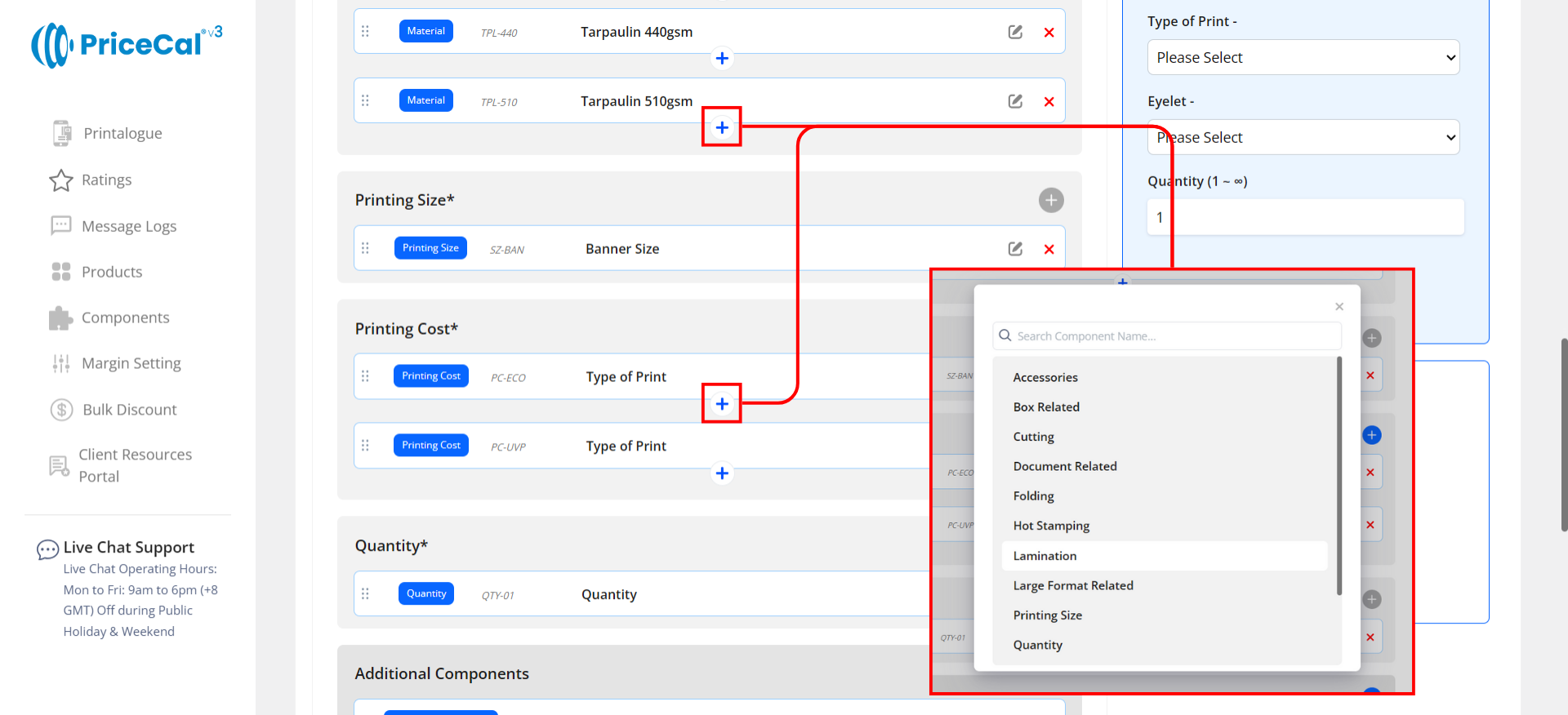
i. Edit current component
ii. Add new component directly without going to the Component page.
iii. Hovering the mouse over a component will display its description, making it easy to understand what this component is before selecting it.
This image shows how a roll-form Material component is typically set up, so you can understand what each field means before creating your own.
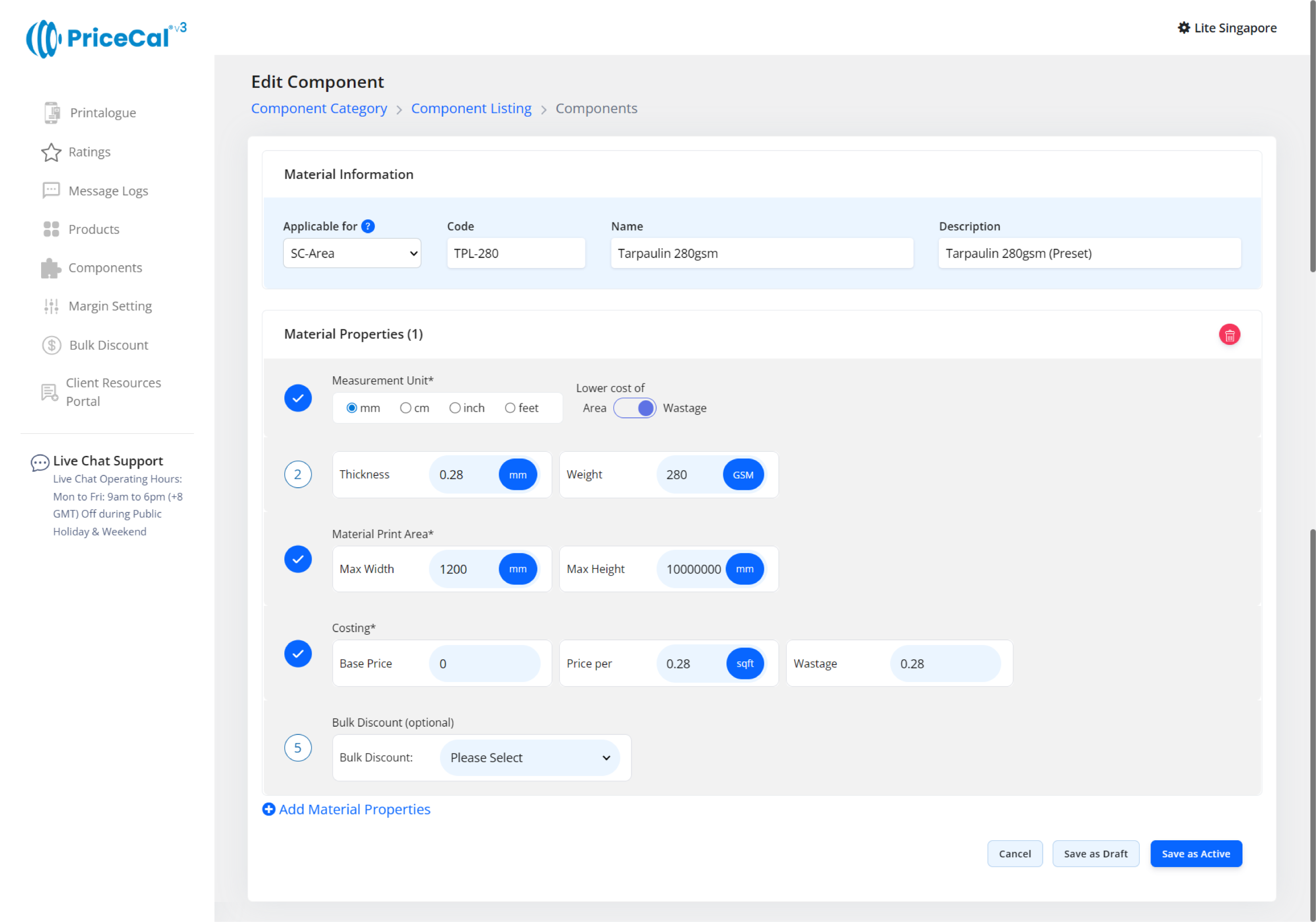
🔗 Related tutorial: Material Component Setup (Full Guide)
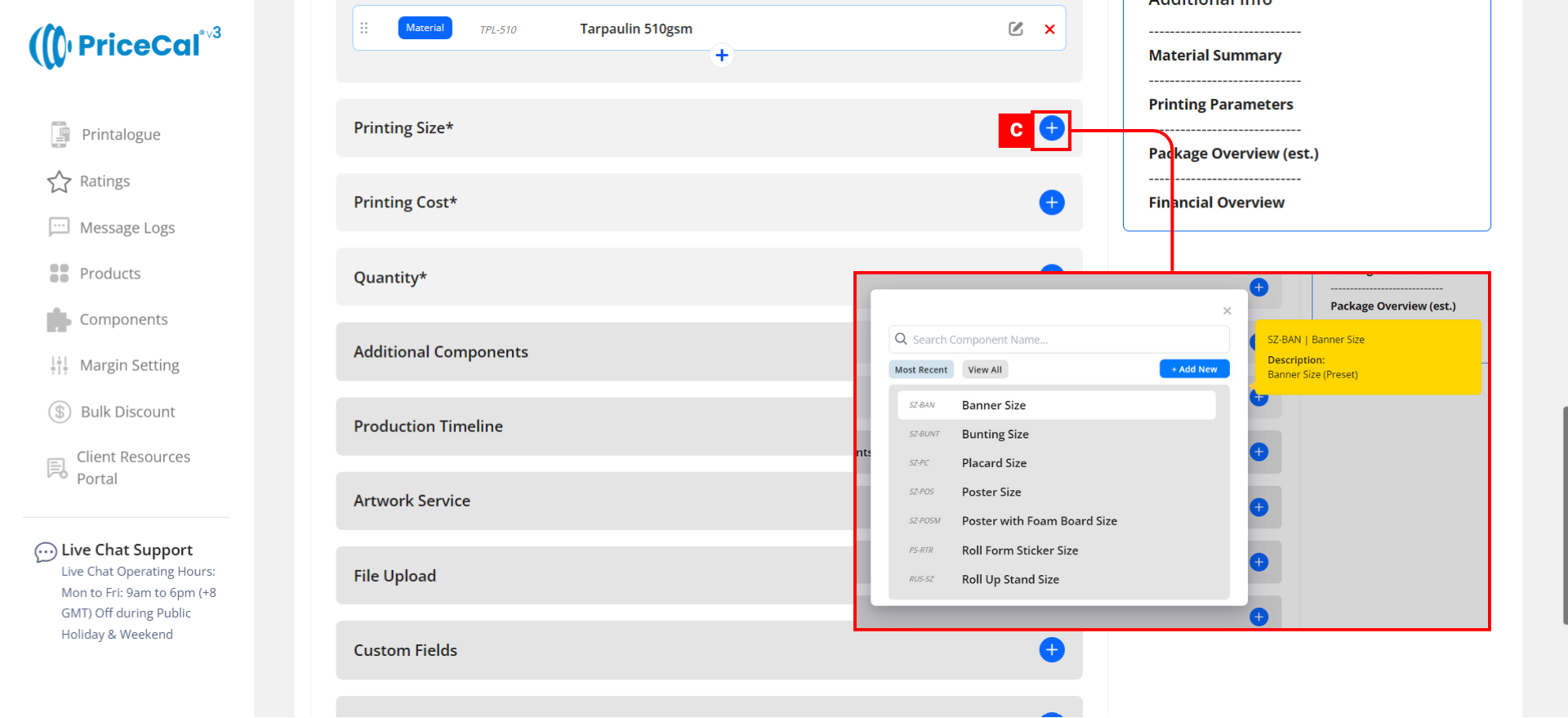
C. Define Printing Size
- Size label: Banner Size
- Nesting type: Multi-Row Extension
- Enable bleed in the printing size component
This image shows how a banner printing size component is typically set up, so you can understand what each field means before creating your own.
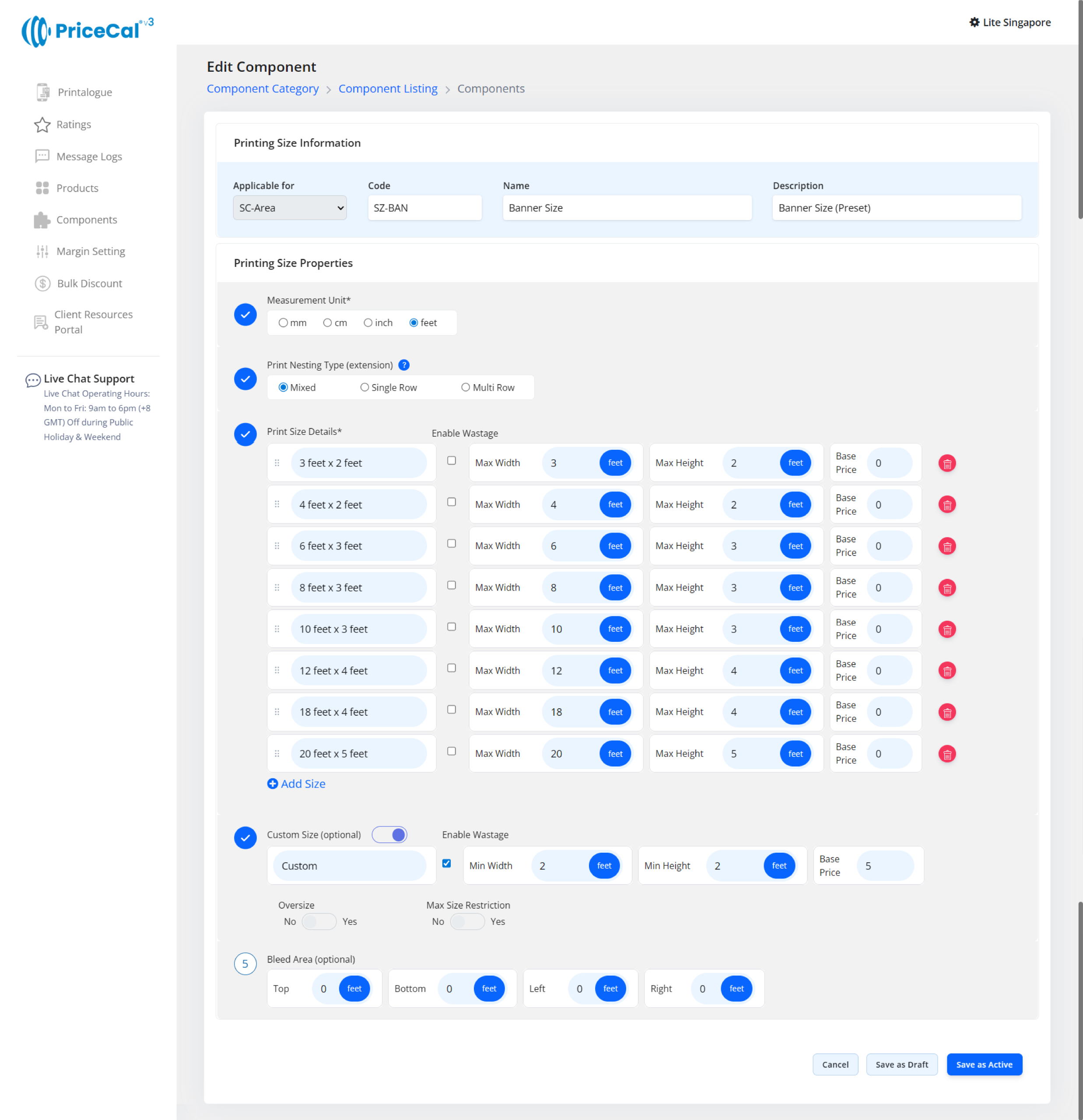
🔗 Related tutorial: SC-Area Printing Size Setup (Full Guide)
D. Set Printing Cost
- Select printing type (Eco-Solvent / UV Print), can also split them to be 2 different components.
- Define cost per SQFT
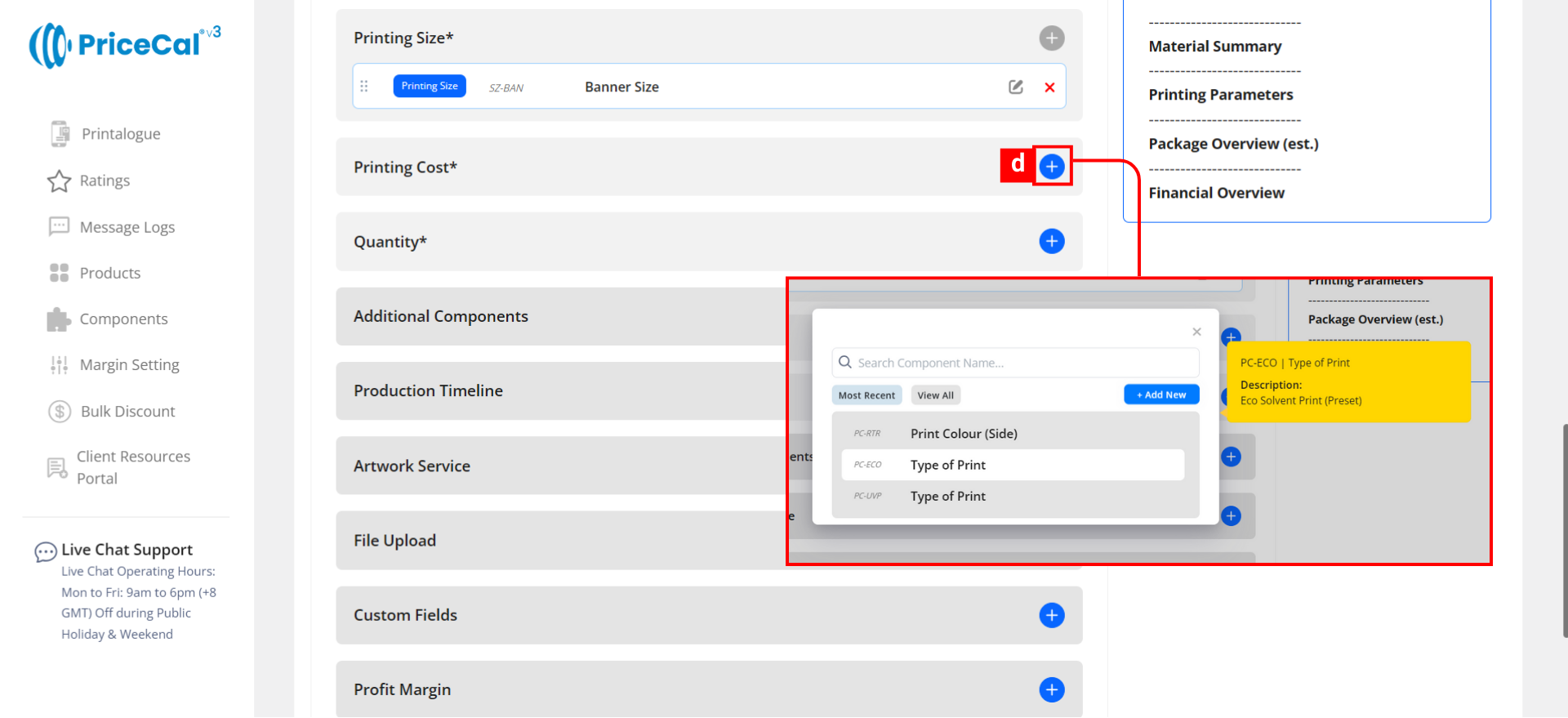
This image shows how a printing cost (printing type/side) component is typically set up for banner or the other products can be large format printed, so you can understand what each field means before creating your own.
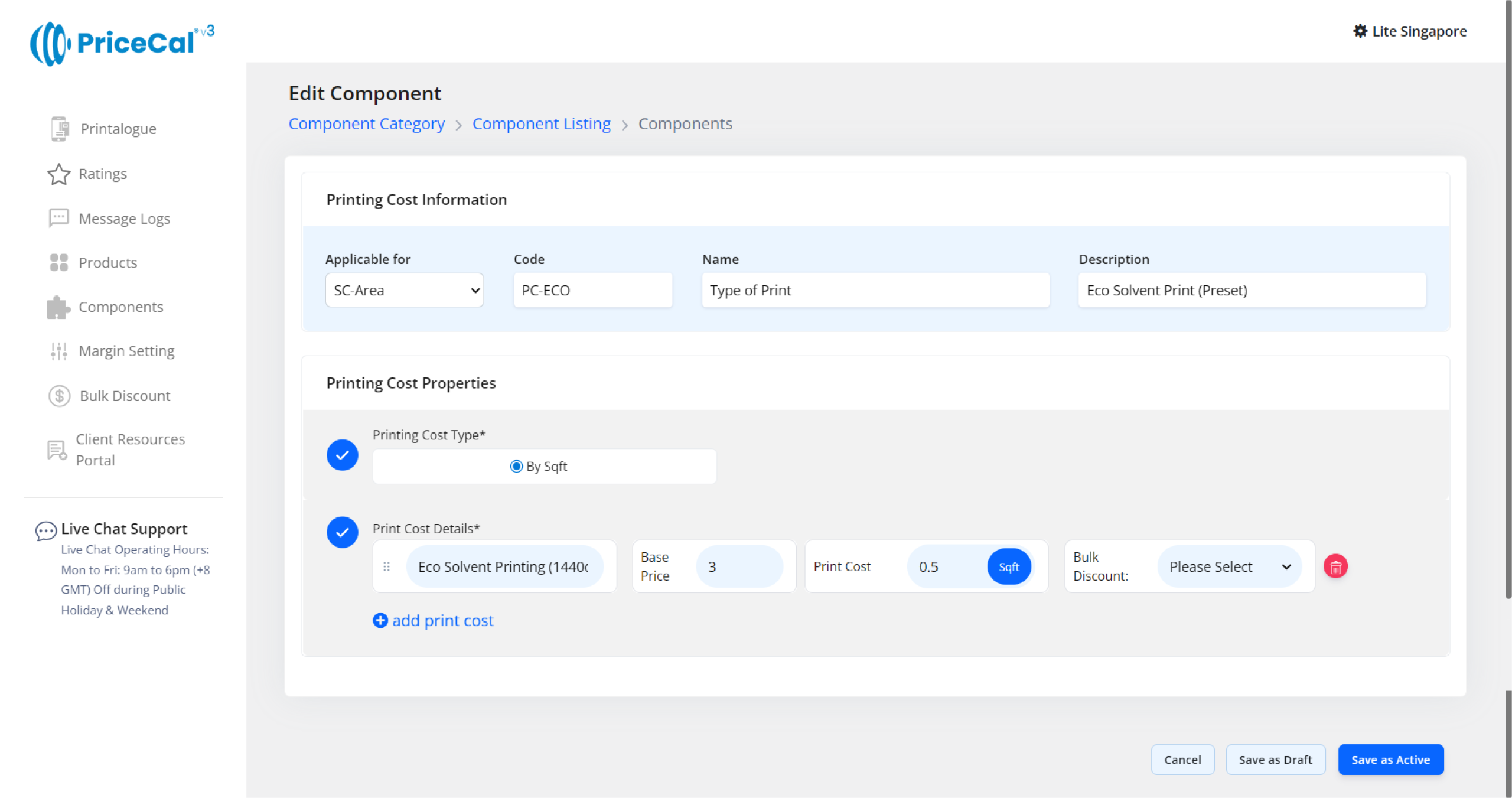
🔗 Related tutorial: Printing Cost Setup (Full Guide)
E. Quantity Selection
- We need to use “Min/Max” so that customers can enter the custom quantity they want to print.
- System will display a quantity field for the customer enter the quantity number.
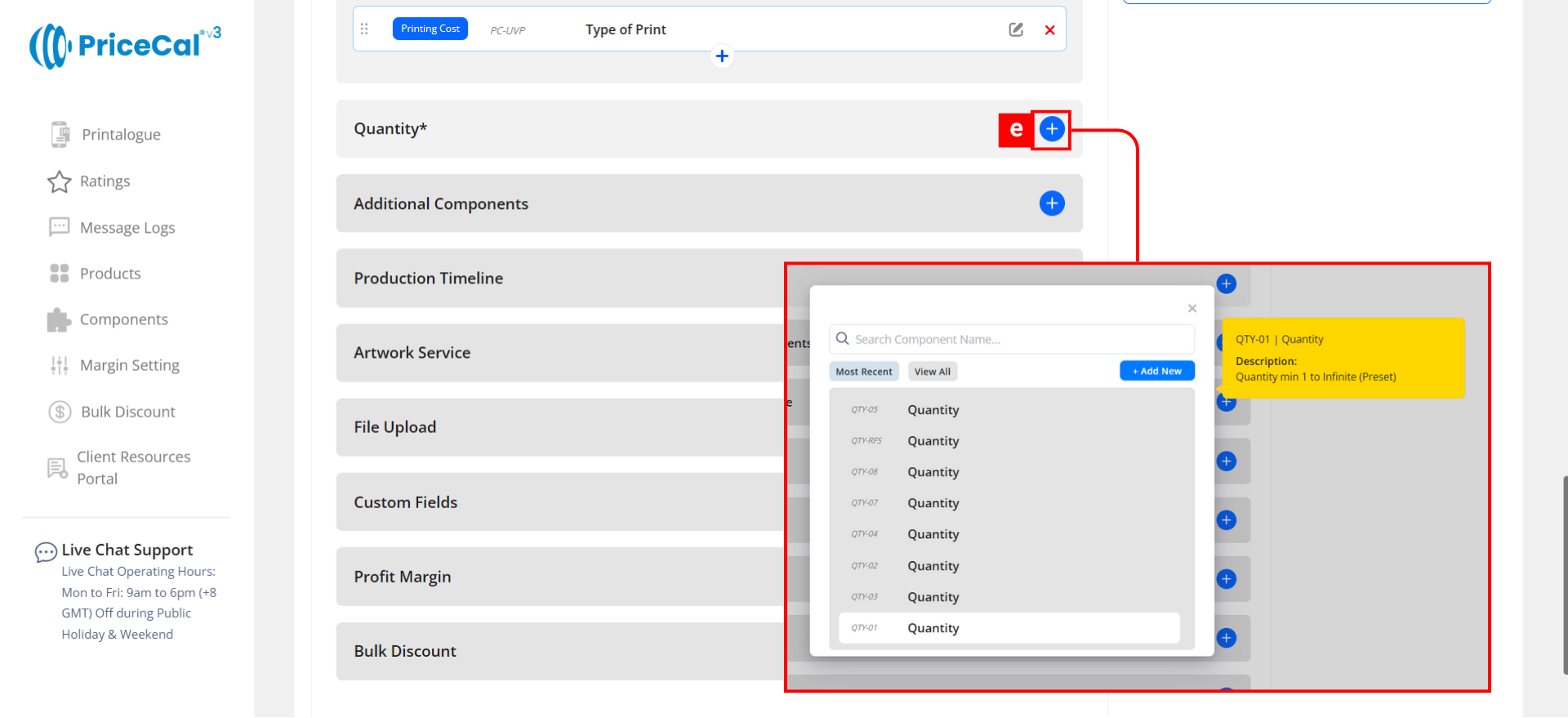
This image shows how a quantity component is typically set up, so you can understand what each field means before creating your own.
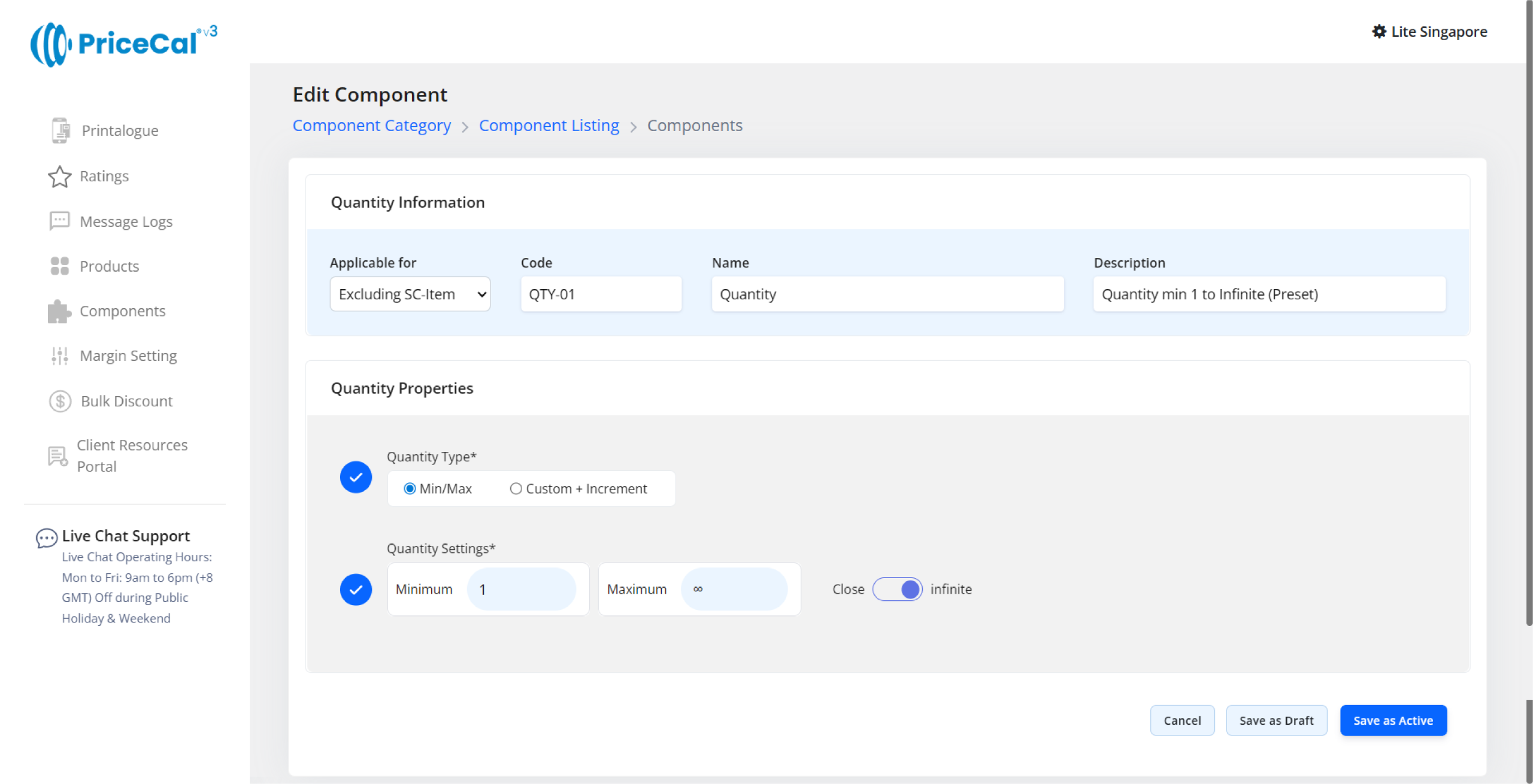
🔗 Related tutorial: Quantity Component (Full Guide)
F. Optional Add-ons
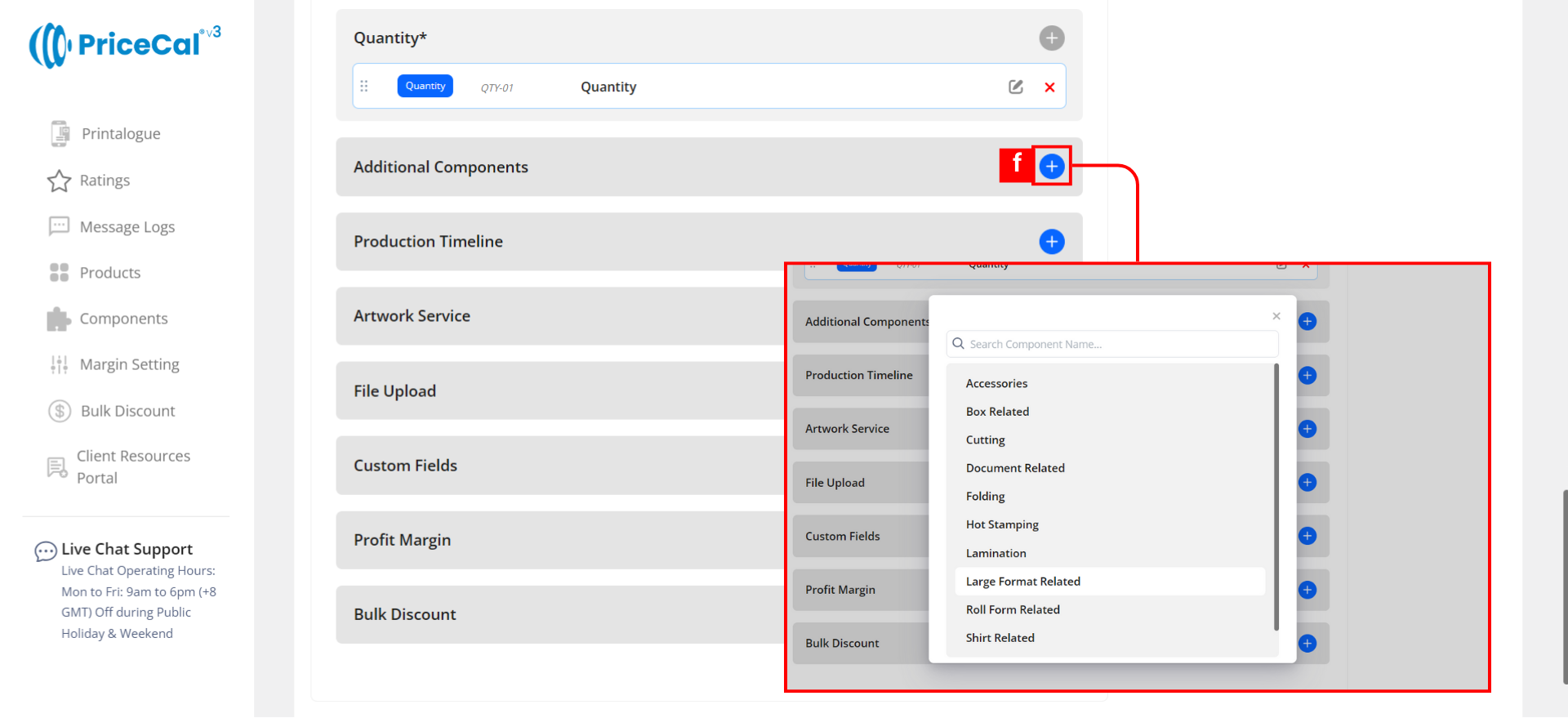
-
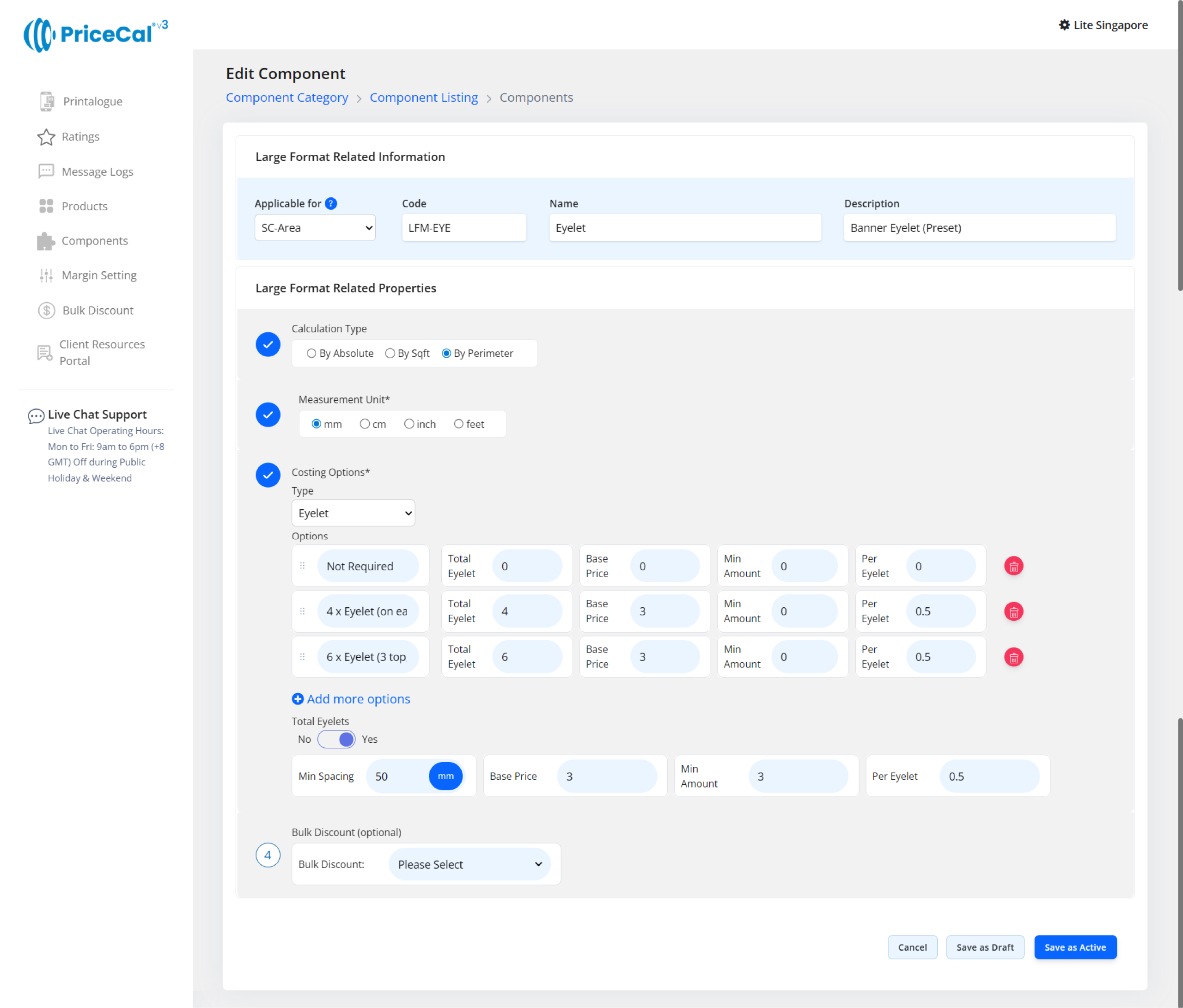
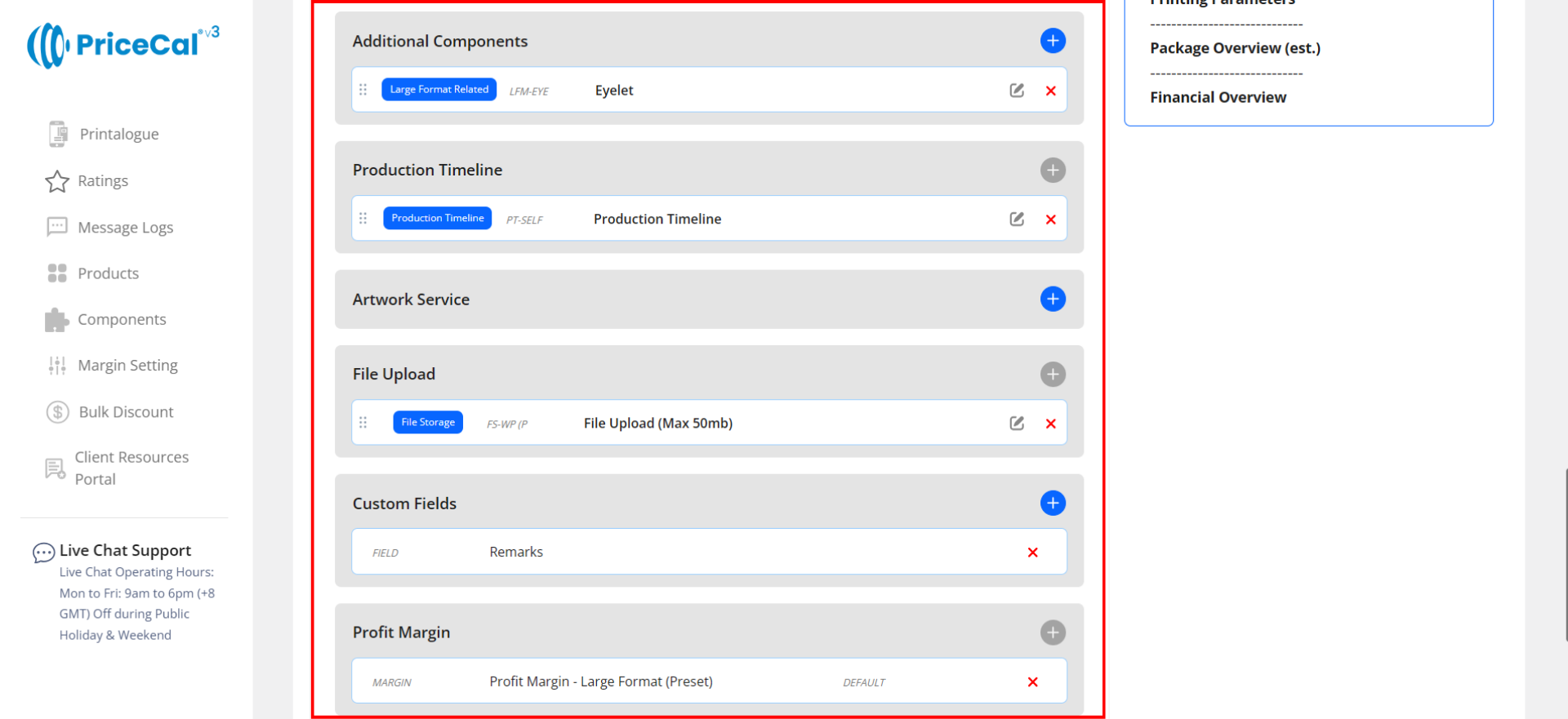
Custom Component: choose the finishing component category like Lamination, Cutting Finishing, Eyelets. And add the component.
Tips 💡: You can add unique components to a material.For example, if custom component lamination cannot be used on all materials or Printing Cost, then we need to attach the lamination component under the applicable materials or Printing Cost.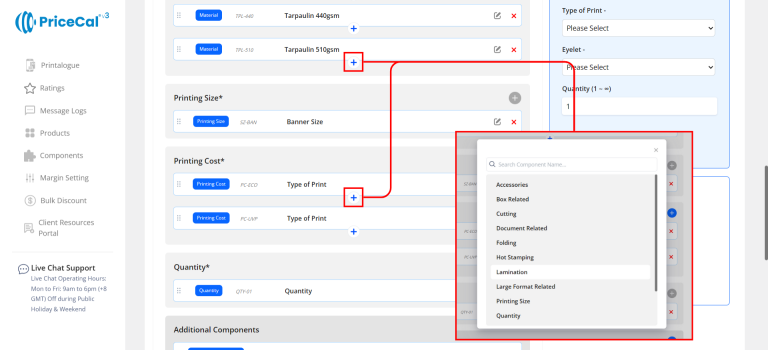
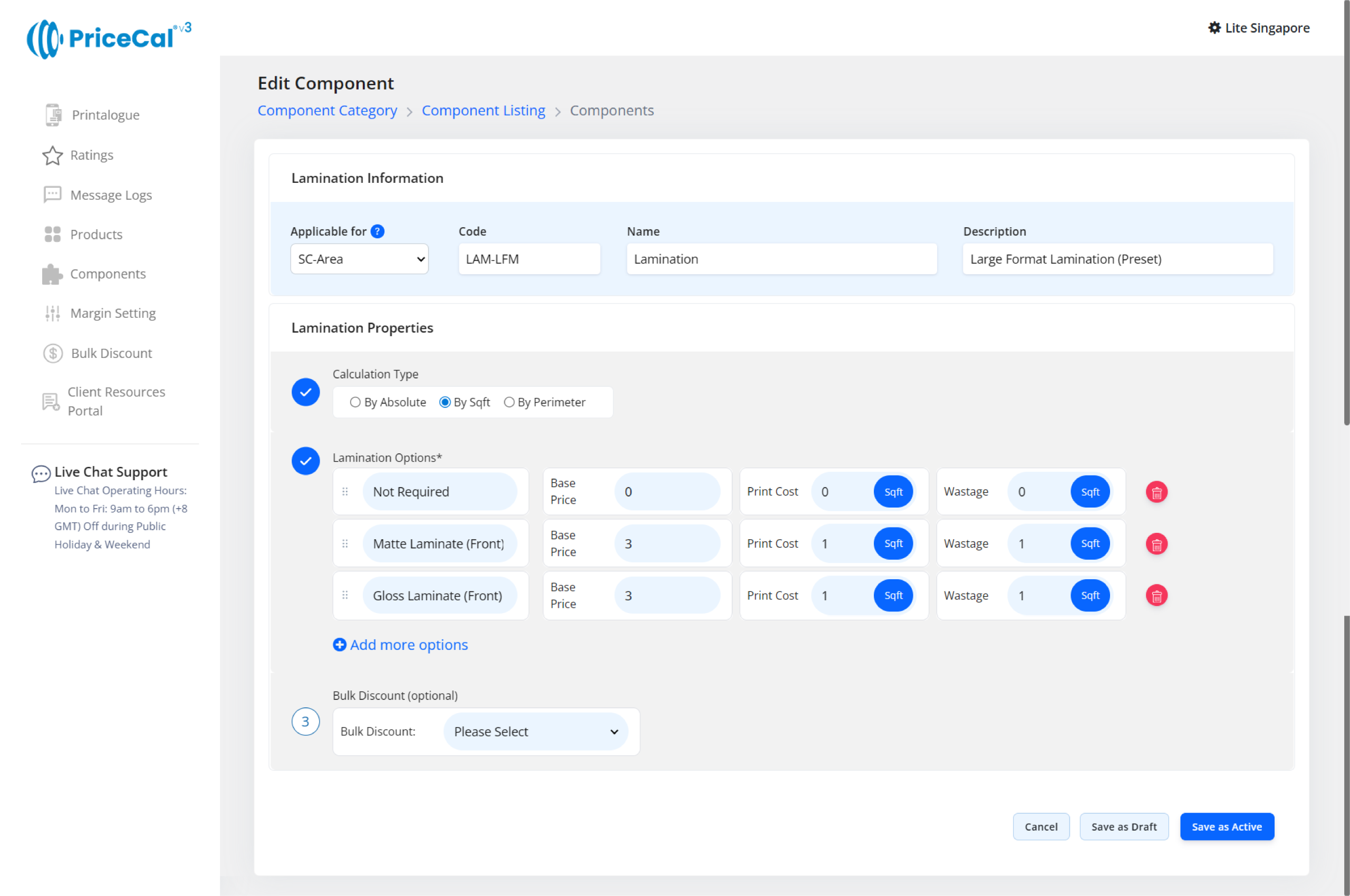
This image shows how a custom component is typically set up, so you can understand what each field means before creating your own.
– Lamination (by SQFT)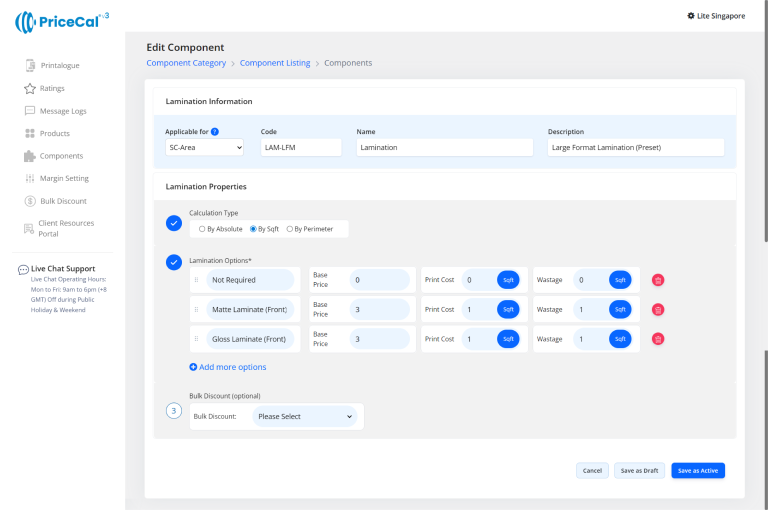
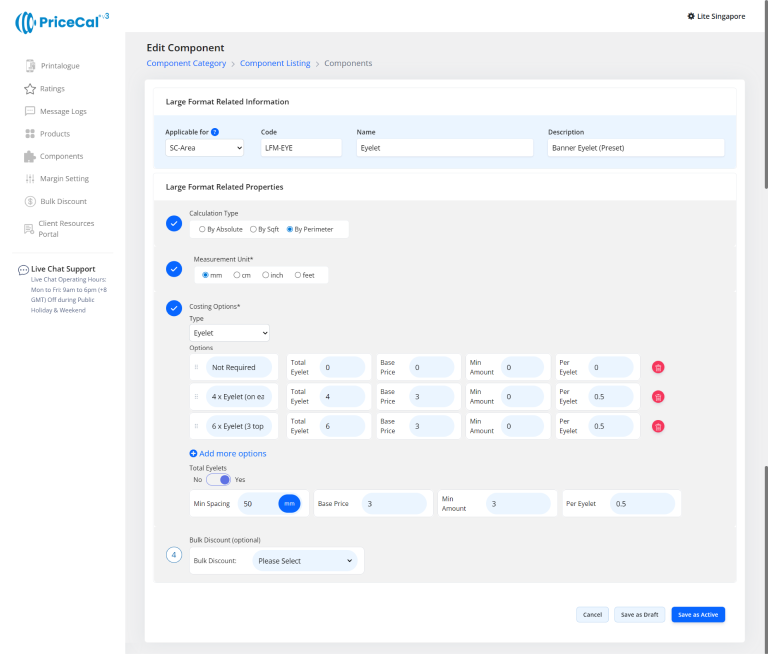
🔗 Related tutorial: Custom Component (Full Guide) and Eyelet Setup.
-
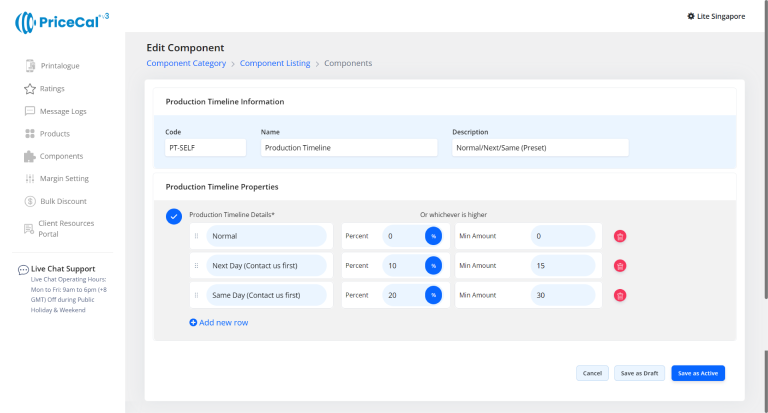
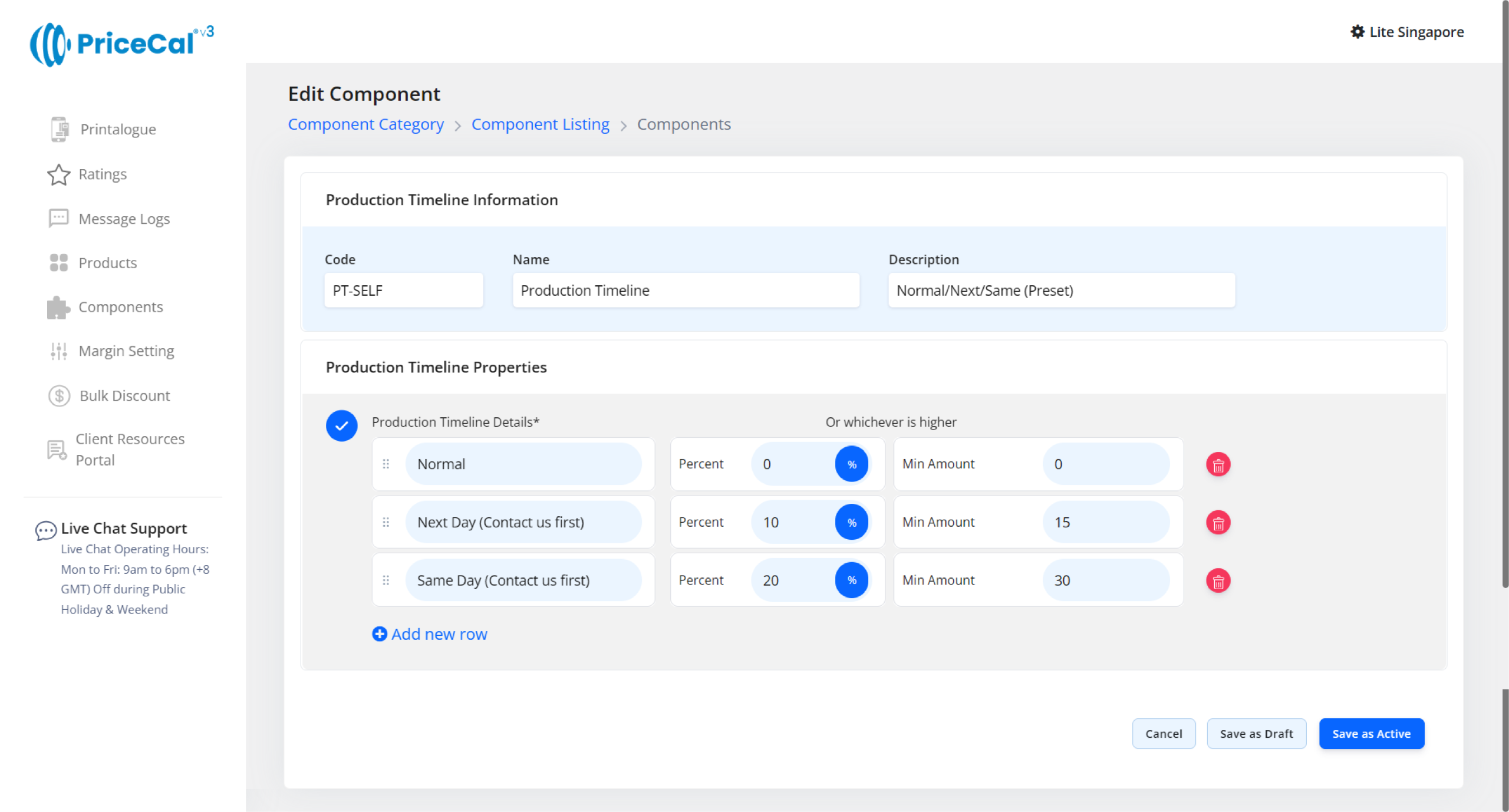
Production timeline: As this is in-house production, you can control production time to provide flexible production speeds (Normal/Next Day/Same Day).
-
File Upload: Enable file upload and select storage location (WordPress or Dropbox). [Only displayed after integration into WordPress website]
-
Custom Fields: Collect extra info or artwork links (e.g., Google Drive link, ).[Only displayed after integration into WordPress website]
-
Profit Margin: Apply different profit percentage levels for display system product or large format print product category.
-
Bulk Discount: If you want to automatically apply discounts to bulk orders, apply a Bulk Discount to the product.
G. Preview & Publish
i. Check cost breakdown: You can view the corresponding costs based on the selected print size and quantity.
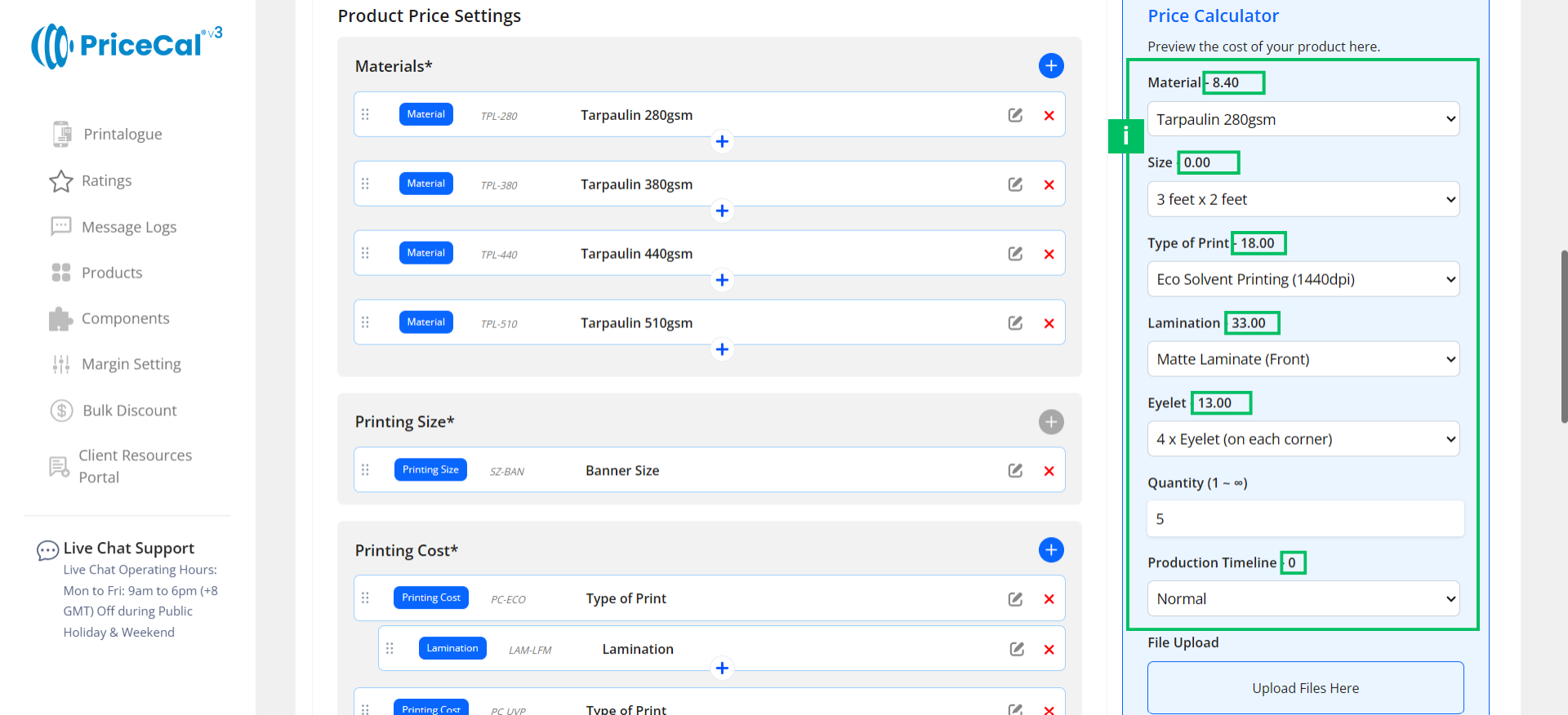
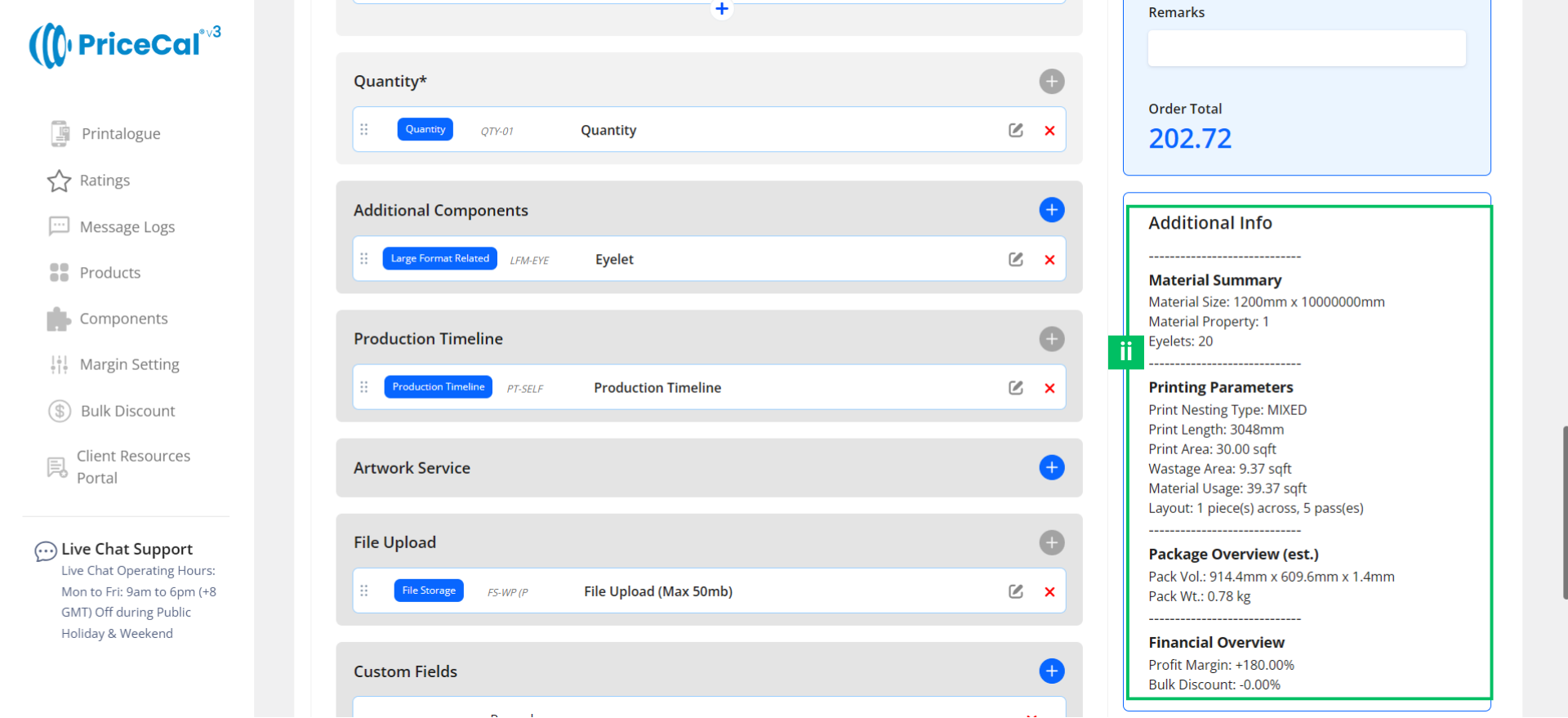
ii. Check the additional inform: Get instant calculation insights
-
- Material Summary – Shows the maximum print area of the material selected in the Price Calculator.
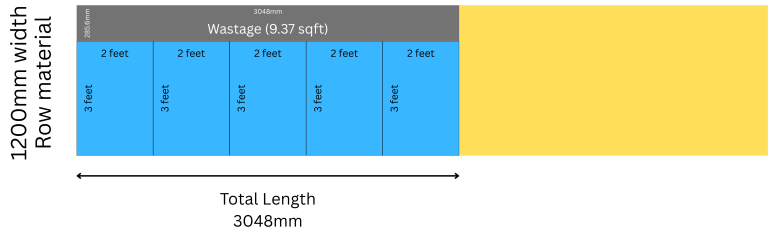
- Printing Parameters – Displays the nesting type, print length, print area, wastage area, usage and layout.
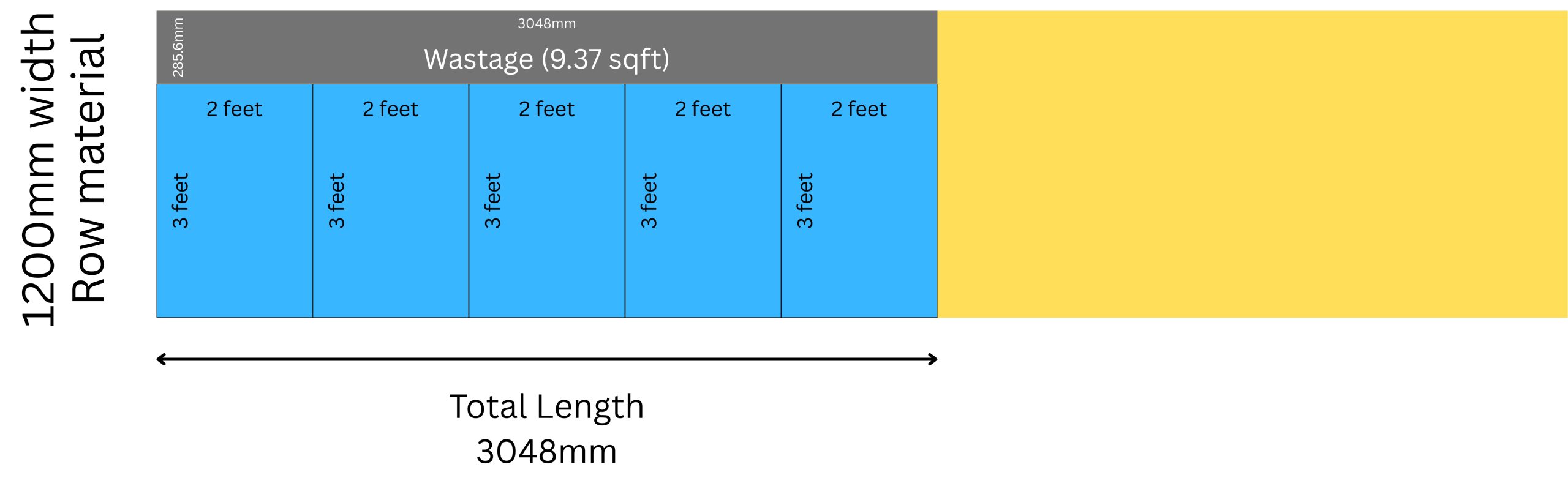
Example (banner 3ft x 2ft, 5pcs):- The selected print size is 3ft x 2ft, it’s 6 sqft
- Wastage is 285.6mm (max width of material – print width) x 3048mm (total height) = 9.37 sqft
- To produce 5 pcs, total print sqft = ⌈6/5pcs⌉= 30 sqft
- Package Overview (est.) – Estimates volume and weight based on GSM, material thickness, and quantity.
- Financial Overview – Summarizes the applied profit margin and any bulk discount applied.
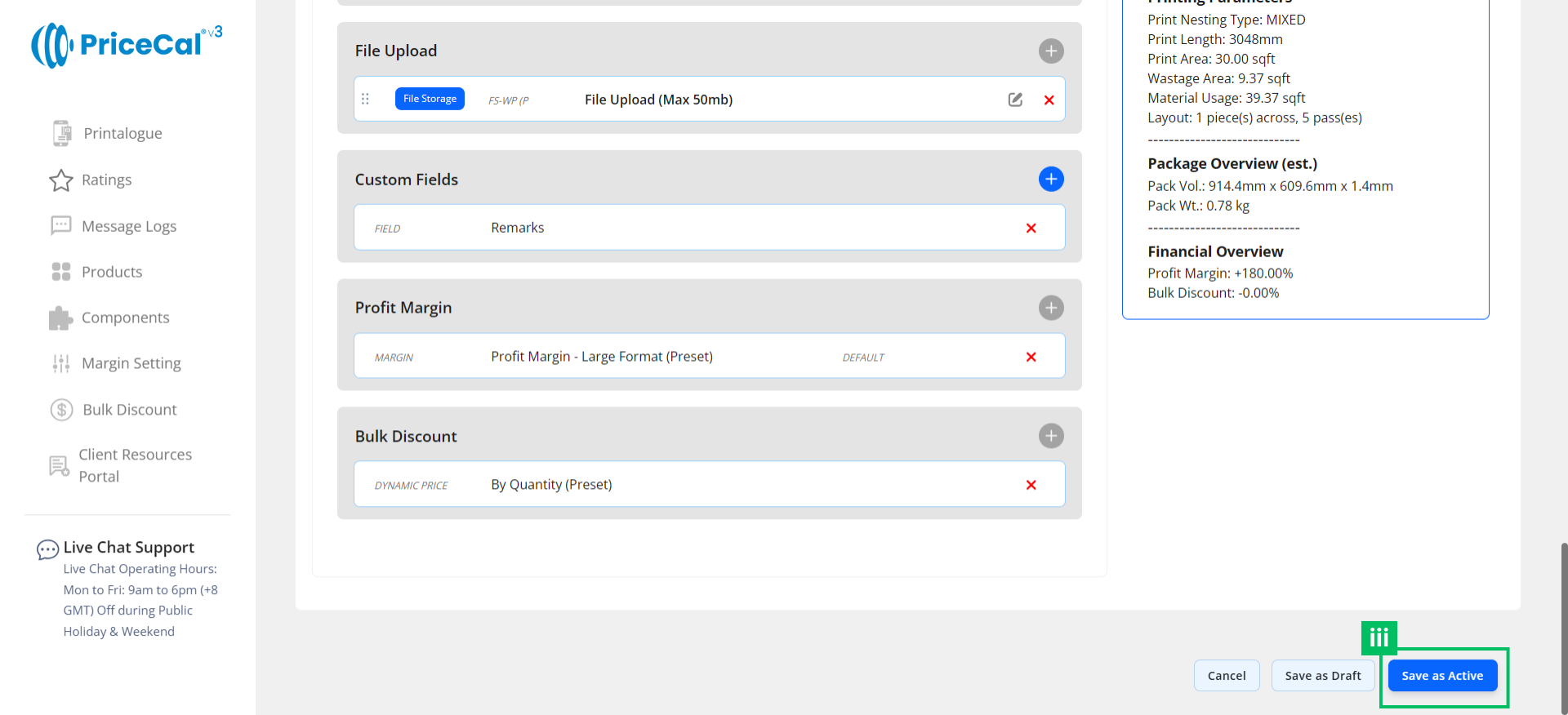
iii. Click Save as Active
✅ Result: Accurate, scalable pricing for custom-size banner printing.
Final Outcome (Customer Experience)
Customers can:
- Enter custom banner size
- Choose material and finishing
- Instantly see price based on area
- Upload artwork
- Place orders confidently
- Contact the print shop via WhatsApp